Contents
Open a section to see its topics, then select a title to jump there.
Trade Dashboard Description
This tool is built with a wide range of advanced features to make trade management faster, more accurate, and more efficient. Below, you’ll find a complete breakdown of all available functions and settings.
Unlike traditional Expert Advisors that require constant interaction with complex input settings, Trade Dashboard is designed to work directly on the chart using visual controls and interactive objects. All actions and settings can be managed visually on the chart, eliminating the need to repeatedly open the EA inputs window — even for saving and loading settings.
🎛️Dashboard Controls
📉 Minimizer
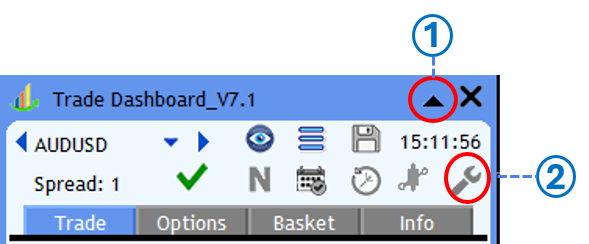
The Minimizer (1) feature allows you to reduce the dashboard into two compact floating bars, giving you a cleaner and less obstructed view of the chart while keeping essential trading tools accessible.
The wrench icon (2) opens the Settings window.

The upper bar provides quick access to symbol switching and the Buy/Sell Line tool for visual trade placement directly on the chart.
The lower bar contains essential trading buttons including Buy, Sell, Risk setting box, Close All, Close %, and Breakeven.
Both bars can be dragged independently using Handle (3) located on the left side of each bar, where the company logo is displayed.
The lower trading bar remembers its last position on the chart for a more convenient workflow.
Click the Minimizer icon (4) on either bar to restore the dashboard to its full size.
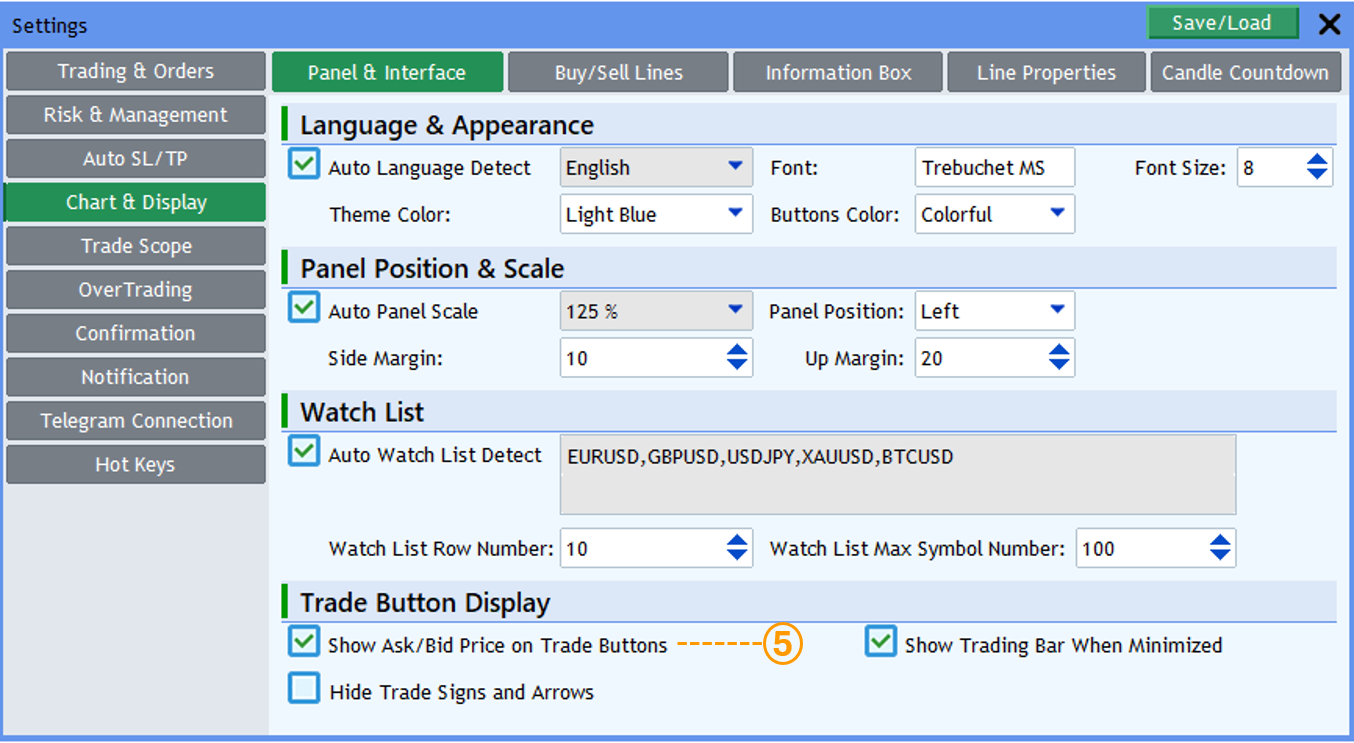
The second trading bar can be disabled from: Settings (2) → Chart & Display → Panel & Interface → “Show Trading Bar When Minimized”
🔄 Symbol Switcher
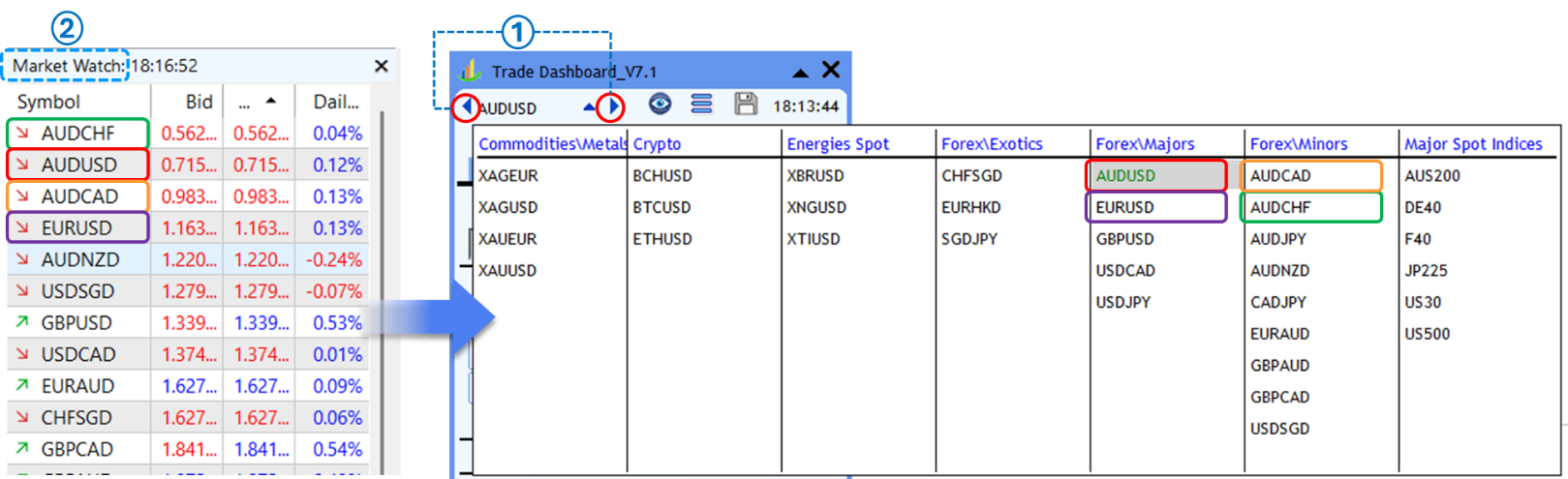
The Symbol Changer allows you to quickly switch between trading instruments directly from the dashboard without manually opening charts from the Market Watch window.
Press the left/right arrows (1) to quickly switch between previous and next symbols.
Click on the symbol name or the down arrow icon to open the full symbols list.
The symbols list is automatically categorized into market sections (Forex Majors, Forex Minors, Cryptos, Metals, Energies, Indices, etc.), and symbols inside each section are sorted alphabetically.
By default, the list is generated automatically from your MetaTrader Market Watch list (2). You can customize the displayed symbols simply by hiding or showing instruments inside the Market Watch window.
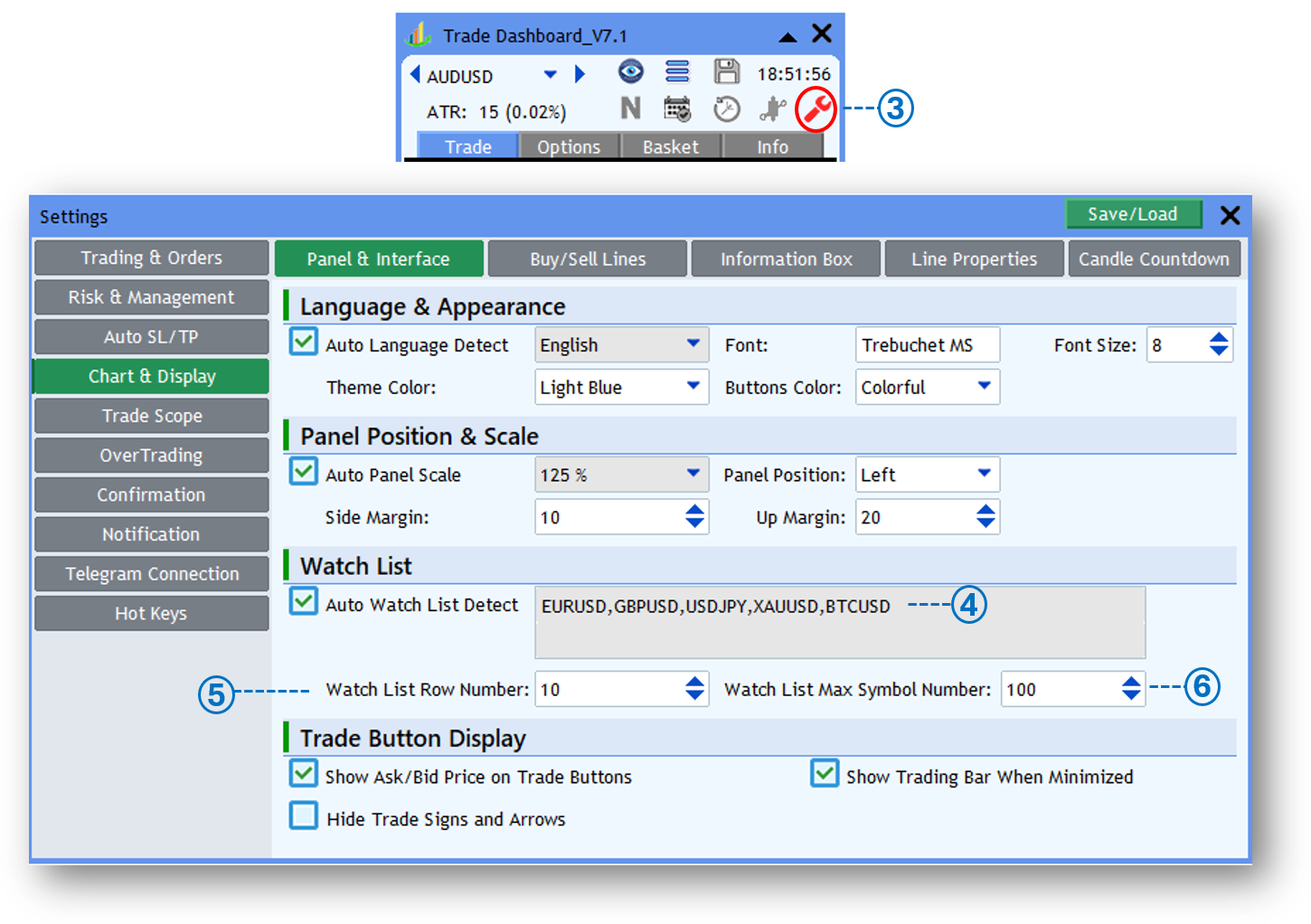
For advanced customization, open settings (3):
Settings → Chart & Display → Panel & Interface
If Auto Watch List Detect is unchecked (4), you can manually define your own symbols list by entering symbol names separated with commas.
The manual symbols input field has a limited character capacity. Depending on the length of the symbol names, approximately 12 to 20 trading instruments can be added to the custom list.
When using a manually defined symbols list, the dashboard preserves the exact order of the entered symbols and does not sort them alphabetically.
You can also configure:
The number of symbols shown per column (5)
The maximum number of symbols displayed in the Trade Dashboard list (6)
This provides a faster and more organized workflow when trading multiple instruments.
📊 Spread / ATR Display
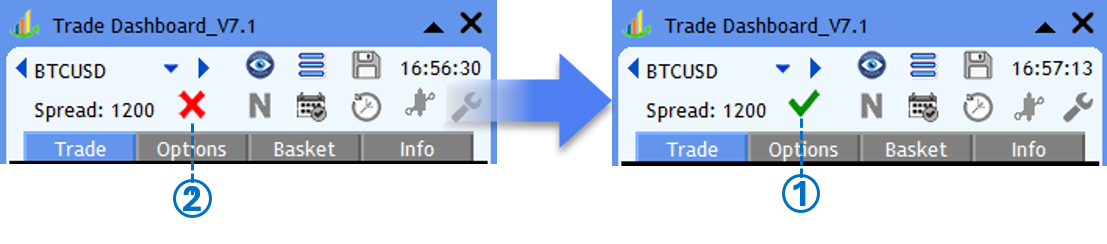
The Spread display shows the current spread of the active chart symbol in points.
A green check mark indicates that the current spread is within the acceptable range (1).
A red cross mark indicates that the spread is higher than the allowed limit (2).
You can configure the maximum acceptable spread from (3): Settings → Trading & Orders → Spread & Stops → “Max Allowed Spread”
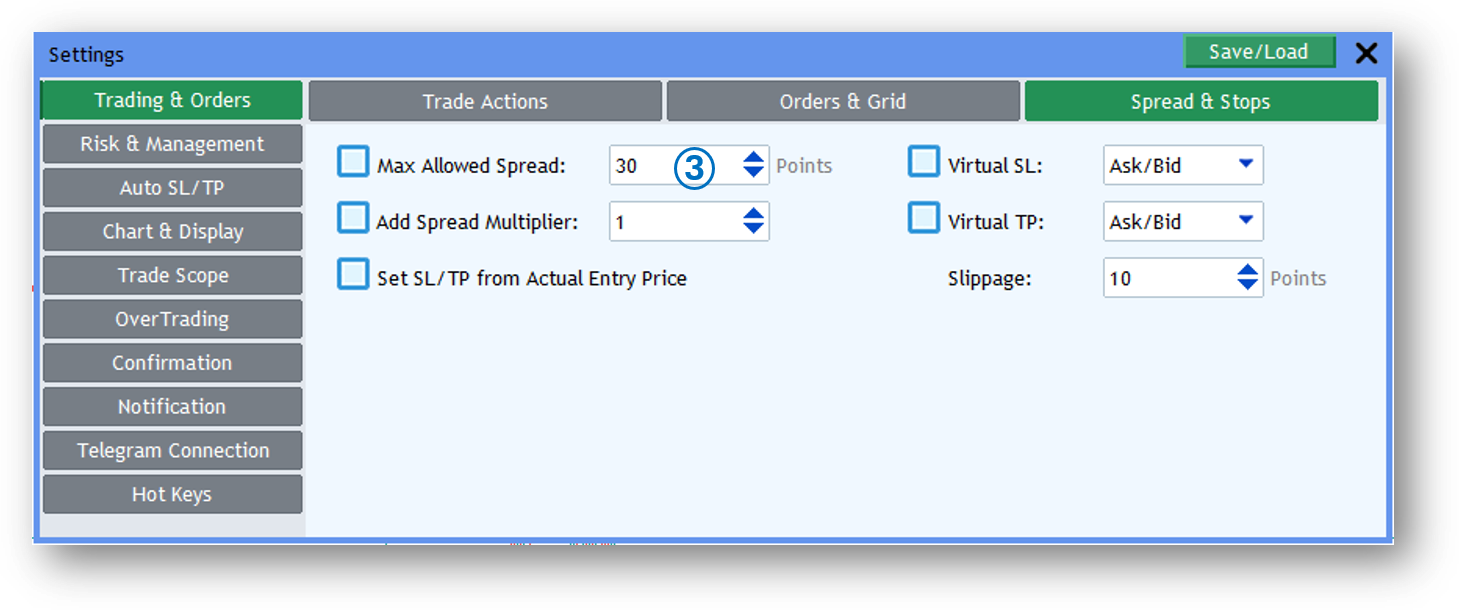
If spread protection is enabled, the dashboard will automatically check the current spread before opening a trade. If the spread exceeds the allowed limit, the trade will not be executed.
You can also click on the Spread label to switch the display from Spread to ATR (Average True Range).

The dashboard also displays the ATR percentage value, calculated using the following formula:
ATR % = ATR / Bid Price × 100
The ATR value follows the configuration of the Auto SL ATR settings located under: Settings → Auto SL/TP
☰ Menu-Shaped Icon
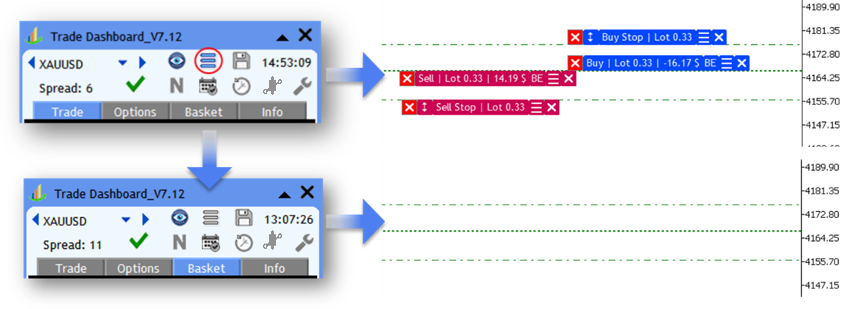
The ☰ Menu-shaped icon on the top of Trade Dashboard is used to show or hide trade boxes on the chart.
This helps create a cleaner chart and reduces visual clutter when you do not want trade boxes to be displayed.
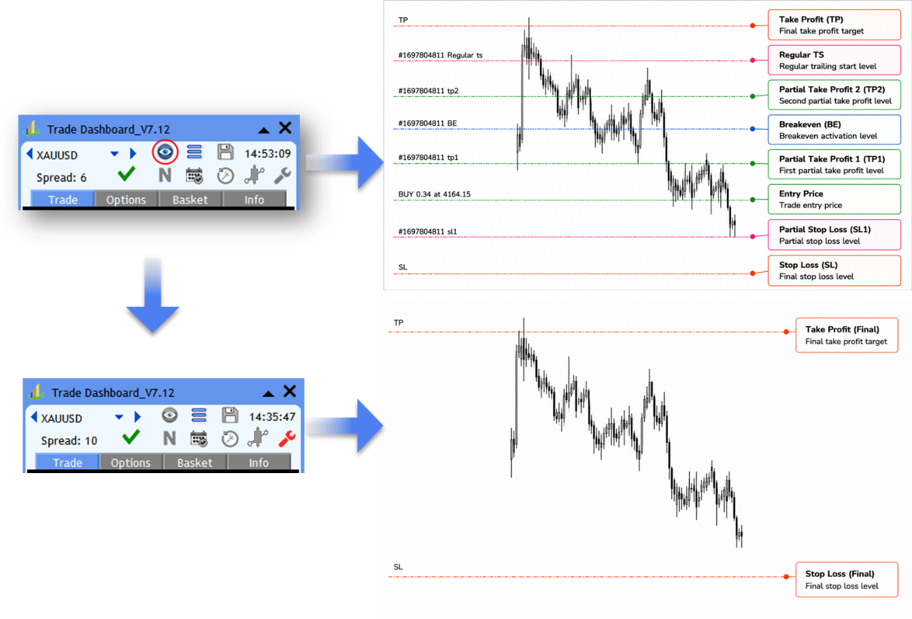
👁 Eye-Shaped Icon
The 👁 Eye-shaped icon on the top of Trade Dashboard is used to show or hide trade activity lines on the chart, such as Partial TP/SL levels, Breakeven activation levels, and Trail Start levels.
These lines help you visually monitor when a trade reaches Partial TP/SL, activates Breakeven, or starts trailing
⏰ Time
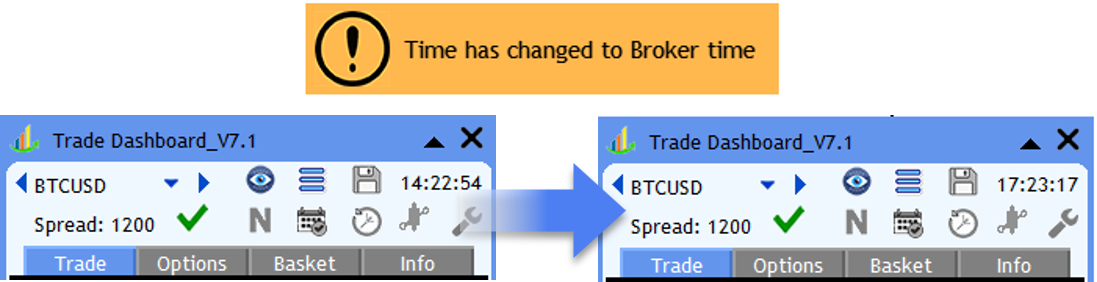
The Time display shows your broker server time by default. Click on the time display to switch between Broker Server Time and GMT Time.
This allows traders to quickly monitor both local broker time and GMT time directly from the dashboard.
📸 Screenshots
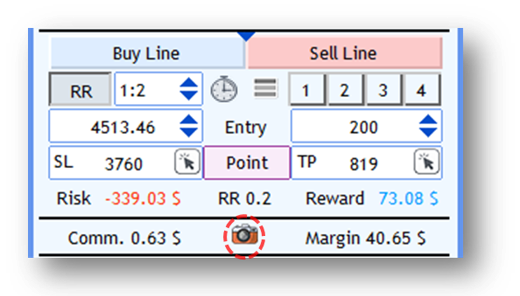
The Screenshot icon allows you to quickly capture a screenshot of the current chart directly from the dashboard. The captured screenshots are automatically saved inside the MetaTrader data folder. To access them, open:
File (top-left corner of MetaTrader) → Open Data Folder → MQL4/MQL5 → Files → Trade Dashboard → Screenshots
💾 Save/Load Settings
The Save/Load window can be opened from either:
The Save/Load icon (1) on the top of Trade Dashboard.
The Save/Load button (2) at the top of the Settings window.
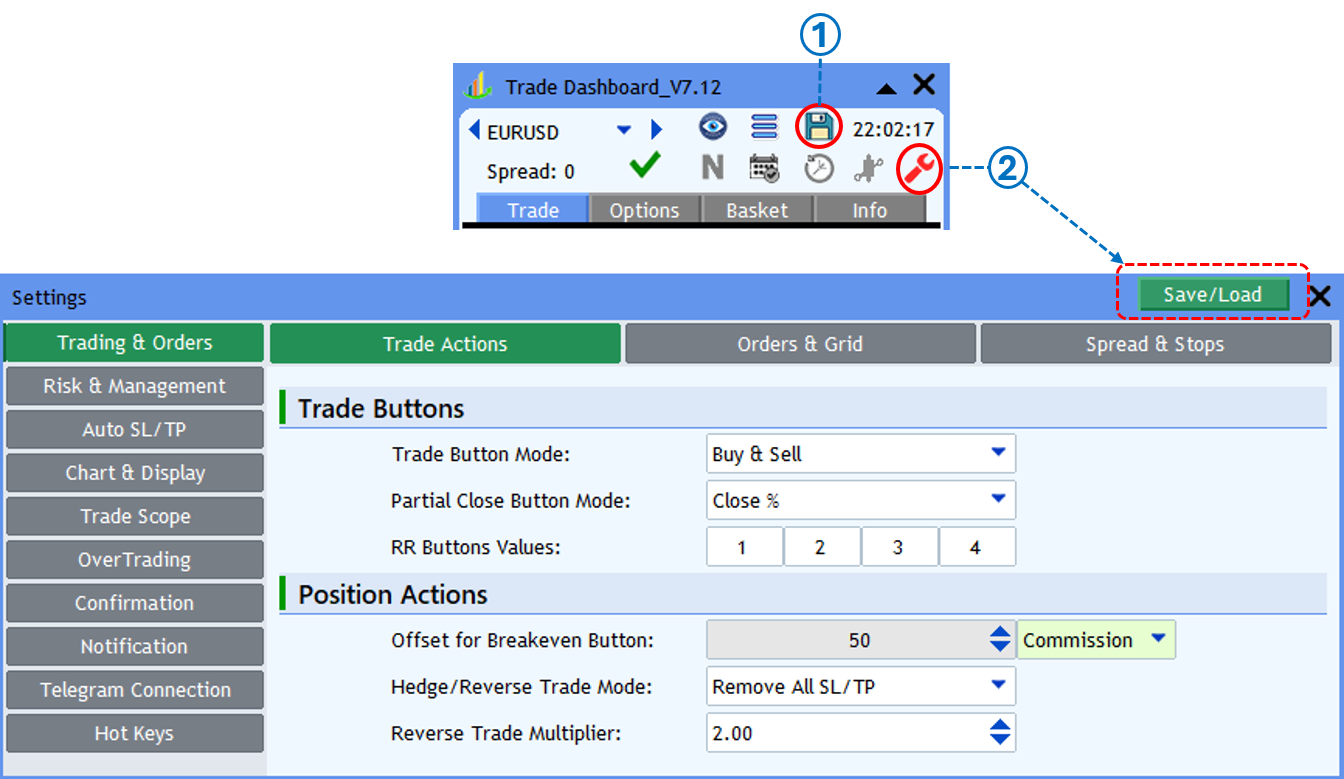
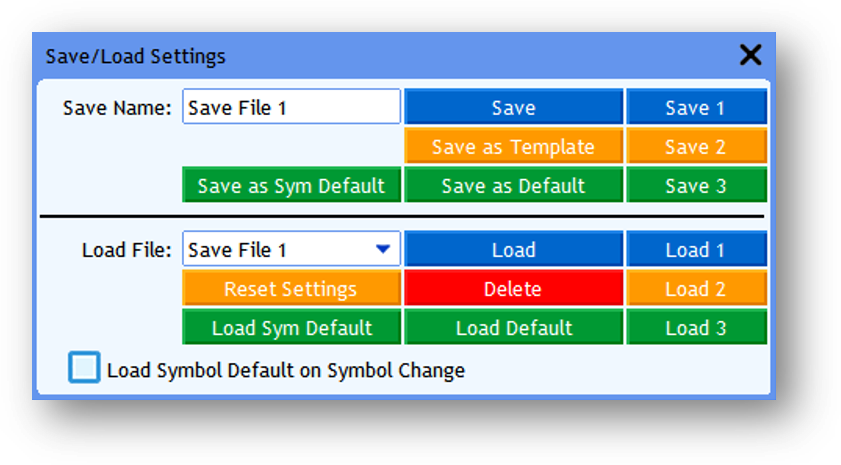
The Save/Load Settings window allows you to save, load, and manage Trade Dashboard configurations.
💡 Saved settings contain all dashboard parameters, including configurations from the Settings window as well as values and options configured throughout the Trade, Options, Basket, and other dashboard panels. This allows you to quickly switch between different trading styles and setups.
Saving Settings
Save Name
Enter a name for the settings file.
Save
Saves the current dashboard settings using the name specified in the Save Name box.
Save 1 / Save 2 / Save 3
Quick-save buttons that allow you to store up to three frequently used configurations for fast access.
Save as Default
Saves the current configuration as the default settings for all symbols. These settings will be loaded automatically whenever Trade Dashboard is attached to a chart.
Save as Sym Default
Saves the current configuration as the default settings for the current symbol only. These settings will be loaded automatically whenever Trade Dashboard is attached to a chart of the same symbol.
💡 Symbol-specific settings have priority over the global default settings.
Save as Template
Creates a chart template containing Trade Dashboard, its settings, chart objects, and indicators.
Saving a template has two advantages:
The template can later be applied to any chart, automatically loading all saved objects, indicators, and Trade Dashboard with the same configuration.
Using templates can be a faster way to load Trade Dashboard on a chart with a specific setup and configuration.
Loading a Template
To load a previously saved template:
Open the chart on which you want to load Trade Dashboard.
Right-click anywhere on the chart.
Select Templates → Load Template.
Choose the desired template from the list.
Loading Settings
Load File
Select a previously saved settings file.
Load
Loads the selected settings file.
Load 1 / Load 2 / Load 3
Loads one of the three quick-save configurations.
Reset Settings
Resets all settings to their original factory values.
Delete
Deletes the selected settings file.
Load Default
Loads the default settings.
Load Sym Default
Loads the symbol-specific default settings.
Load Symbol Default on Symbol Change
When enabled, Trade Dashboard automatically loads the symbol-specific default settings whenever the chart symbol changes.
📈Trade Tab
Risk Management
The risk management system is designed to help traders control position size automatically while maintaining precise and consistent risk exposure.
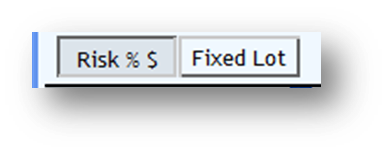
The Risk Management section provides two main trading mod
Risk % / $
Fixed Lot Size
You must choose one of these modes before opening a trade.
Risk % / $ Mode
When Risk % / $ mode is selected, you define your desired risk either by percentage or by monetary amount, and the dashboard automatically calculates the appropriate lot size based on your stop loss distance.
In this mode, three values are interconnected:
Risk %
Risk $
Lot Size
Changing any of these values will automatically update the other two values accordingly.
At any moment, one of these boxes will have a red border. The red border indicates which value is currently being used as the primary base for the risk calculation, while the other values are updated automatically.
If the Risk % box is active, the dashboard calculates Risk $ and Lot Size based on the selected risk percentage.
If the Risk $ box is active, the dashboard calculates Risk % and Lot Size based on the selected monetary risk amount.
To switch the calculation base from Risk % to Risk $, simply modify the value inside the Risk $ box. The red border will automatically move to that box, indicating that Risk $ is now the active risk reference.
Fixed Lot Size Mode
When Fixed Lot Size mode is selected, you manually define the desired lot size yourself.
The dashboard will still calculate and display the corresponding:
Risk %
Risk $
This allows you to instantly see how much risk you are taking with the selected lot size before opening the trade.
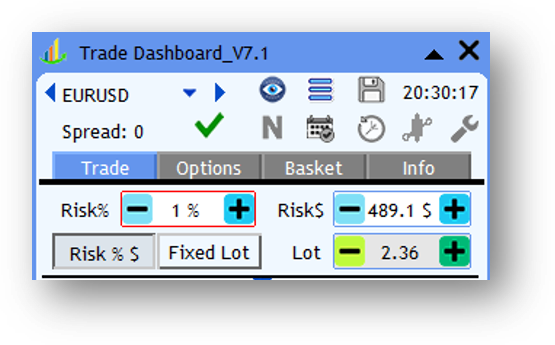
Example 1 — Risking 1% of Your Account
To better understand how the risk management system works, let’s look at a practical example.
In the illustrated image, the trader has selected a 1% risk level. Since the Risk % box is active, the dashboard uses the percentage value as the primary base for the calculation.
The account balance in this example is approximately 48,914 $, so risking 1% corresponds to a monetary risk of approximately 489.1 $.
Based on the selected stop loss distance of 200 points, the dashboard automatically calculates the appropriate position size, which in this case is 2.36 lots.
This means that if the trade reaches the stop loss level, the total loss will be limited to approximately 1% of the account balance.
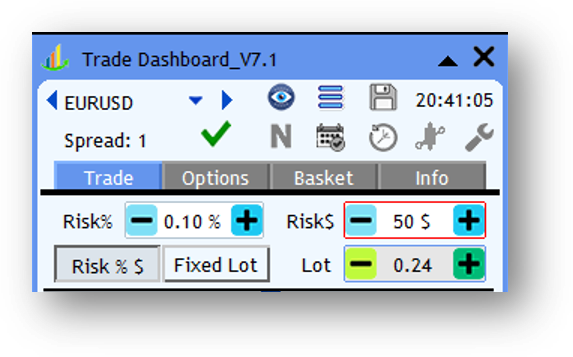
Example 2 — Risking a Fixed Monetary Amount
Let’s look at another example where the trader wants to risk a fixed dollar amount instead of a percentage.
In the illustrated image, the trader has set the risk value to 50 $. Since the Risk $ box is active, the dashboard uses the monetary amount as the primary calculation reference.
The account balance in this example is approximately 48,914 $, therefore a risk of 50 $ corresponds to roughly 0.10% of the account balance.
With a 200-point stop loss, the dashboard automatically calculates a position size of 0.24 lots.
This means that if the trade reaches the stop loss level, the total loss will be limited to approximately 50 $.
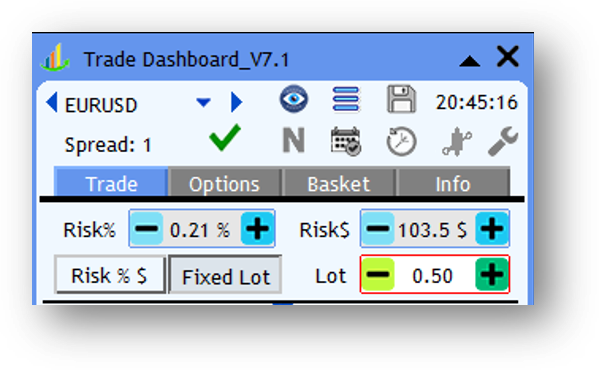
Example 3 — Using a Fixed Lot Size
You can also trade using a manually defined lot size while still seeing the exact amount of risk associated with the position.
In the illustrated image, the trader has manually set the position size to 0.50 lots. Since the Lot Size box is active, the lot size itself becomes the primary calculation reference.
To enable manual lot sizing, the trader must first select the “Fixed Lot” mode.
The dashboard then automatically calculates the corresponding risk values based on the selected lot size and stop loss distance.
In this example, with a 200-point stop loss, trading 0.50 lots corresponds to approximately:
0.21% account risk
103.5 $ potential loss
This allows traders to immediately see the exact percentage and monetary risk associated with any manually selected lot size before opening a trade.
Risk Management Settings
Many traders unintentionally take excessive risk, which can lead to significant losses. To help traders maintain proper risk control, Trade Dashboard provides multiple advanced risk management tools under:
Settings → Risk & Management
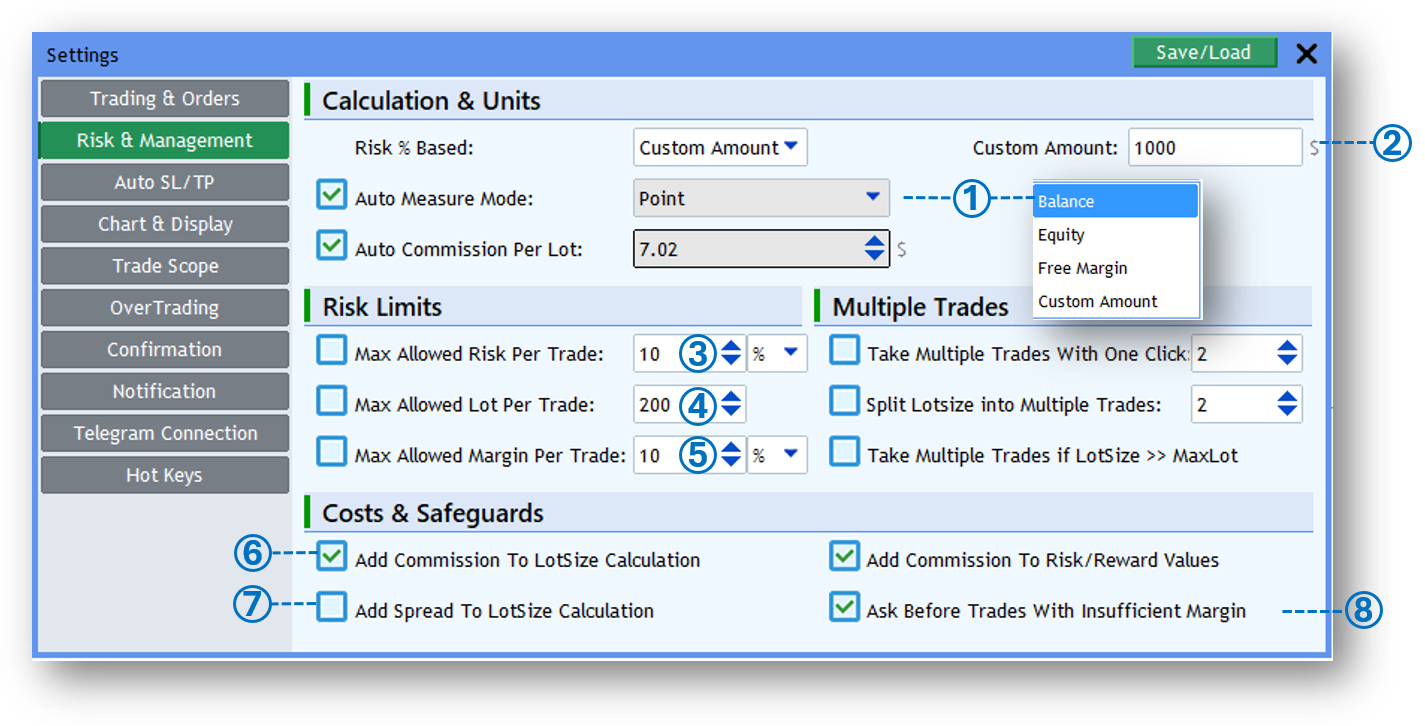
Risk % Based setting (1)
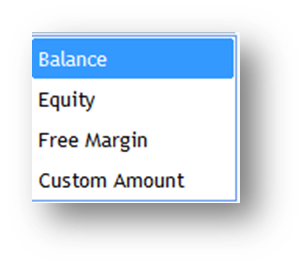 By default, when using Risk % mode, the risk is calculated based on the account balance. However, you can also choose to calculate risk based on
Account Equity
Free Margin
Custom Amount
If Custom Amount is selected, you must enter your desired amount in the input box next to it (2).
You can also define additional safety limits and calculation rules to improve risk control and prevent excessive exposure.
Max Allowed Risk Per Trade (3)
You can define the maximum allowed risk for each trade either by percentage or by monetary amount. If a trade exceeds this limit, the dashboard will prevent the trade from being executed.
Max Allowed Lot Size (4)
You can specify the maximum allowed lot size per trade. The dashboard will not allow positions larger than the defined limit.
Max Allowed Margin Per Trade (5)
Each trade uses a portion of your free margin. You can limit how much margin a single trade is allowed to consume, either by percentage or by monetary amount.
For example, you can prevent the dashboard from using more than 2% of your free margin for a single trade.
Add Commission to Lot Size Calculation (6)
Every trade usually includes a commission fee. By enabling this option, the dashboard takes the commission into account when calculating the lot size.
For example, if you want to risk exactly 50 $, and the estimated commission is 1.68 $, the dashboard will calculate the lot size based on approximately 48.32 $ actual stop loss risk, so that the total potential loss including commission remains close to 50 $.
Add Spread to Lot Size Calculation (7)
When this option is enabled, the dashboard includes the current spread in the stop loss calculation.
For example, if the spread is 5 points and the stop loss is 200 points, the dashboard calculates the lot size based on a total effective stop loss distance of 205 points in order to account for spread costs.
Ask Before Trades with Insufficient Margin (8)
Sometimes the selected lot size may require more margin than is currently available. In such cases, the Margin value on the panel turns red, indicating insufficient margin.
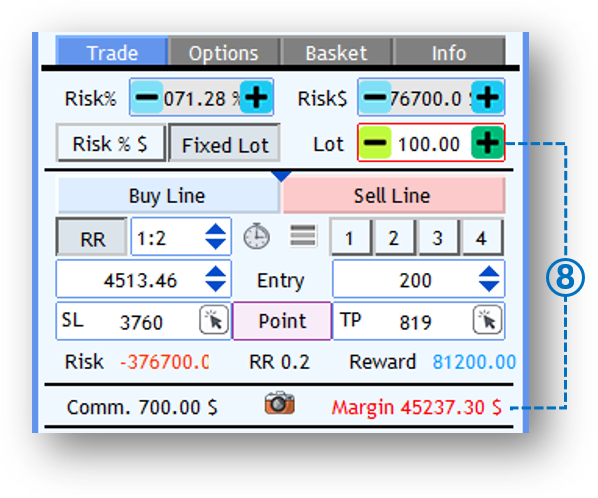
If this option is enabled, the dashboard will display a warning before attempting to open the trade. You can still choose to continue and trying to place the trade.
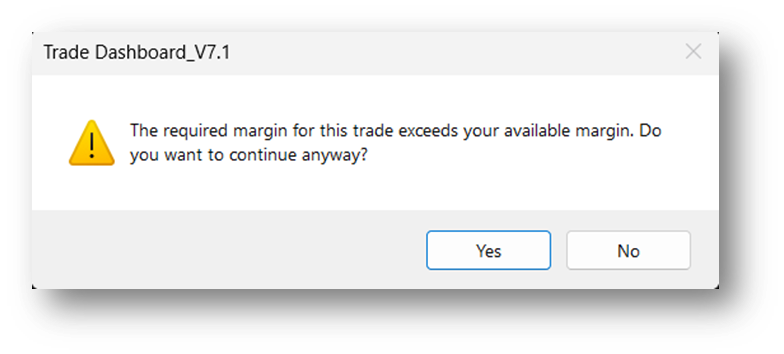
Market orders (Buy/Sell) will naturally fail if there are not enough margin available, however pending orders can still be placed even with insufficient current margin.
Adding Trades Comments
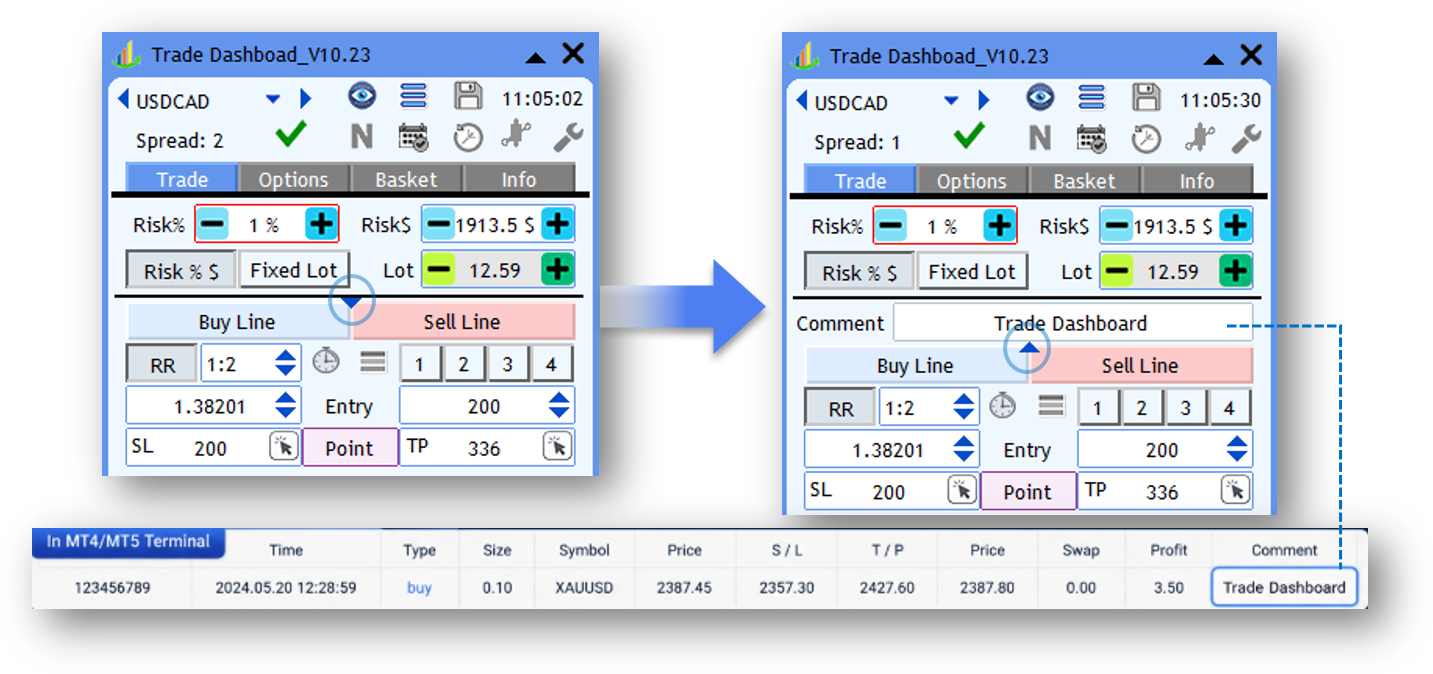
A small arrow icon is located at the center of the dashboard between the Buy Line and Sell Line sections. Clicking this arrow will expand the Trade Comment field, allowing you to enter a custom comment for new trades opened with Trade Dashboard.
The entered comment will automatically be attached to the trade inside the MT4/MT5 terminal, making it easier to identify and organize trades.
The initial comment sent to the broker cannot be edited through the dashboard after the trade opens. The Comment field in the Trade Modification Panel is a separate dashboard comment that can be changed later; it does not rewrite the broker's original comment.
Visual Trade Placement
The Buy Line / Sell Line tool is a visual trading system that allows traders to place and manage trades directly from the chart with precision and flexibility.
Using this tool, you can:
Visually define the entry price
Set Stop Loss and Take Profit levels directly on the chart
Monitor Risk/Reward (RR) values in real time
Automatically calculate lot size based on your risk settings
Adjust trade parameters interactively before opening the trade
Click on Buy Line to activate the visual Buy trading tool, or click on Sell Line to activate the visual Sell trading tool on the chart.
Once activated, the dashboard displays interactive trading lines on the chart, allowing you to visually position and manage your trade setup before execution.
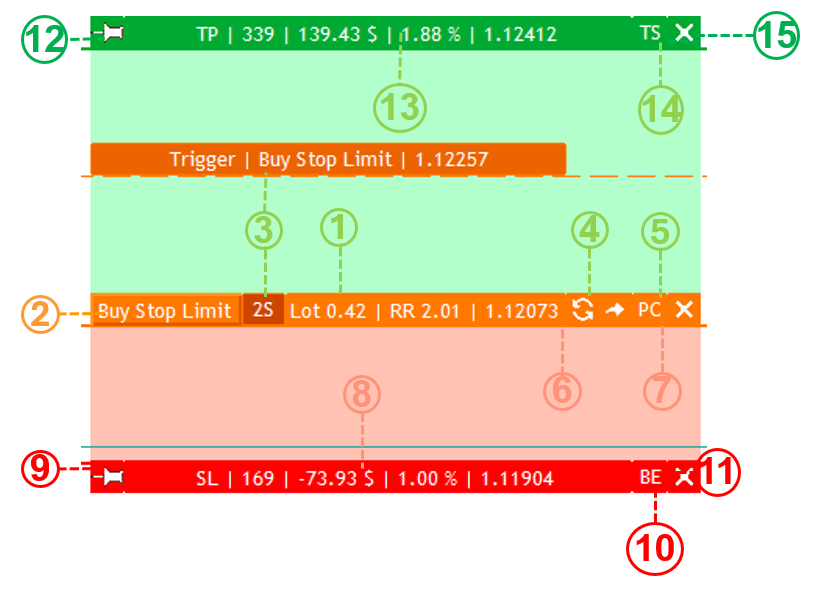
1 — Open Price Handle
Drag and move the open price level to any desired price on the chart.
When the tool is first activated, the entry level is automatically attached to the current market price (Ask/Bid). As the market price moves, the tool will move together with it, since the entry price of a market order changes dynamically with the current Ask/Bid price.
If you manually drag the entry level away from the current market price, the tool will automatically switch from a market order mode to a pending order mode.
2 — Execute Button
Execute the trade or place the pending order.
3 — 2S Icon | Trigger Price Handle
Click 2S to turn on two-stage order mode. A separate Trigger box appears above its dashed price line. Move the pointer to the desired Trigger price and click the chart to fix it. You can drag the Trigger box vertically afterward, independently of the Entry handle (1).
The Buy/Sell side and the relative positions of Trigger and Entry determine the order type automatically. Moving either handle updates the type shown on the Trigger box and Execute button (2).
Buy Stop Limit — Trigger above Entry: an upward Ask crossing activates a Buy Limit at Entry.
Buy Limit Stop — Trigger below Entry: a downward Ask crossing activates a Buy Stop at Entry.
Sell Limit Stop — Trigger above Entry: an upward Bid crossing activates a Sell Stop at Entry.
Sell Stop Limit — Trigger below Entry: a downward Bid crossing activates a Sell Limit at Entry.
An upward Trigger must be above the current market; a downward Trigger must be below it. An invalid setup turns red and cannot be submitted. When the setup is valid, use Execute (2) to place it. Click 2S again to return to ordinary trade placement. For the full workflow and Trail settings, see Two Stage Order Panel.
4 — Reverse Direction
Switch the tool from Buy Line to Sell Line, or vice versa.
5 — Partial Close (PC)
Open the Partial Close settings panel to configure partial close levels for the trade.
6 — Return to Market Price
If the tool has been moved to create a pending order and you want to switch back to a market order (Buy/Sell), this button will automatically reposition the entry level to the current market price (Ask/Bid).
7 — Remove Trade Tool
Remove the Buy Line / Sell Line tool from the chart.
8 — Stop Loss Handle
Drag and position the Stop Loss level at any desired price.
9 — Pin Stop Loss Level
Pin the Stop Loss at its current price level.
When enabled, moving the entry or Take Profit levels will no longer automatically move the Stop Loss level.
10 — Breakeven (BE)
Open the Breakeven settings panel to configure automatic breakeven options for the trade.
11 — Remove Stop Loss
Remove the Stop Loss level completely. The trade will be opened without a Stop Loss.
12 — Pin Take Profit Level
Pin the Take Profit at its current price level.
When enabled, moving the entry or Stop Loss levels will no longer automatically move the Take Profit level.
13 — Take Profit Handle
Drag and position the Take Profit level at any desired price.
14 — Trailing Stop (TS)
Open the Trailing Stop settings panel to configure trailing stop options for the trade.
15 — Remove Take Profit
Remove the Take Profit level completely. The trade will be opened without a Take Profit.
Trade Line Controls
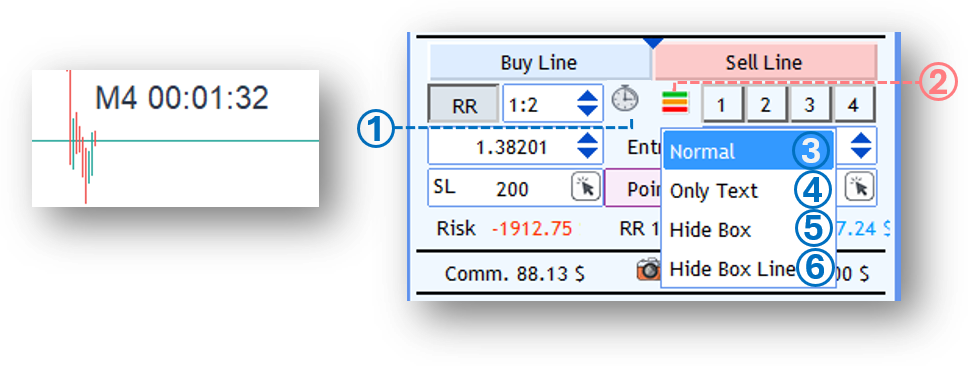
1 — Candle Countdown
Click the clock icon (1) to show or hide the time remaining before the selected candle closes. The countdown updates once per second. Its visibility is synchronized with Show candle countdown in Settings.
Choose the display position, timeframe, format, and appearance at:
Settings → Chart & Display → Candle Countdown
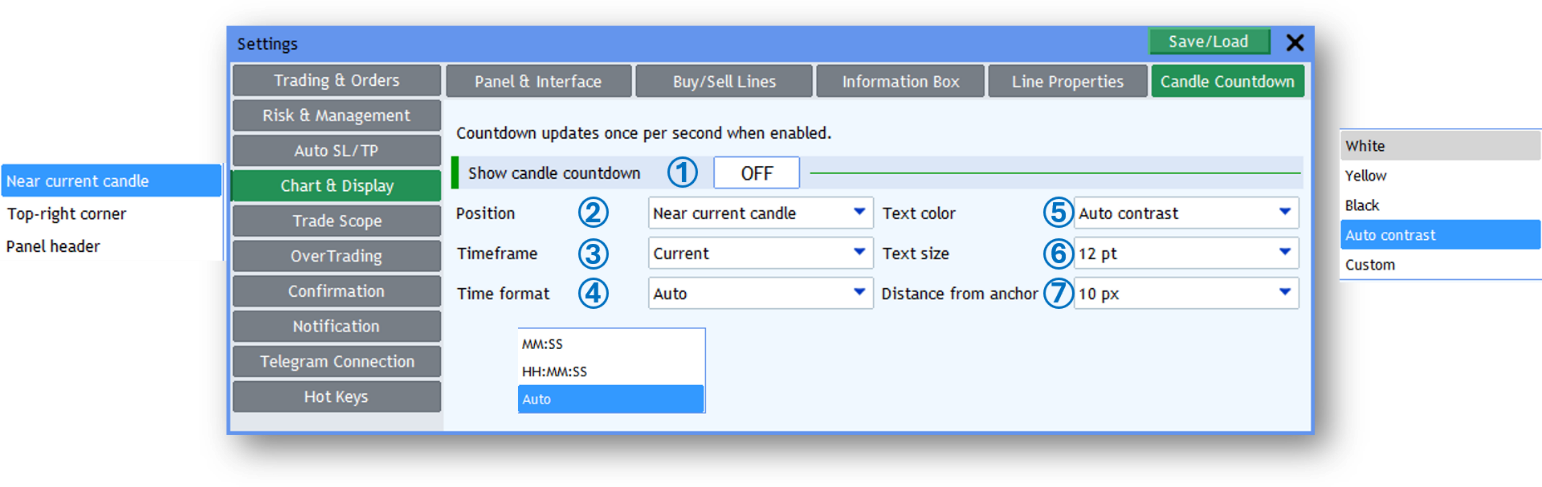
The numbered controls in the settings image work as follows:
1 — Show Candle Countdown
ON displays the countdown; OFF hides it. The Trade-panel clock icon changes the same setting.
2 — Position
Near current candle — Display the timer near the current chart candle. It sits above the candle when space allows and below it when necessary. The countdown timeframe can differ from the chart timeframe.
Top-right corner — Keep the timer in the top-right corner of the chart.
Panel header — Display the timer inside the Trade Dashboard title bar.
3 — Timeframe
Choose which candle the timer counts down. Current follows the chart timeframe. A fixed choice continues counting that timeframe even when you change the chart timeframe; its name appears beside the timer. MT5 also provides the additional timeframes marked below.
Current — Use the current chart timeframe.
M1 — One-minute candles.
M2 — Two-minute candles; MT5 only.
M3 — Three-minute candles; MT5 only.
M4 — Four-minute candles; MT5 only.
M5 — Five-minute candles.
M6 — Six-minute candles; MT5 only.
M10 — Ten-minute candles; MT5 only.
M12 — Twelve-minute candles; MT5 only.
M15 — Fifteen-minute candles.
M20 — Twenty-minute candles; MT5 only.
M30 — Thirty-minute candles.
H1 — One-hour candles.
H2 — Two-hour candles; MT5 only.
H3 — Three-hour candles; MT5 only.
H4 — Four-hour candles.
H6 — Six-hour candles; MT5 only.
H8 — Eight-hour candles; MT5 only.
H12 — Twelve-hour candles; MT5 only.
D1 — Daily candles.
W1 — Weekly candles.
MN — Monthly candles.
4 — Time Format
MM:SS — Show remaining minutes and seconds, for example 01:32. Minutes can exceed 59.
HH:MM:SS — Show hours, minutes, and seconds, for example 00:01:32.
Auto — Show MM:SS when less than one hour remains and HH:MM:SS for longer countdowns.
When at least one full day remains, the timer includes a day count in every format, for example 2d 03:15:00. If the terminal is disconnected or candle data is unavailable, it displays --:--.
5 — Text Color
White — Use white countdown text.
Yellow — Use yellow countdown text.
Black — Use black countdown text.
Auto contrast — Choose a readable light or dark color for the chart or panel background. The last ten seconds turn orange.
Custom — Reveal a color selector so you can choose a palette color or enter an RGB or hexadecimal value.
6 — Text Size
10 pt — Display the countdown with a 10-point font.
12 pt — Display the countdown with a 12-point font.
14 pt — Display the countdown with a 14-point font.
16 pt — Display the countdown with a 16-point font.
18 pt — Display the countdown with a 18-point font.
7 — Distance From Anchor
Set the spacing from the selected anchor. Near current candle uses this as the vertical gap from the candle; Top-right corner uses it as the chart-edge margin; Panel header uses it to position the text relative to its header anchor. A larger value increases the spacing.
5 px — Use a 5-pixel gap.
10 px — Use a 10-pixel gap.
15 px — Use a 15-pixel gap.
20 px — Use a 20-pixel gap.
25 px — Use a 25-pixel gap.
The countdown uses broker/server time and is an estimate of the candle closing time. It does not open, close, or modify trades.
2 — Display Modes Icon
The Buy/Sell Line tool supports four different display modes to help traders customize the chart appearance and reduce visual clutter.
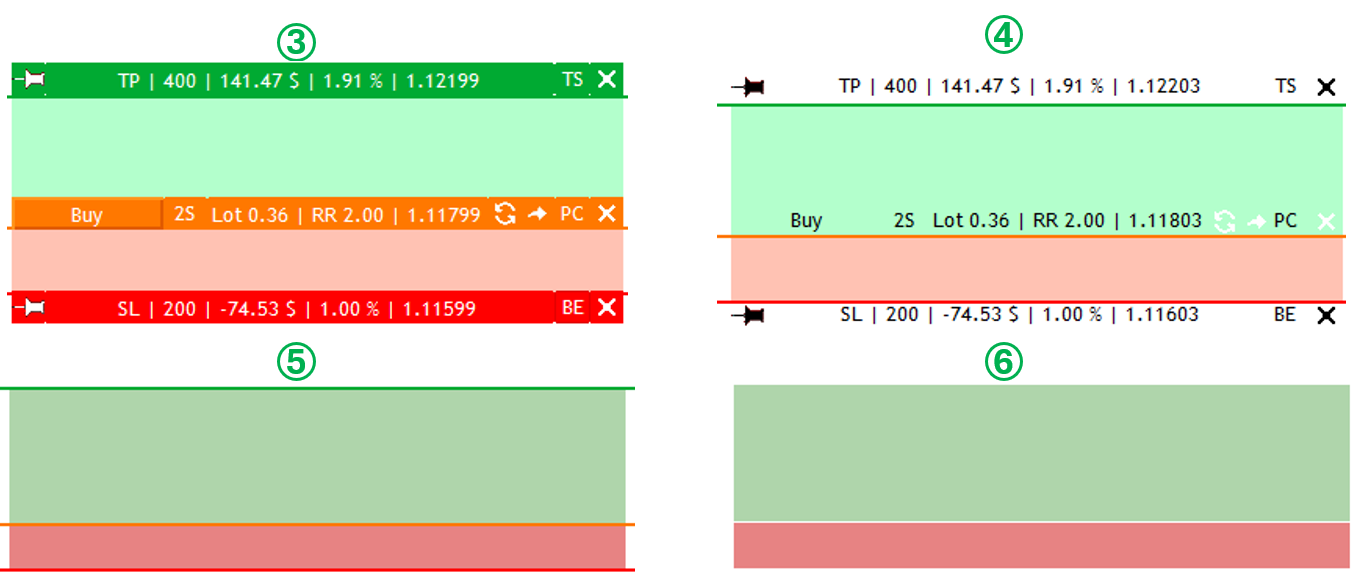
Normal (3): Displays all visual elements, including boxes, texts, and colored zones.
Only Text (4): Displays only the text information for each line while hiding the main boxes.
Hide Box (5): Hide the entire Entry, Stop Loss, and Take Profit boxes while keeping the trading zones visible.
Hide Box Line (6): Removes almost all visual elements and keeps only the Stop Loss and Take Profit zones on the chart.
Trade Line Appearance
The appearance and displayed information of the Buy/Sell Line tool can be fully customized from: Settings → Chart & Display → Buy/Sell Lines
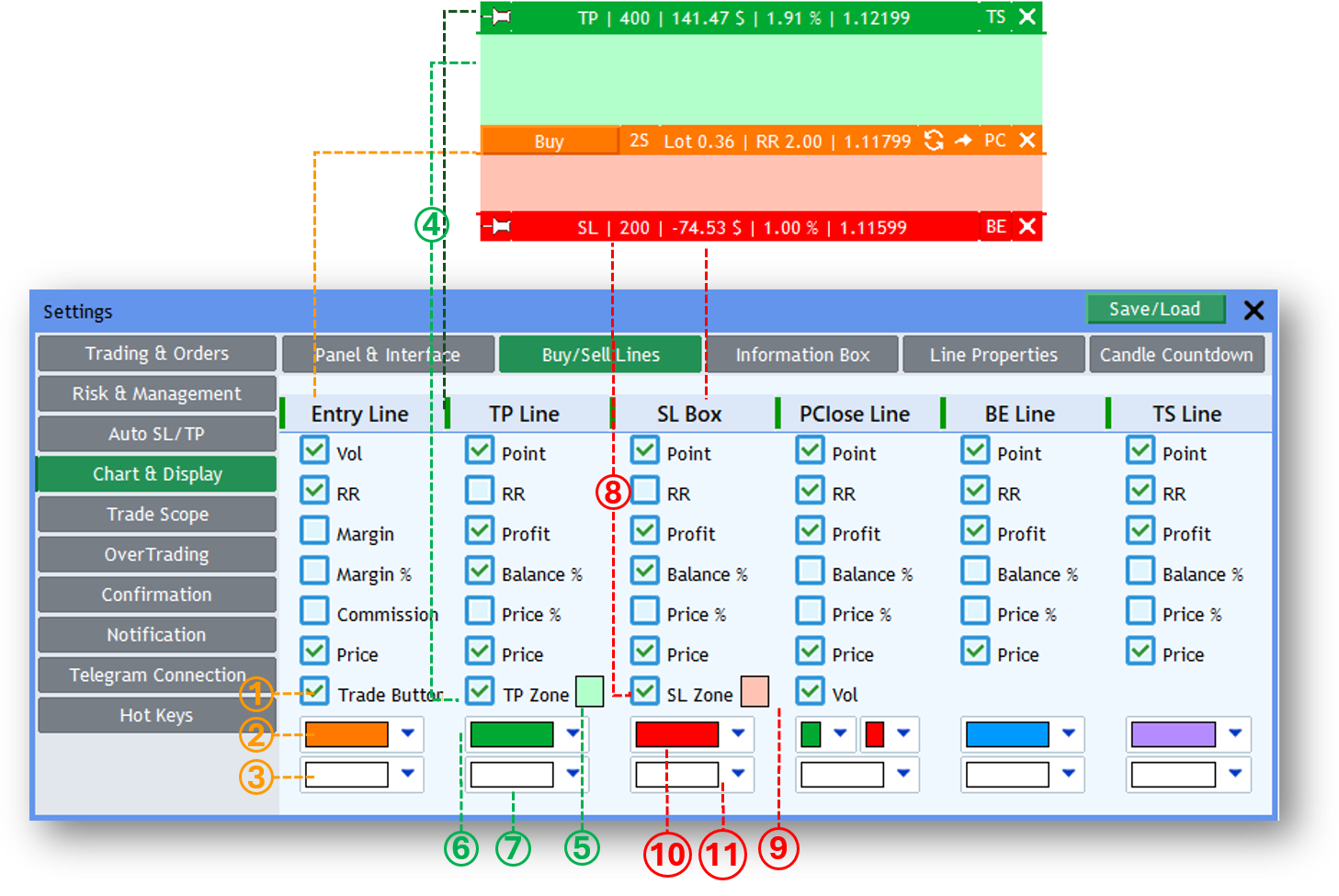
Each column in this section controls a specific part of the visual trading tool:
Entry Line → controls the Entry box
TP Line → controls the Take Profit box and TP zone
SL Box → controls the Stop Loss box and SL zone
You can individually show or hide information such as: Volume, RR, Profit, Balance %, Price, Margin, Commission, and more. This allows traders to simplify the chart appearance and display only the information they need.
1 — Trade Button
If this option is disabled, the Execute button on the Entry box will no longer open trades.
Some traders prefer disabling direct execution from the visual tool and opening trades only using the main dashboard trading buttons.
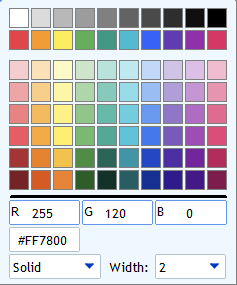
2 — Entry Box Style
Customize the appearance of the Entry box, including its color, line style, and thickness.
3 — Entry Text Color
Change the text color displayed inside the Entry box.
4 — Show / Hide TP Zone
Enable or disable the Take Profit zone visibility on the chart.
5 — TP Zone Color
Customize the background color of the Take Profit zone.
6 — Take Profit Box Style
Customize the appearance of the Take Profit box, including its color, line style, and thickness.
7 — Take Profit Text Color
Change the text color displayed inside the Take Profit box.
8 — Show / Hide SL Zone
Enable or disable the Stop Loss zone visibility on the chart.
9 — SL Zone Color
Customize the background color of the Stop Loss zone.
10 — Stop Loss Box Style
Customize the appearance of the Stop Loss box, including its color, line style, and thickness.
11 — Stop Loss Text Color
Change the text color displayed inside the Stop Loss box.
Trade Line Properties
Additional behavior and positioning settings for the Buy/Sell Line tool can be configured from:
Settings → Chart & Display → Line Properties
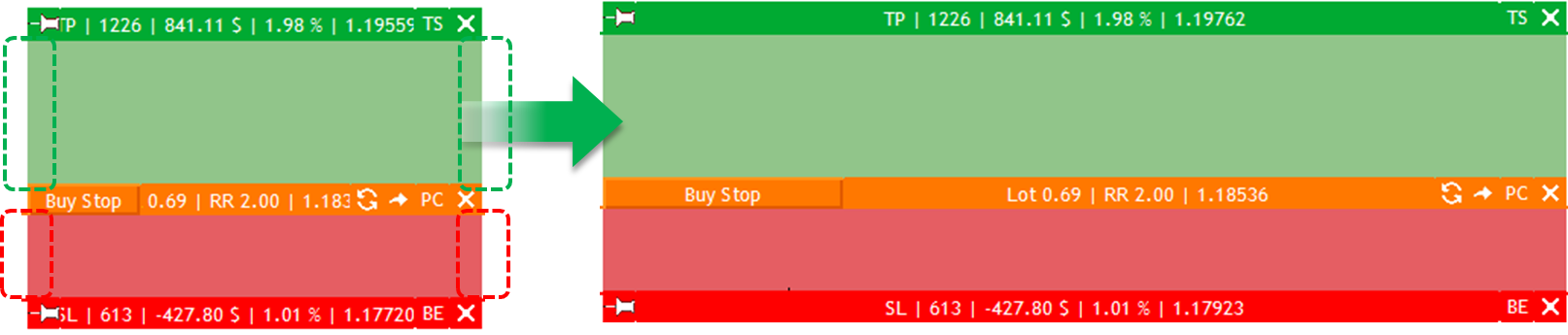
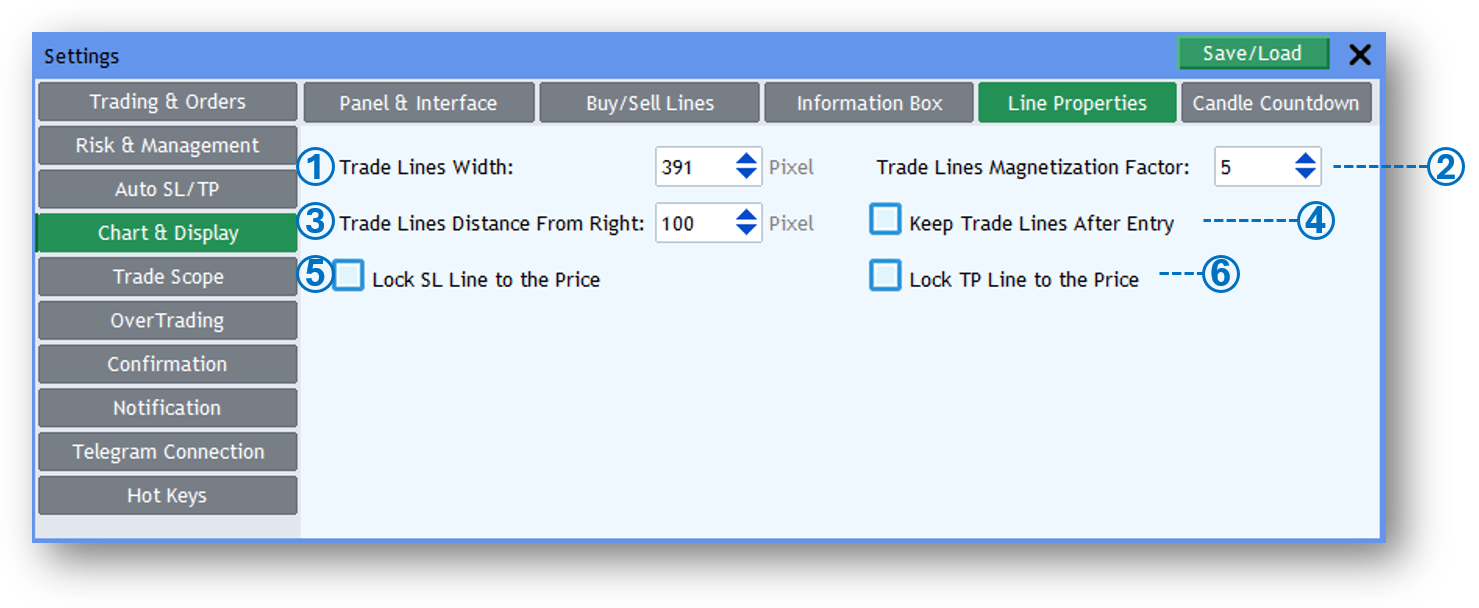 1 — Trade Line Width
The width of the Buy/Sell Line tool can be adjusted manually by dragging the left and right sides of the tool directly on the chart.
You can also define the exact width manually in pixels from the settings panel.
2 — Trade Line Magnetization Factor
This setting controls how strongly the trade line sticks to the current market price.
When moving the tool horizontally, you may want to keep it attached to the current Ask/Bid price instead of accidentally switching into pending order mode.
A value of 0 disables magnetization completely.
Higher values increase the magnetic effect, making the tool stick more strongly to the current market price.
The stronger the magnetization factor, the harder it becomes to move the tool away from market mode into pending order mode.
3 — Trade Line Distance from Right
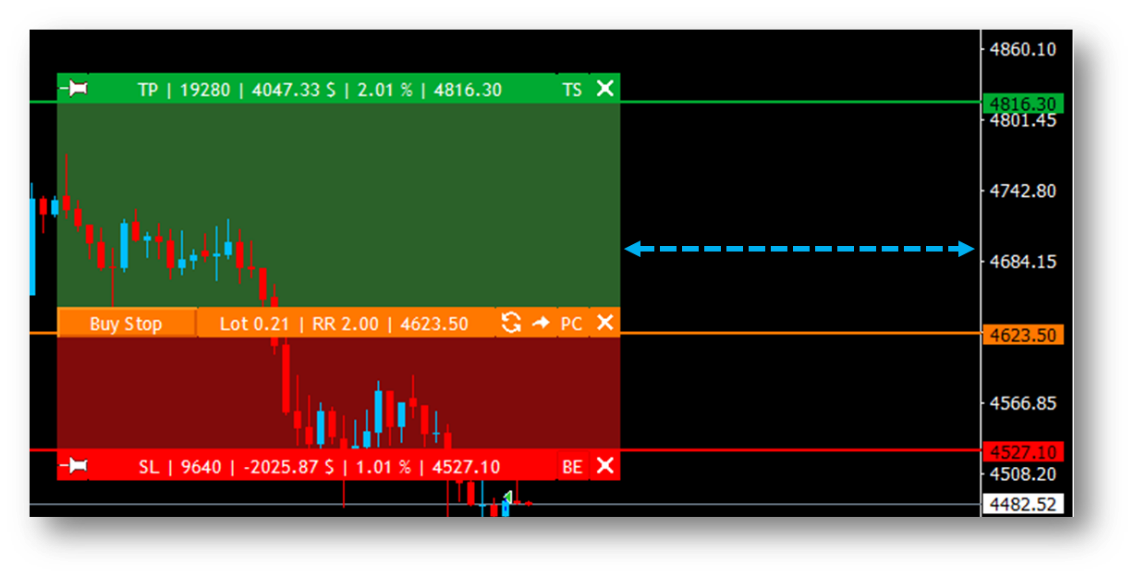
Defines the initial distance between the right side of the tool and the right edge of the chart when the tool is first created.
If you manually move the tool horizontally, the dashboard automatically remembers the latest position. The next time the tool is recreated, the previously saved distance will be restored.
4 — Keep Trade Lines After Entry
Normally, after executing a trade or placing an order using the Entry button, the Buy/Sell Line tool is automatically removed from the chart.
If this option is enabled, the visual trading tool will remain on the chart even after the trade has been executed.
5 — Lock SL Line to the Price
Locks the Stop Loss line to its current price level.
This setting behaves the same as the pin icon on the Stop Loss line control bar.
6 — Lock TP Line to the Price
Locks the Take Profit line to its current price level.
This setting behaves the same as the pin icon on the Take Profit line control bar.
Trade Parameters
RR Mode
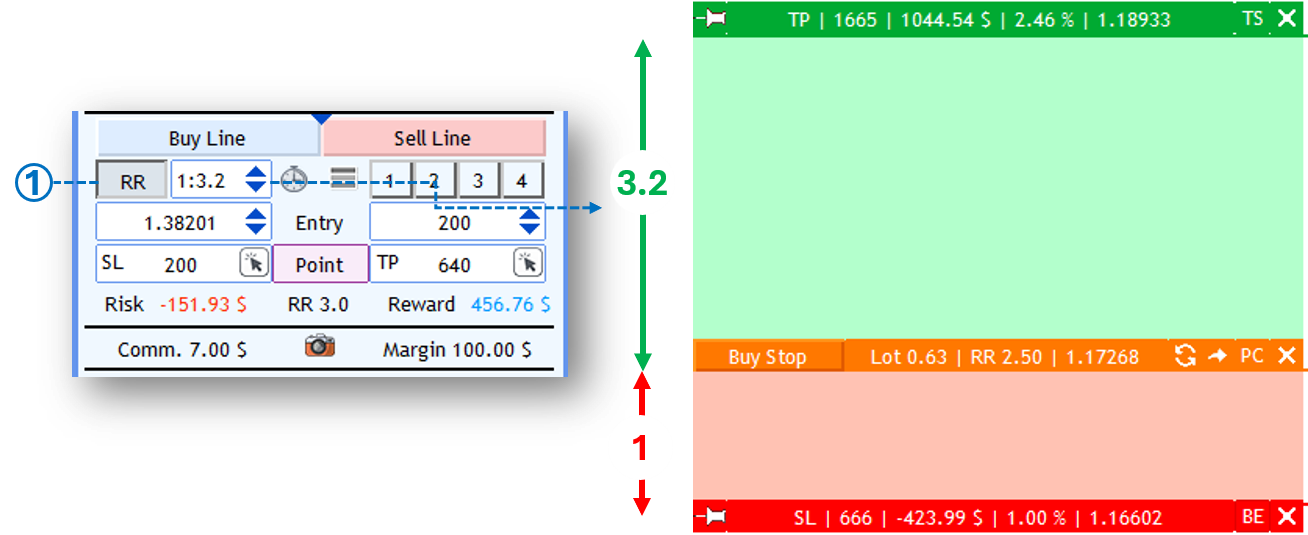
When the RR button (1) is enabled, Trade Dashboard automatically calculates the Take Profit distance based on the selected Stop Loss distance. The value displayed in the RR box represents the proportional relationship between the Stop Loss size and the Take Profit size.
While RR Mode is enabled, the Stop Loss and Take Profit levels remain linked proportionally:
If you move the Stop Loss level on the Buy/Sell Line tool, the Take Profit level will automatically adjust based on the selected RR ratio.
Likewise, if you move the Take Profit level, the Stop Loss level will adjust proportionally.
If you do not want the Stop Loss and Take Profit levels to remain proportionally linked, simply disable the RR button.
To change the Risk/Reward ratio, simply enter the desired numeric value inside the RR box.
For example:
Enter 2 for a 1:2 RR — this means the Take Profit distance will be twice the Stop Loss distance.
Enter 3.2 for a 1:3.2 RR — this means the Take Profit distance will be 3.2 times the Stop Loss distance.
There is no need to type the full ratio format such as 1:2 or 1:3.2. Only the numeric value is required.
Some traders may want to use ratios such as 0.5: 2. In this case, simply convert the ratio into an equivalent proportional format. For example: 0.5: 2 = 1: 4
Therefore, you should enter 4 in the RR box.
Please note that if both the Stop Loss and Take Profit levels are pinned to fixed prices on the chart, RR Mode will automatically be disabled. This is because the dashboard cannot maintain a proportional RR relationship when both levels are locked independently to specific prices.
Quick RR Buttons
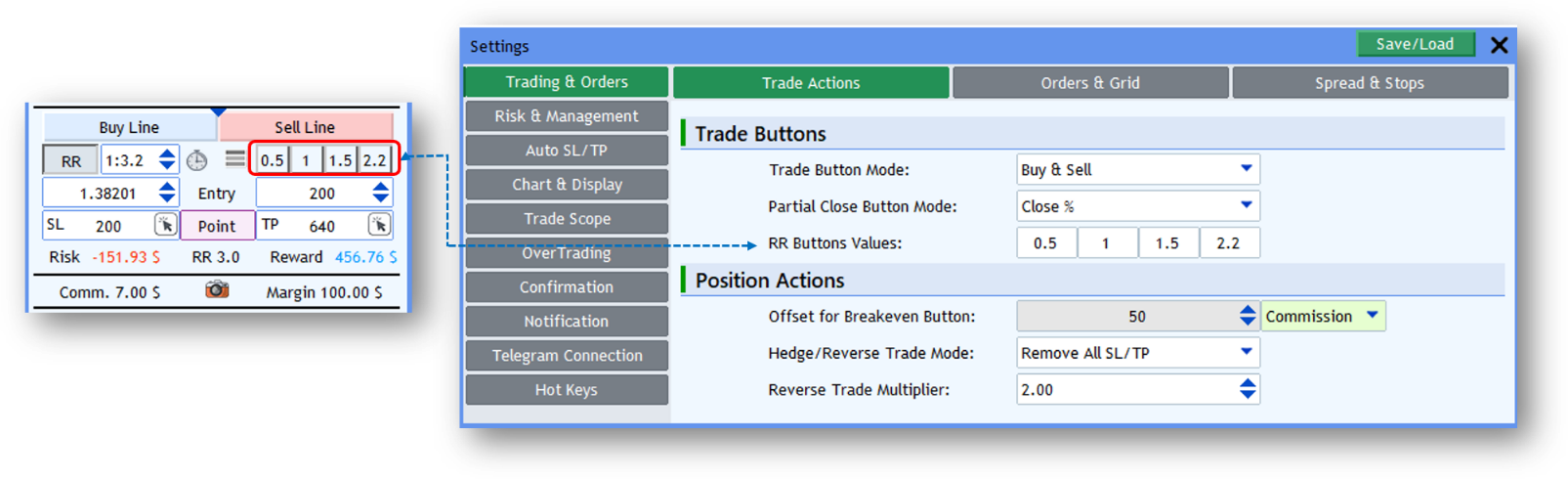
The Quick RR buttons allow you to instantly switch between predefined Risk/Reward ratios without manually typing values into the RR box. For example, if you press the button 3, the RR ratio will automatically change to 1:3.
By default, the quick RR values are set to: 1, 2, 3, and 4. You can fully customize these predefined RR values from:
Settings → Trading & Orders → Trade Actions → “RR Buttons Values”
Entry Boxes
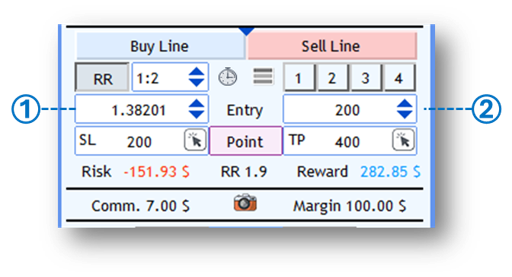
The Entry boxes allow you to configure pending order entry levels using either price or distance.
The Entry box on the left (1) displays the exact Entry price of the pending order.
The Entry box on the right (2) displays the distance in points between the current market price and the pending order entry level.
This means you can define pending orders either by entering a specific price or by specifying the distance from the current market price.
SL / TP Boxes
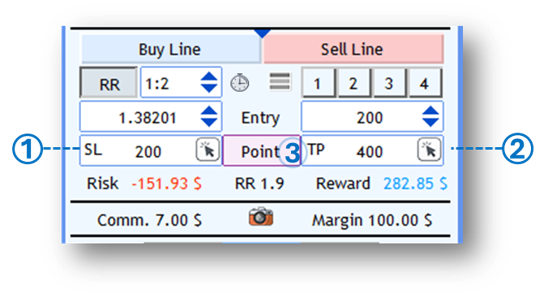
The SL Box (1) and TP Box (2) allow you to configure Stop Loss and Take Profit values either by Price or Points.
To switch between these measurement modes, click the purple mode button (3) located between the SL and TP boxes.
All Entry, Stop Loss, and Take Profit values are fully synchronized with the Buy/Sell Line tool displayed on the chart.
If you move the visual trading tool directly on the chart, the corresponding values on the panel are automatically updated.
Likewise, if you modify any Entry, SL, or TP value from the panel, the visual trading tool on the chart will immediately update based on the new values.
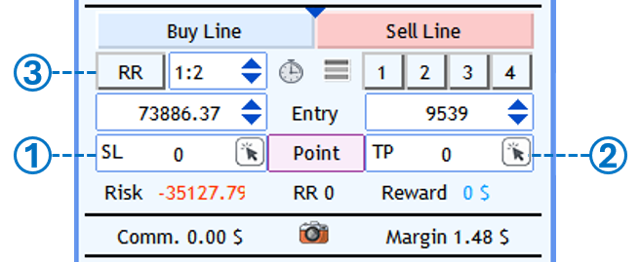
💡 To place a trade without a Stop Loss or Take Profit, simply set the corresponding SL (1) or TP (2) value to 0.
💡 To stop the TP and SL from moving together, simply disable the RR mode by unpressing the RR button (3).
💡 The Entry, SL, and TP values can be modified either from the panel or directly on the chart using the Buy/Sell Line tool. Both methods remain fully synchronized.
💡 The selected measurement unit (Point, Pip, Point × 100, etc.) is applied to the Entry, SL, and TP values displayed in these boxes.
💡 If RR mode is enabled, modifying the Stop Loss or Take Profit value automatically recalculates the corresponding Take Profit or Stop Loss to maintain the selected Risk/Reward ratio.
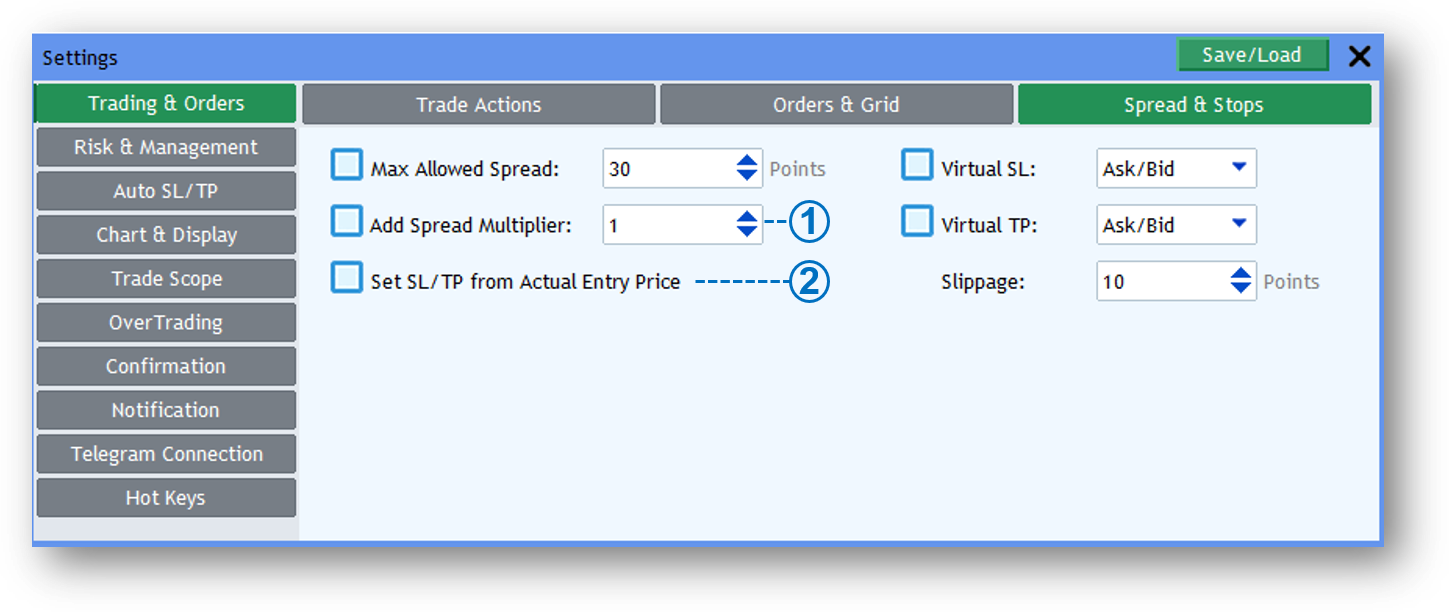
Add Spread Multiplier
When enabled, Trade Dashboard automatically adds a multiple of the current spread to the configured Stop Loss and Take Profit distances.
The final distance is calculated as:
SL/TP Distance = Configured Distance + (Spread × Multiplier)
🔄 Example
Stop Loss = 200 points
Current Spread = 20 points
Spread Multiplier = 1.5
Then the final Stop Loss distance becomes: 200 + (20 × 1.5) = 230 points
💡 Since the Stop Loss distance changes, Trade Dashboard automatically recalculates the lot size to maintain the selected risk level.
Set SL/TP from Actual Entry Price
When enabled, Trade Dashboard opens the trade first and applies the Stop Loss and Take Profit in a separate modification request immediately afterward.
Without this option:
Trade is opened with SL and TP attached.
With this option:
Trade is opened.
Trade Dashboard modifies the trade and applies SL and TP afterward.
💡 This can help achieve more precise Stop Loss and Take Profit placement, especially on symbols with larger spreads or fast price movement, where the final SL/TP distance may otherwise be affected slightly during order execution.
Auto SL/TP
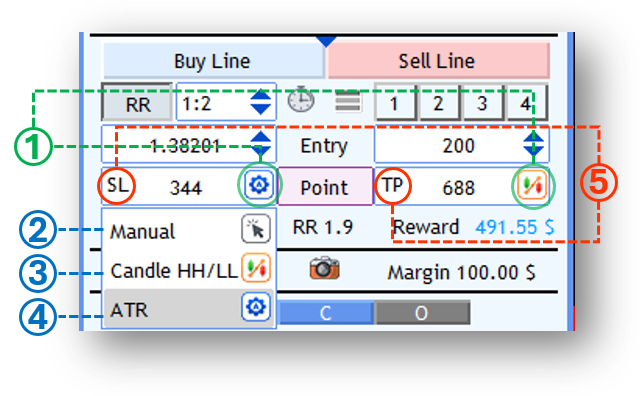
An icon is located on the right side of both the Stop Loss and Take Profit boxes (1). Clicking this icon opens a dropdown menu that allows you to select the SL/TP calculation mode.
The dashboard currently supports three different SL/TP modes:
Manual (2)
Stop Loss and Take Profit values are configured manually by the trader.
Candle HH/LL (3)
Stop Loss and Take Profit levels are automatically calculated based on the candle Higher High and Lower Low values.
ATR (4)
Stop Loss and Take Profit levels are automatically calculated using the ATR (Average True Range) indicator.
When Candle HH/LL or ATR mode is selected, the dashboard initially updates the SL/TP values automatically according to the configured settings. Afterward, traders can still manually adjust the SL/TP values freely if desired.
When Candle HH/LL mode is selected, the Buy/Sell Line tool becomes candle-aware. As you drag the Stop Loss or Take Profit line on the chart, the line automatically snaps to the Higher High or Lower Low of candles instead of moving freely between price levels. This makes it easier to visually select meaningful support and resistance levels.
In addition, the Candles Num parameter is updated automatically to match the currently selected Higher High or Lower Low. As you move the SL or TP line to a different candle, the required candle count is recalculated automatically, allowing the setting to remain synchronized with the selected candle rather than using a fixed value.
However, the dashboard will automatically recalculate and refresh the SL/TP values based on the selected mode in the following situations:
When the user clicks on Buy Line or Sell Line tool
When the chart symbol is changed
Before a trade is executed
When clicking directly on the SL or TP label inside the SL/TP box (5)
When the Auto SL/TP hot key is triggered (if enabled in Settings → Hot Keys).
This system provides both automatic calculation flexibility and full manual control over trade management.
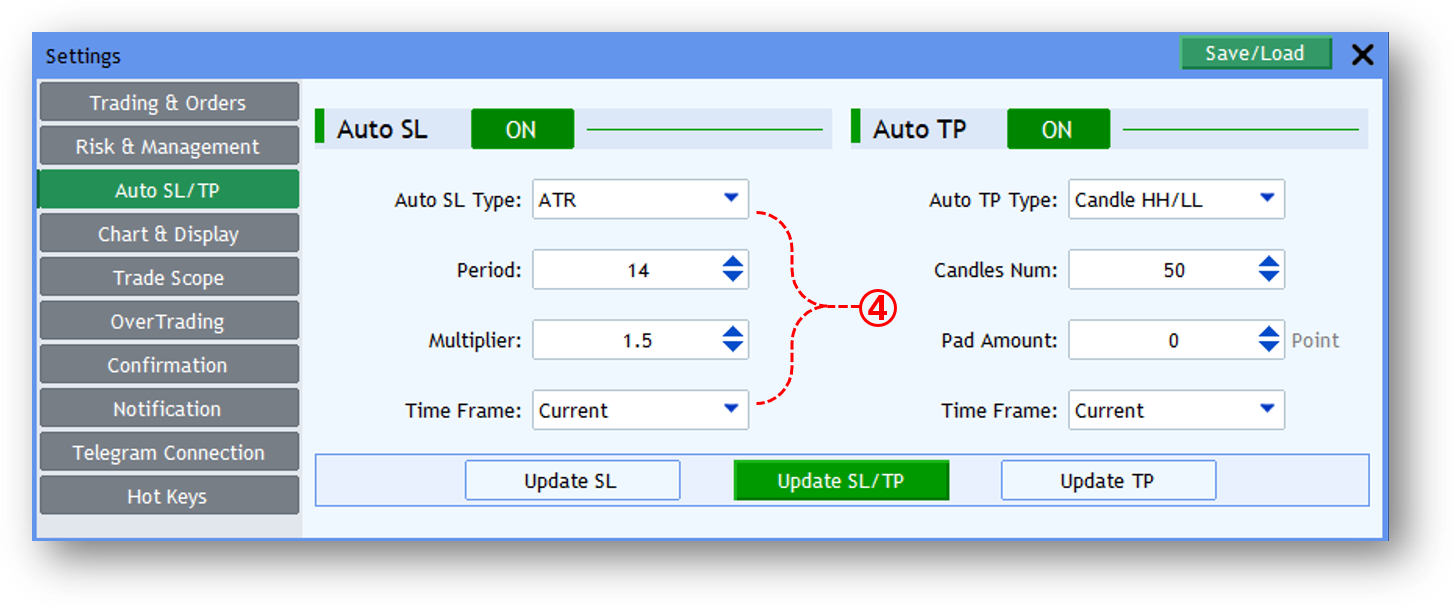
The configuration of the Candle HH/LL and ATR modes can be managed from: Settings → Auto SL/TP
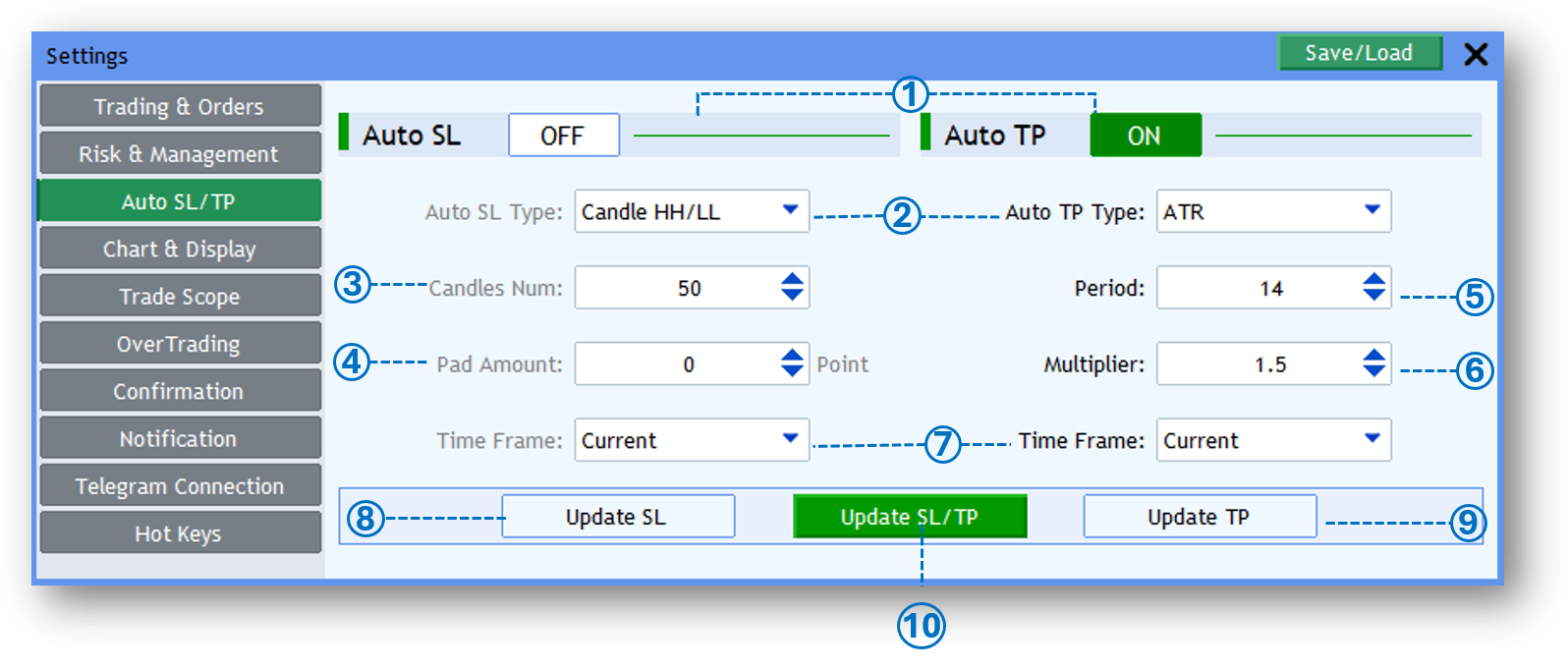
Auto SL / Auto TP Button
Enable or disable automatic Stop Loss or Take Profit calculation based on the selected Auto SL/TP mode.
Auto SL/TP Type
Select the calculation method for Stop Loss or Take Profit (Candle HH/LL, ATR)
Candles Num
Defines the number of previous candles used to calculate the Higher High or Lower Low levels.
Pad Amount
Adds an extra distance in points to the calculated Higher High or Lower Low level.
ATR Period
Defines the period of the ATR (Average True Range) indicator.
ATR Multiplier
Multiplies the ATR value to calculate the final Stop Loss or Take Profit distance.
Time Frame
Defines the timeframe used for the Candle HH/LL or ATR calculations.
Update SL
Updates the Stop Loss of all trades managed by the dashboard based on the selected Auto SL settings and configuration.
Update TP
Updates the Take Profit of all trades managed by the dashboard based on the selected Auto TP settings and configuration.
Update SL/TP
Updates both the Stop Loss and Take Profit levels of all trades managed by the dashboard based on the selected Auto SL/TP settings and configuration.
Trade Statistics
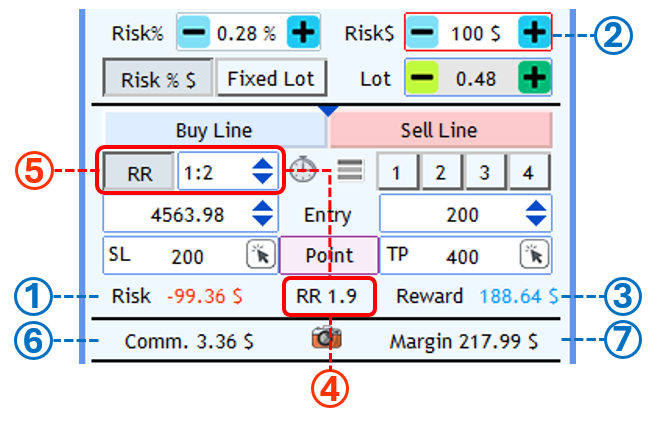
Below the SL Box, Trade Dashboard displays the actual Risk (1) amount of the trade based on the final calculated lot size and the current Stop Loss distance.
This value represents the real potential monetary loss if the trade fully reaches the Stop Loss level.
Please note that this value may slightly differ from the expected risk shown in the Risk $ (2) box at the top of the Trade tab.
Why can the values be different?
The Risk $ value at the top of the panel represents the target risk amount you want to take. For example, you may want to risk exactly 100 $. However, achieving exactly 100 $ risk might require a position size such as 0.4802 lots, which may not be supported by your broker.
In such cases, Trade Dashboard automatically adjusts the lot size to the nearest valid value supported by the broker — in this example, 0.48 lots. As a result, the actual trade risk becomes slightly different, such as 99.36 $ instead of exactly 100 $.
If Partial Stop Loss levels are enabled, the displayed Risk value will also take those levels into account. In this case, the dashboard calculates the remaining potential loss after all partial stop levels have been triggered, assuming the remaining position eventually reaches the final Stop Loss.
Similarly, below the TP Box, Trade Dashboard displays the expected Reward (3) amount based on the current lot size and the final Take Profit level.
If Partial Take Profit levels are enabled, the displayed Reward value will also account for all partial TP levels, assuming the remaining position eventually reaches the final Take Profit target.
The RR value (4) displayed between the Risk and Reward amounts represents the actual monetary-based Reward / Risk ratio of the trade.
This value may differ from the configured RR ratio (5) shown in the RR box. In this example, the configured RR ratio is 2, while the actual monetary-based RR value is 1.9.
The reason is that the configured RR ratio (4) only defines the proportional distance between the Take Profit and Stop Loss levels, while the displayed RR statistic (5) is calculated using the actual monetary Reward and Risk values of the trade.
The monetary-based RR calculation additionally takes into account:
Commission fees
Partial Stop Loss levels for the Risk value
Partial Take Profit levels for the Reward value
As a result, the displayed RR statistic provides a more realistic representation of the actual Reward/Risk ratio of the trade.
Both Risk and Reward representation include the estimated commission fee by default. However, this behavior can be disabled from:
Settings → Risk & Management → Costs & Safeguards → “Add Commission To Risk/Reward Values”
💡 By default, Trade Dashboard automatically estimates the commission per lot based on previously closed trades in the account history.
This behavior can be configured from:
Settings → Risk & Management → Calculation & Units → “Auto Commission Per Lot”
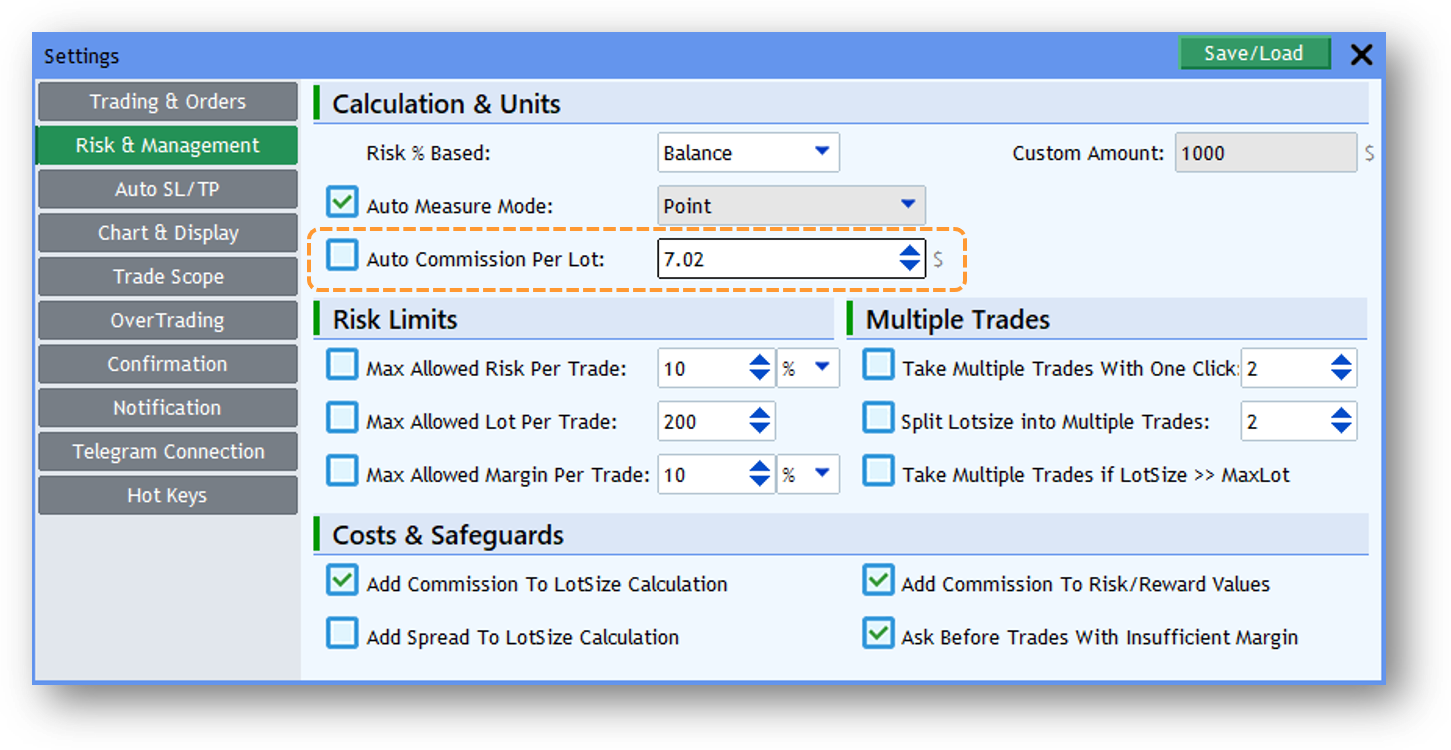
When Auto Commission Per Lot is enabled, the dashboard automatically updates the commission value using historical trade data.
When Auto Commission Per Lot is disabled, you can manually specify the commission amount per lot, which will then be used for all commission, Risk, Reward, and lot size calculations.
Below the Risk and Reward section, Trade Dashboard also displays:
Commission (6) → the estimated commission fee for the trade
Margin (7) → the required margin needed to open the position. If the required margin exceeds the available margin, the Margin value will automatically turn red to indicate insufficient margin.
Trade Buttons
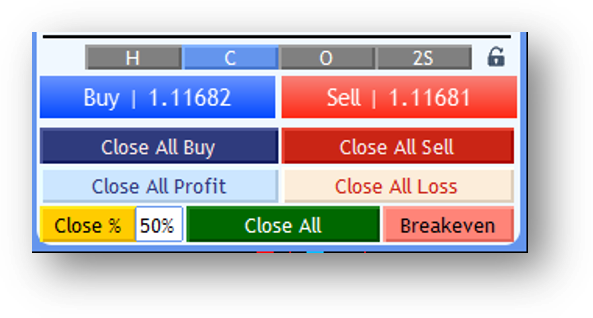
The Buy button displays the current Ask price, which is the execution price for Buy market orders. The Sell button displays the current Bid price, which is the execution price for Sell market orders.
Displaying the Ask/Bid prices on the trading buttons can be disabled from: Settings → Chart & Display → Panel & Interface → “Show Ask/Bid Price on Trade Buttons”
Clicking the H button opens the Hedge / Reverse button panel.
Clicking the C button opens the Close / Breakeven button panel.
Clicking the O button opens the Pending Order button panel.
Clicking the 2S button opens the Two Stage Order panel.
You can switch the panel to Compact Mode to hide the bottom section and reduce the panel height.
To return to Compact Mode, click the currently active H, C, O, or 2S selector again. For example, if C is active, click C again to collapse that subwindow.

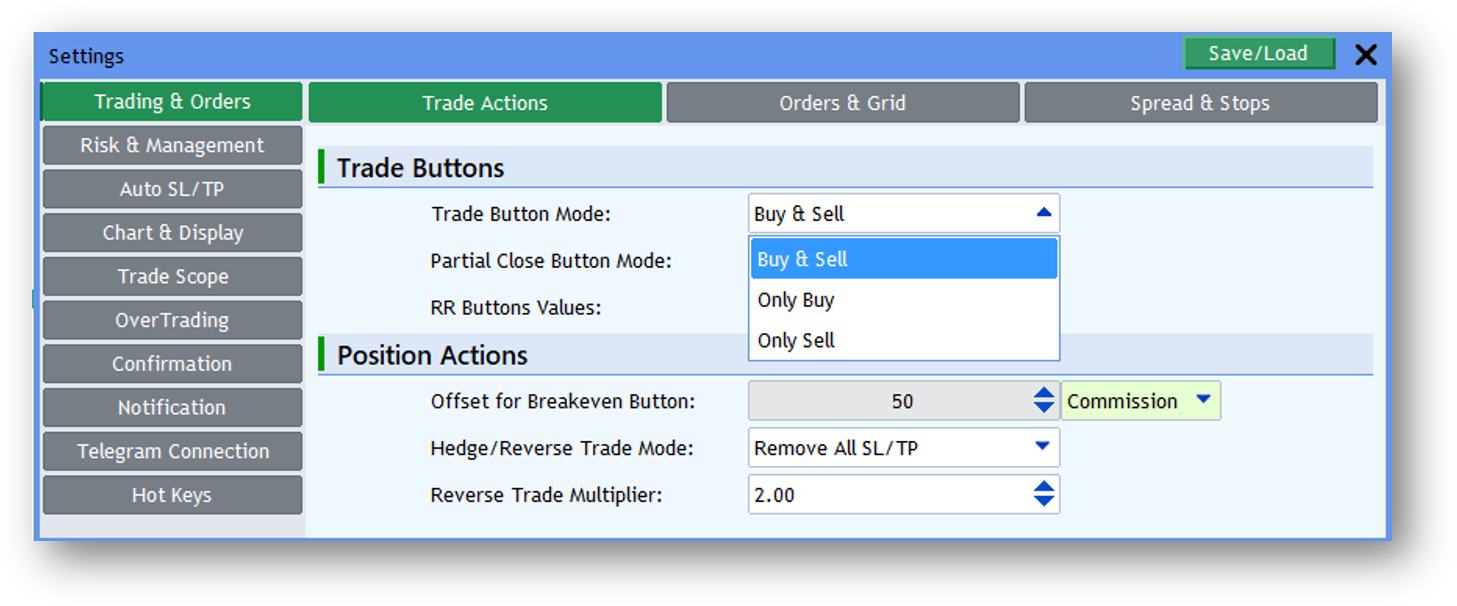
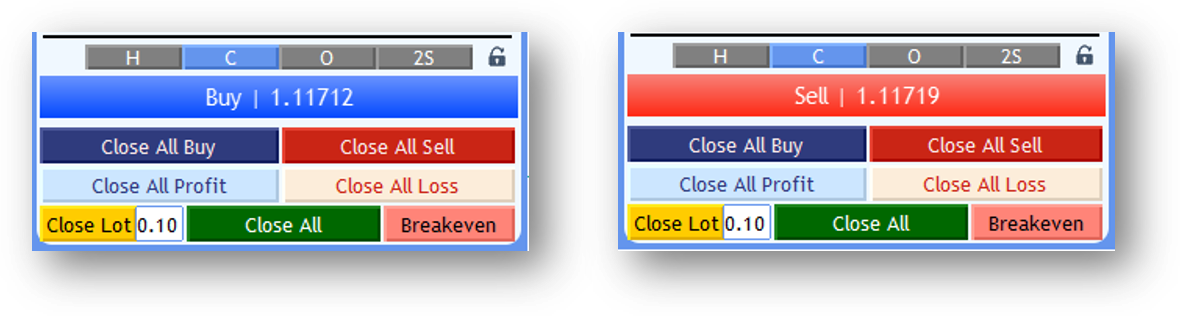
Some traders prefer trading in only one direction (Buy-only or Sell-only). In such cases, you can display only the Buy or Sell button from: Settings → Trading & Orders → Trade Actions
Close & Breakeven Panel
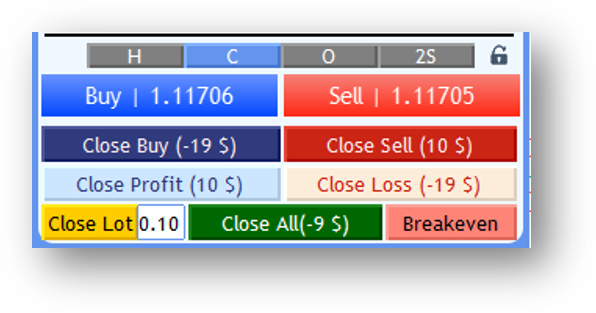
Each closing button displays the corresponding profit or loss directly on the button itself, making it easier to monitor trades and decide which positions to close.
For example, buttons such as Close All Buy, Close All Sell, Close All Profit, Close All Loss, and Close All automatically update their text to display the current combined profit/loss of their related trades:
Close Buy (-19 $)
Close Sell (-10 $)
Close Loss (-19 $)
Close Profit (10 $)
Close All (-9 $)
Partial Close Button
The Close % button allows you to partially reduce all trades currently managed by Trade Dashboard at once.
By default, the button works in percentage mode, meaning a percentage of each open position will be closed. The desired percentage can be configured directly from the Close % box located next to the button.
In the illustrated example, the value is set to 50%, meaning the dashboard will close half of the volume of all active positions under Trade Dashboard management.
Alternatively, the Partial Close button can work using a fixed lot size instead of percentage mode. In this mode, the button text changes from Close % to Close Lot, allowing you to close a predefined lot amount from all positions.
To switch between percentage mode and fixed lot mode, open:
Settings → Trading & Orders → Trade Actions → “Partial Close Button Mode”
You can then choose between:
Close % → closes a percentage of each position
Close Lot → closes a fixed lot size amount from each position
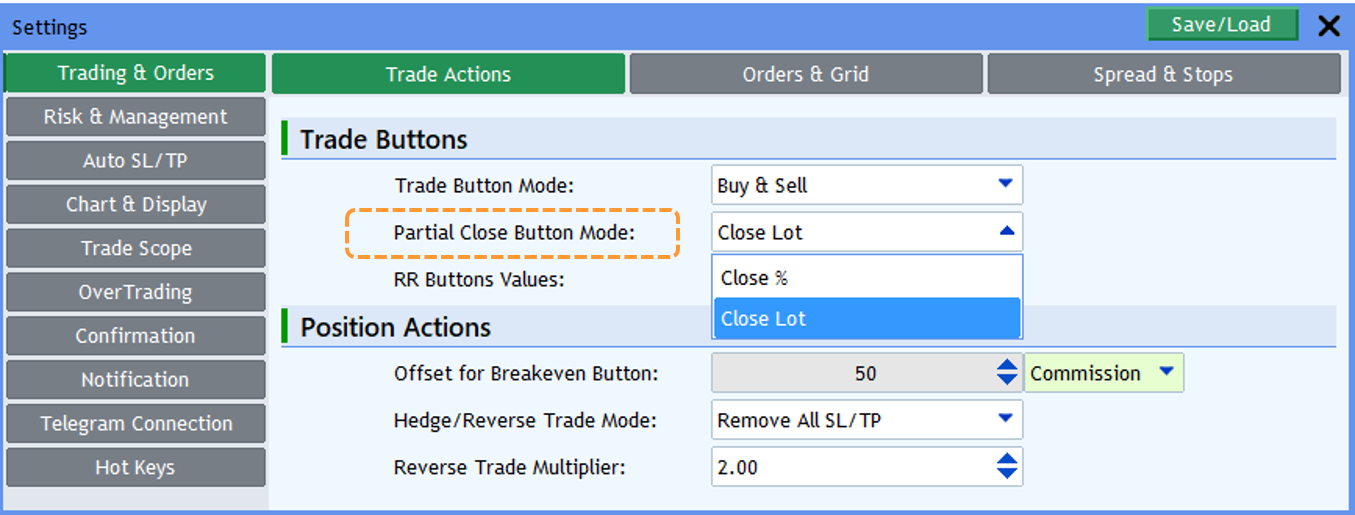
This provides greater flexibility for traders who prefer either proportional scaling or fixed-volume partial exits.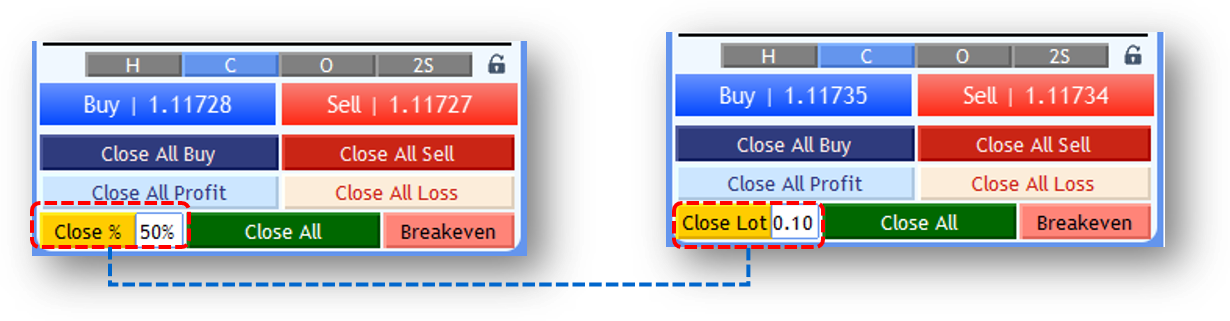
Breakeven Button
The Breakeven button attempts to apply breakeven settings to all active trades managed by the dashboard. Depending on the current market conditions and the distance between the market price and the Stop Loss level, some trades may not be eligible for breakeven modification.
You can also define an additional offset for the breakeven level. This allows the dashboard to lock in a small amount of profit instead of moving the Stop Loss exactly to the open price.
For example, instead of moving the Stop Loss to the exact entry price, the dashboard can move it several points above the entry price to secure a guaranteed profit.
The breakeven offset can be configured from:
Settings → Trading & Orders → Trade Actions → “Offset for Breakeven Button”
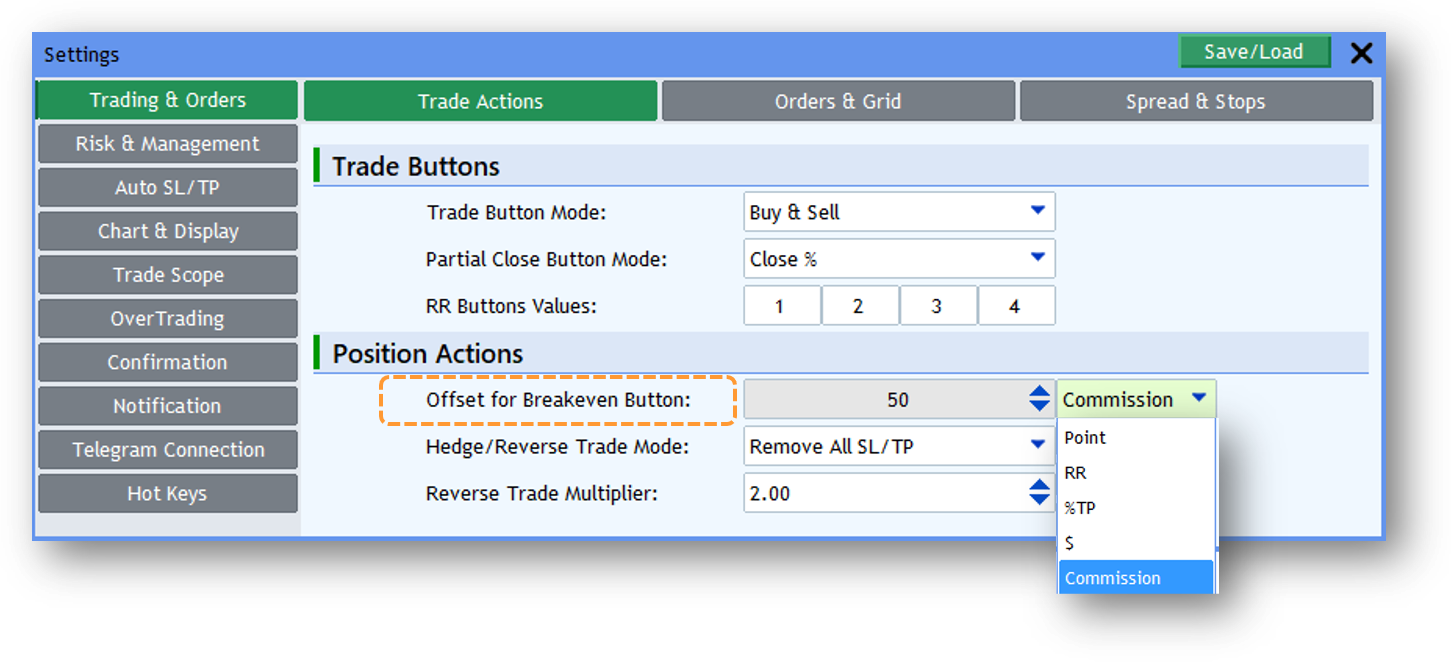
The offset can be set using different methods such as:
Points: Sets the offset distance using a fixed number of points.
RR: Sets the offset distance based on the Stop Loss size and the Risk/Reward ratio.
%TP: Sets the offset distance as a percentage of the Take Profit distance.
$: Sets the offset distance to protect a specific amount of profit in account currency.
Commission: Sets the offset distance to cover the commission cost of the trade.
Pending Order Panel
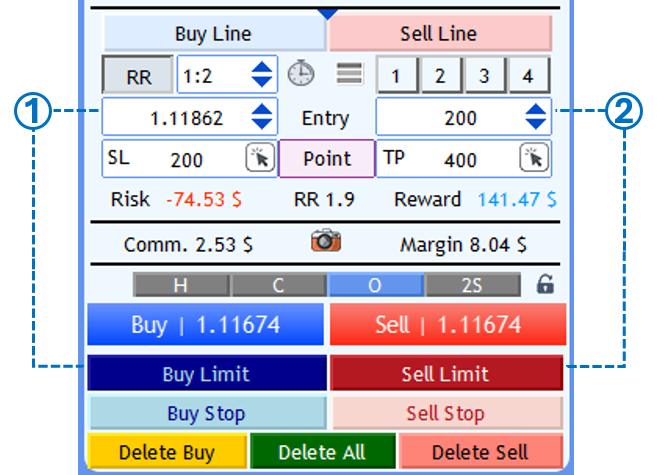
You can place pending orders using “Buy Limit”, “Buy Stop”, “Sell Limit” and “Sell Stop” button, when you press to place an order, it tries to place the order on the price of Entry box on the left (1), if it cannot place the order on that price, it uses Entry box on the right to find the order open price. Entry box on the right represents the distance between current price price and order open price
The Delete controls act on pending orders managed by this dashboard:
Delete Buy — Delete managed Buy Limit and Buy Stop orders.
Delete All — Delete all managed ordinary pending orders, including virtual pending orders.
Delete Sell — Delete managed Sell Limit and Sell Stop orders.
Waiting first-stage 2S orders are excluded from these Delete buttons. Use Cancel Buy, Cancel All, or Cancel Sell in the 2S panel until Trigger activates.
Two Stage Order Panel
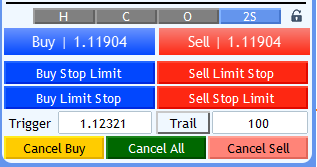
Use the 2S selector in the Trade tab to open this panel. A two-stage order separates the first activation price (Trigger) from the price of the resulting pending order (Entry). Reaching Trigger activates the second stage; reaching Entry then opens the trade.
Before placing an order
Entry — Set the final order price in the main Entry price box. This is the planned Buy Limit, Buy Stop, Sell Limit, or Sell Stop price after Trigger activation.
Trigger — Enter the first-stage activation price in the 2S Trigger field. Buy types use Ask; Sell types use Bid. Upward types require Trigger above the market and Entry below Trigger. Downward types require Trigger below the market and Entry above Trigger.
Volume and SL/TP — Use the main panel risk/lot and SL/TP controls. The planned protection levels are calculated from the final Entry price.
Trail — Enable Trail and enter a positive distance in points if you want the second-stage Entry to trail after activation.
Click one of the four order buttons to submit the setup. The panel can adjust its suggested Trigger to match the selected type and keep it separated from Entry; check the updated Trigger field. If Confirm Before Two-Stage Orders is enabled in Settings → Confirmation, review the prices and volume before confirming.
The four order types
Buy Stop Limit — Ask first rises to a Trigger above the market. This activates a Buy Limit at the lower Entry price, waiting for a downward retracement before buying.
Example: Ask is 1.1000, Trigger is 1.1050, and Entry is 1.1030. At 1.1050 the Buy Limit becomes active; it waits for a return to 1.1030.
Buy Limit Stop — Ask first falls to a Trigger below the market. This activates a Buy Stop at the higher Entry price, waiting for an upward rebound before buying.
Example: Ask is 1.1000, Trigger is 1.0950, and Entry is 1.0970. At 1.0950 the Buy Stop becomes active; it waits for a rise to 1.0970.
Sell Limit Stop — Bid first rises to a Trigger above the market. This activates a Sell Stop at the lower Entry price, waiting for a downward reversal before selling.
Example: Bid is 1.1000, Trigger is 1.1050, and Entry is 1.1030. At 1.1050 the Sell Stop becomes active; it waits for a fall to 1.1030.
Sell Stop Limit — Bid first falls to a Trigger below the market. This activates a Sell Limit at the higher Entry price, waiting for an upward retracement before selling.
Example: Bid is 1.1000, Trigger is 1.0950, and Entry is 1.0970. At 1.0950 the Sell Limit becomes active; it waits for a return to 1.0970.
These examples assume the second-stage Entry has not already been passed. For a locally staged order, if price has already crossed Entry when activation is processed, the dashboard may open a market trade immediately. The actual fill price can differ from the planned Entry.
If immediate market activation leaves a planned SL or TP on the wrong side of the actual entry, that invalid level is not applied. Check the resulting position and its protection levels after activation.
Trail the second-stage Entry
Trail keeps the first Trigger fixed. It starts only after Trigger activation, while the second-stage order is still pending. The distance field beside Trail uses points; it is separate from trailing the Stop Loss of an open position.
Buy Stop Limit and Sell Limit Stop — Their Buy Limit or Sell Stop Entry can trail upward as the market rises, maintaining the configured distance.
Buy Limit Stop and Sell Stop Limit — Their Buy Stop or Sell Limit Entry can trail downward as the market falls, maintaining the configured distance.
Entry moves in one direction and does not move back when the market reverses. Each successful Entry move shifts SL and TP by the same amount, preserving their distances from Entry. After the order opens, this Entry trail ends; any configured Trail Stop Loss is managed separately.
Example: after an upward Trigger, a Buy Limit Entry is 100 points below the market. With Trail enabled at 100 points, further rises can lift Entry so it remains 100 points below the market. If price reverses, Entry stays at its latest level and waits for the retracement.
After placement, open the order modification panel and select Trail → TPO to inspect or change Distance and Step, or to enable or disable the Entry trail. The 2S panel initializes Step to one displayed point. Changing the 2S Trail button or distance affects new orders; use the order-specific panel to change an existing order.
MT4 and MT5 execution
MT4 — All four first stages are managed locally by the dashboard. They are not broker pending orders until Trigger activates. Keep MT4, the dashboard, and the broker connection running for local activation. The resulting pending order follows the Virtual Pending Order setting.
MT5 with Virtual Pending Order off — Buy Stop Limit and Sell Stop Limit are sent immediately as native broker Stop Limit orders. The broker handles their first Trigger. If the symbol or broker rejects the type, the dashboard reports the rejection.
MT5 local staging — Buy Limit Stop and Sell Limit Stop always use dashboard-managed activation. Buy Stop Limit and Sell Stop Limit also use local staging when Virtual Pending Order is on. The real/virtual execution choice is captured when the order is placed.
Dashboard-managed activation, Entry trailing, Cancel Price, and any locally managed expiration require the terminal and EA to remain running. Native broker orders still need the dashboard running for its additional management features.
Chart controls after placement
The waiting order displays its full two-stage name, an Entry information box, and a separate Trigger box. Drag Trigger vertically to adjust its activation price; drag the pending-order Entry control to adjust the final price. Keep Entry on the valid side of Trigger. For a native MT5 Stop Limit, these changes modify the broker order.
Locally staged orders also show the planned Entry, SL, and TP structure on the chart. SL and TP remain planned levels while Trigger is waiting. Once activation succeeds, the chart switches to the resulting pending order or position and its ordinary controls.
Cancel Price and Expiration
Cancel Price — Use C on the Entry information box, or Cancel Price in the modification panel. While Trigger is waiting, the cancellation boundary must be beyond Trigger in its direction: above an upward Trigger or below a downward Trigger.
Expiration — Use E on the information box or Expiration in the modification panel. This is the deadline for the complete two-stage order, including the waiting first stage and the resulting pending order. If the first stage has not triggered by the deadline, it is cancelled.
Expiration remains in effect when activation creates a pending order. Its broker or local management depends on the order type and broker; locally managed expiration requires the EA to remain running. When activation opens a market position directly, pending-order expiration ends.
Cancel buttons
Cancel Buy — Remove waiting Buy two-stage orders on the current chart symbol.
Cancel All — Remove all waiting two-stage orders on the current chart symbol.
Cancel Sell — Remove waiting Sell two-stage orders on the current chart symbol.
These controls apply while the first Trigger is still waiting. After activation, use the ordinary pending-order Delete controls in the O panel, or close the resulting position through the normal trade controls.
If local activation cannot complete
Activation remains subject to the spread limit, Overtrading restrictions, available margin, and broker rules. Temporary quote or server errors can be retried while the order remains pending. A permanent rejection pauses local activation and leaves the staged order available for review. Change Trigger, Entry, SL, TP, or Expiration to correct it and allow another attempt, or cancel it.
Saved waiting orders are restored with the dashboard runtime state on reload. Local activation resumes from the current market conditions when the EA starts receiving ticks again; it cannot react while the terminal or EA is stopped.
Hedge & Reverse Panel
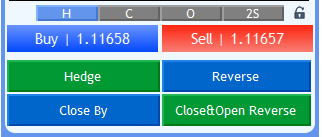
The Hedge button opens a new trade in the opposite direction to balance the total Buy and Sell volume.
For example:
If you currently have a 1.00 lot Buy position, pressing the Hedge button will open a 1.00 lot Sell position.
If you have a 1.00 lot Buy position and an existing 0.50 lot Sell position, pressing the Hedge button will open an additional 0.50 lot Sell position to make both sides equal.
Hedging is another way to lock the current floating profit or loss. Once the total Buy and Sell volumes become equal, the floating profit/loss will remain nearly constant regardless of market direction.
The Reverse button opens a new trade in the opposite direction using a multiplier of the net open volume.
For example, if the Reverse Trade Multiplier is set to 2:
If you currently have a 1.00 lot Buy position, pressing the Reverse button will open a 2.00 lot Sell position.
If you have a 1.00 lot Buy position and an existing 0.50 lot Sell position, the net Buy volume is 0.50 lot. Pressing the Reverse button will therefore open a 1.00 lot Sell position (0.50 × 2).
The Reverse multiplier can be configured from:
Settings → Trading & Orders → Trade Actions → “Reverse Trade Multiplier”
The Hedge and Reverse features support three different trade modes, which can be configured from:
Settings → Trading & Orders → Trade Actions → “Hedge/Reverse Trade Mode”
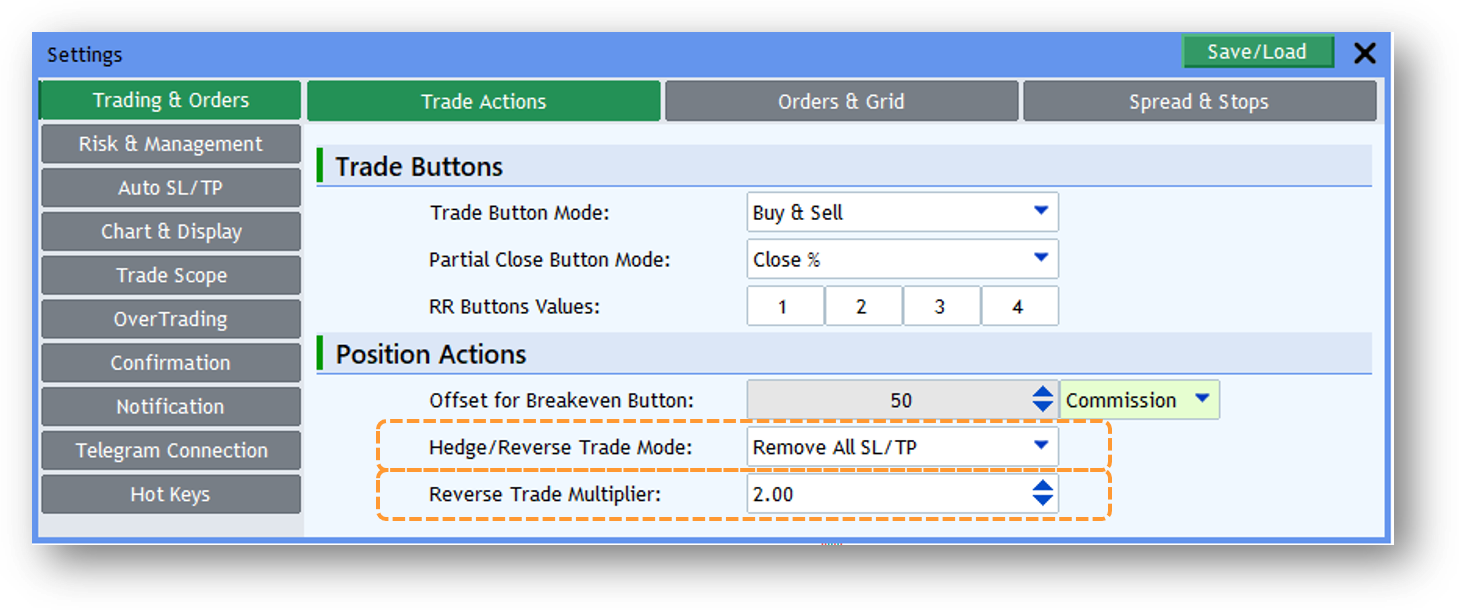
Trade With SL/TP
The hedge or reverse trade will be opened using the current Stop Loss and Take Profit values configured in the dashboard.
Trade Without SL/TP
The hedge or reverse trade will be opened without Stop Loss or Take Profit levels. Existing trades will keep their current SL/TP settings unchanged.
Remove All SL/TP
When the hedge or reverse trade is opened, all Stop Loss and Take Profit levels from all related trades will be removed automatically.
The Close By button closes opposite Buy and Sell positions directly against each other instead of closing them separately through the market.
This operation can reduce trading costs by avoiding an additional spread cost and, depending on the broker’s pricing model, may also reduce commission fees.
For example:
If you have a 1.00 lot Buy position and a 1.00 lot Sell position, the dashboard can close both positions directly using the Close By operation.
If the Buy and Sell volumes are not equal, the matching volume will be closed using Close By, while the remaining unmatched volume will stay open.
The Close By feature is especially useful for hedged positions where opposite trades already exist on the same symbol.
The Close & Open Reverse button closes all current positions and immediately opens a new position in the opposite direction using the remaining net volume.
For example:
If you currently have a 1.00 lot Buy position, pressing this button will close the Buy trade and open a 1.00 lot Sell position.
If you have a 1.00 lot Buy position and a 0.50 lot Sell position, the dashboard will close all existing trades and open a new 0.50 lot Sell position.
Manual Trading Lock
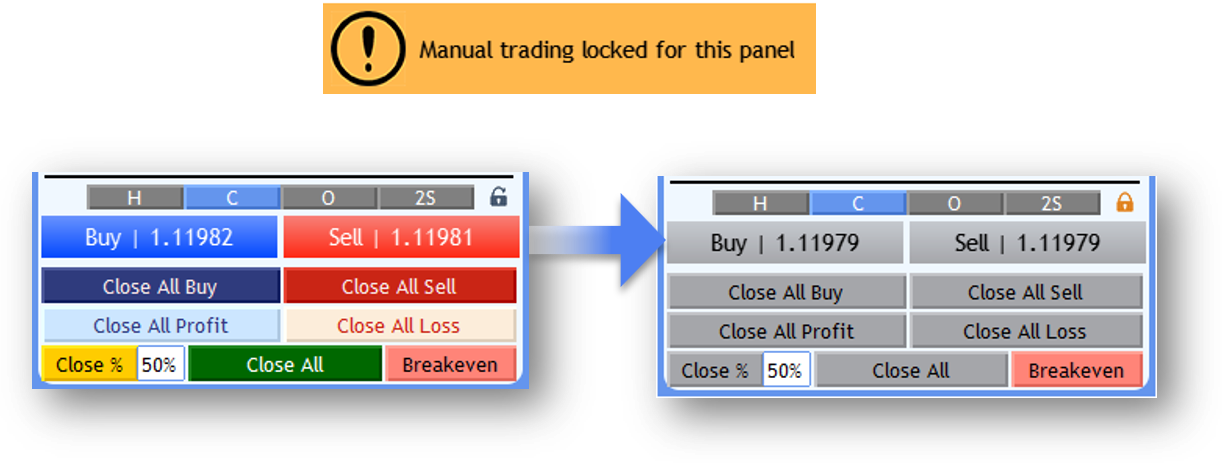
Use the padlock beside H / C / O / 2S to lock or unlock manual trading on this dashboard. You can also press Ctrl+Shift+L while the chart is focused. The left example shows the unlocked state; the right example shows the orange closed padlock and dimmed trading buttons.
Unlocked — The dashboard accepts manual trading actions, subject to its normal risk, spread, and Overtrading restrictions.
Locked — Manual opening, closing, deleting, and modifying trades through this panel, its chart controls, and trading hotkeys are blocked. A blocked action displays “Manual trading locked for this panel.”
Scope — The lock belongs to this chart's dashboard. Other dashboard charts have independent lock states, and MetaTrader's own trading controls remain available.
Automatic management — Enabled SL/TP, Partial Close, Breakeven, trailing, Basket rules, scheduled actions, and active Trade Object Rules continue to run. The lock does not pause the EA.
Navigation — You can still move the dashboard, switch tabs, view information, and open Settings. Locking clears the active Buy/Sell Line preview and cancels unfinished Cancel Price or Expiration placement.
Unlocking — Click the padlock again or press Ctrl+Shift+L. An active Overtrading restriction can still prevent trading after the manual lock is removed.
The chart-specific lock state is restored when the dashboard reloads on that chart.
Multiple Order Handling
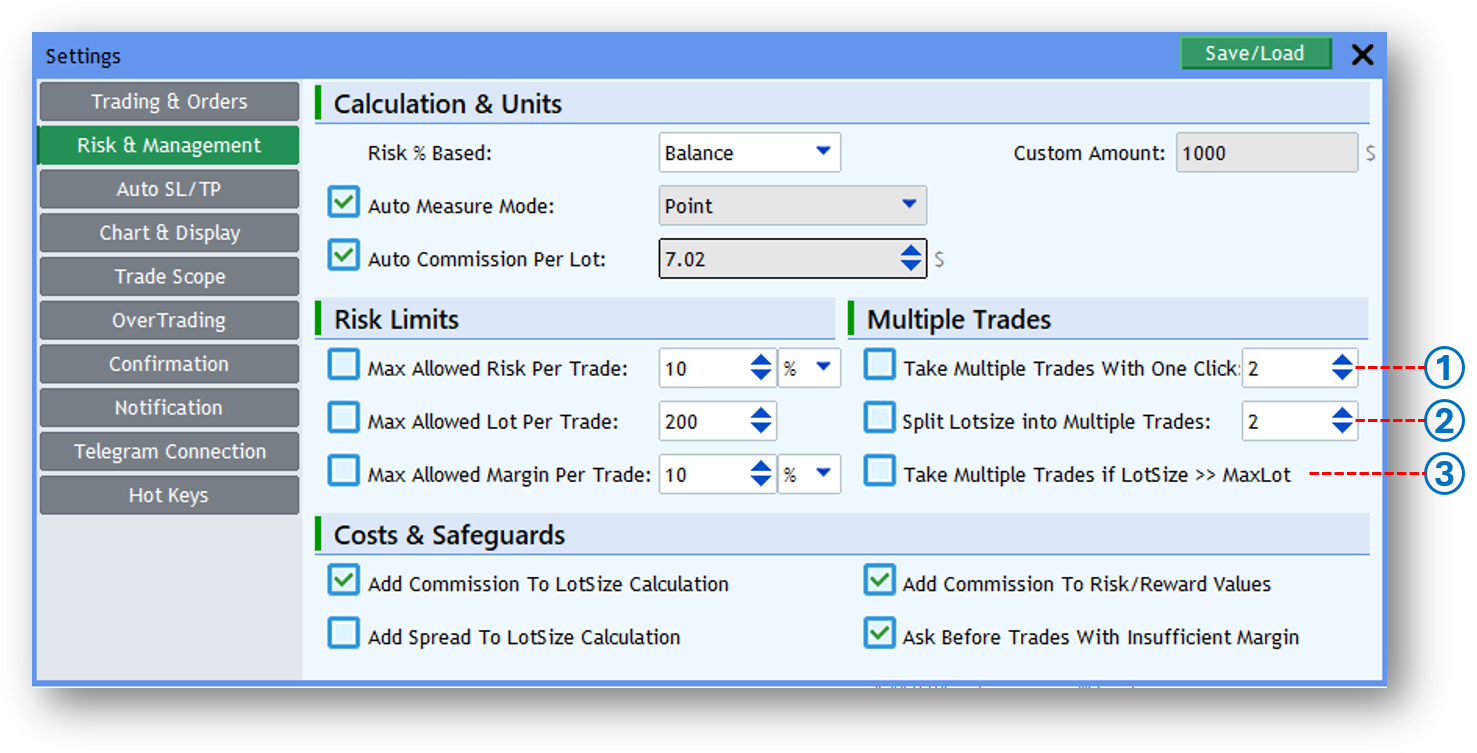
These settings let supported market and ordinary pending-order actions open multiple trades, split volume, or handle broker lot-size limits. Configure them at Settings → Risk & Management → Multiple Trades. The 2S creation workflow places one staged order per action and does not apply these repeat/split settings.
💡 When any of the Multiple Order Handling features are enabled, Trade Dashboard displays the total number of trades that will be opened directly on the trading buttons.
The displayed number reflects the combined effect of all enabled multiple-order settings.
🔄 Example:
Take Multiple Trades With One Click = 3
Split LotSize Into Multiple Trades = 2
In a supported trading action, the combined settings create: 3 × 2 = 6 trades.
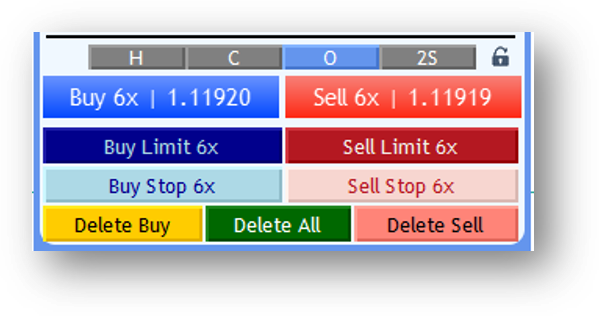
As a result, the trading buttons will display "6x", indicating that six trades will be opened when the button is clicked.
1 — Take Multiple Trades With One Click
This option allows Trade Dashboard to execute the same trading command multiple times with a single click.
The number box specifies how many identical trades should be opened.
🔄 Example
Lot Size = 1.00
Number of Trades = 5
Clicking Buy will open:
5 × 1.00 lot Buy trades
instead of:
1 × 1.00 lot Buy trade
for a total volume of 5.00 lots.
💡 Useful for traders who prefer managing multiple smaller positions instead of a single large trade.
2 — Split LotSize into Multiple Trades
This option automatically divides the selected lot size into multiple equal trades.
The number box specifies how many parts the lot size should be split into.
🔄 Example
Lot Size = 2.00
Split Into = 4
Trade Dashboard will open:
4 × 0.50 lot trades
instead of:
1 × 2.00 lot trade
This allows traders to manage individual portions of a position independently.
💡 Unlike Take Multiple Trades with One Click, this feature focuses on splitting the selected lot size into equal parts.
3 — Take Multiple Trades if LotSize >> MaxLot
Every symbol has a maximum allowed lot size per trade defined by the broker.
🔄 Example
Many brokers limit BTCUSD to 10 lots per trade.
Many brokers limit EURUSD to 200 lots per trade.
You can view the maximum lot size of the current symbol from: Info → Sym Info → Lot Max
Normally, Trade Dashboard does not allow orders larger than the symbol's maximum lot size.
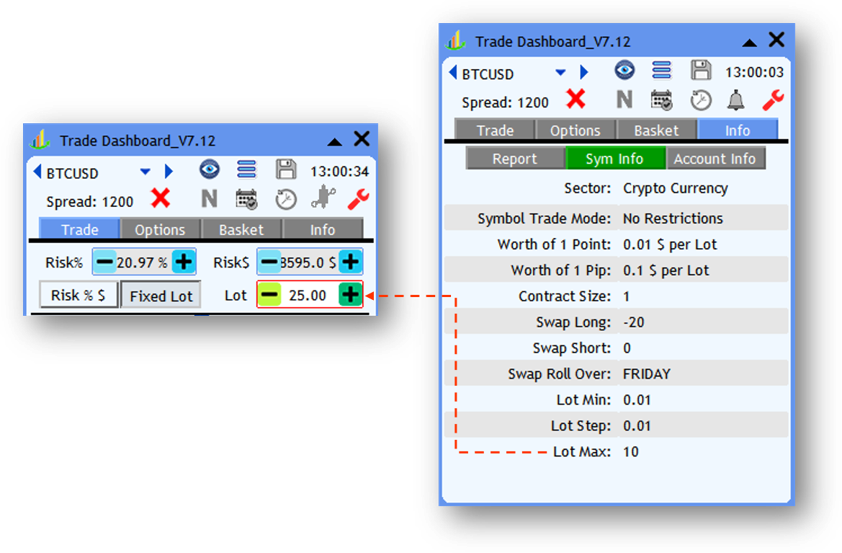
When this option is enabled, Trade Dashboard automatically splits oversized orders into multiple trades so the full requested volume can still be executed.
🔄 Example
Assume:
BTCUSD Maximum Lot Size = 10
Requested Lot Size = 25
When a trade is opened, Trade Dashboard will automatically send:
10 lots
10 lots
5 lots
for a total of 25 lots.
💡 This feature is especially useful when trading symbols that have strict broker-imposed maximum lot limits.
⚙️Options Tab
✂️Partial Close
The Partial Close tab allows traders to automatically close portions of a trade at multiple predefined levels.
At each Partial Close level, the dashboard can:
Close a percentage or fixed portion of the trade volume
Move the Stop Loss to a new predefined level
Lock in profits progressively as the trade moves in favor of the position
This feature helps traders manage trades more effectively by scaling out of positions gradually instead of closing the entire trade at a single Take Profit level.
Partial TP
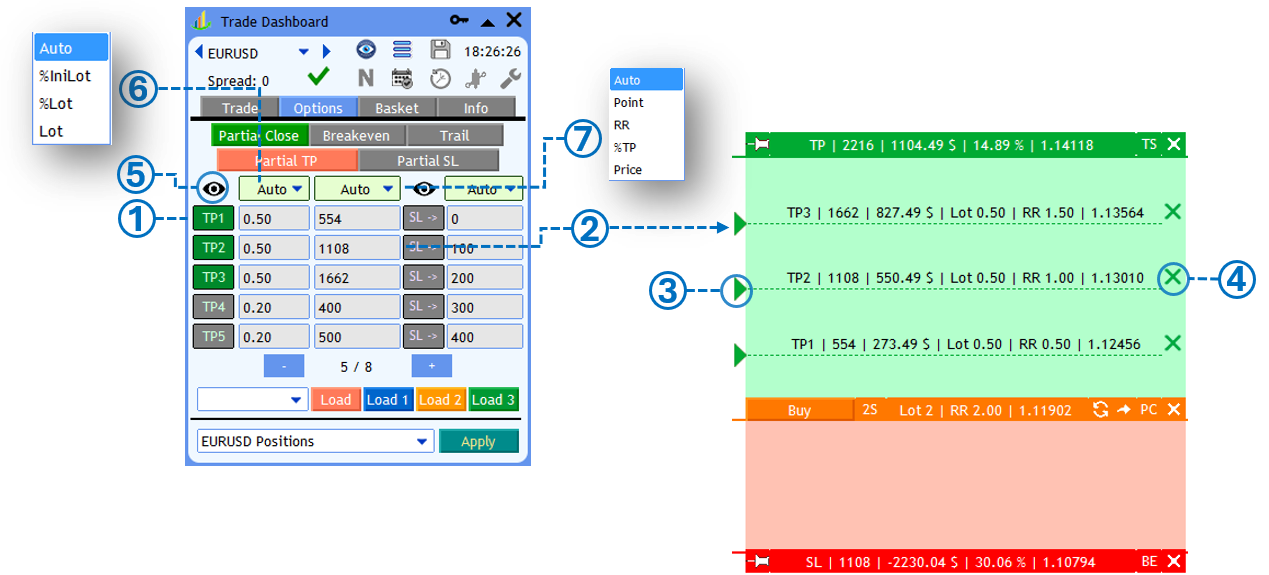
To activate a Partial TP level, click its corresponding button (1) so that it turns green.
Once a Partial TP level is enabled, a corresponding level line (2) will appear on the Buy/Sell Line tool. This visual line provides additional information about the partial closure level.
The Partial TP line can be adjusted visually by dragging its left handle (3) directly on the chart. To remove a Partial TP level, click the X button on the right side of the level line (4). Removing the line will automatically disable the corresponding Partial TP level.
If you prefer a cleaner chart appearance, you can hide the Partial TP level lines by clicking the eye-shaped button (5) located above the Partial TP Buttons.
The − / count / + controls below the stage rows change how many stages are visible. The panel starts with five rows and supports three to eight visible stages. The counter, such as 5 / 8, shows the visible count and maximum.
+ — Show one more stage, up to eight.
− — Hide the last visible stage, down to three. First turn off that stage's active Partial TP/SL and SL Move To rules; an active stage cannot be hidden.
The controls work in both Partial TP and Partial SL and in the per-trade PClose panel. Enabling a saved later stage makes the panel reveal it automatically.
The Partial TP system contains two main columns:
The first column (6) defines the partial closure volume for each level.
The second column (7) defines the distance or target level where the partial closure should be executed.
 Closure Lot Column
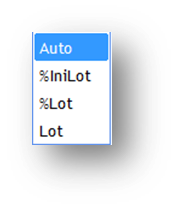
The Closure Lot column can be configured using four different modes.
Auto
In this mode, the closure lot size edit-boxes become gray and cannot be edited manually because all values are calculated automatically by the dashboard.
Trade Dashboard divides the total trade volume equally between all enabled Partial TP levels and the final Take Profit level.
In the example above, the dashboard is configured to open a 2.00 lot trade with 3 Partial TP levels and 1 final TP level. Therefore, the total volume is divided equally between the four levels:
2.00 lots ÷ 4 levels = 0.50 lot per level
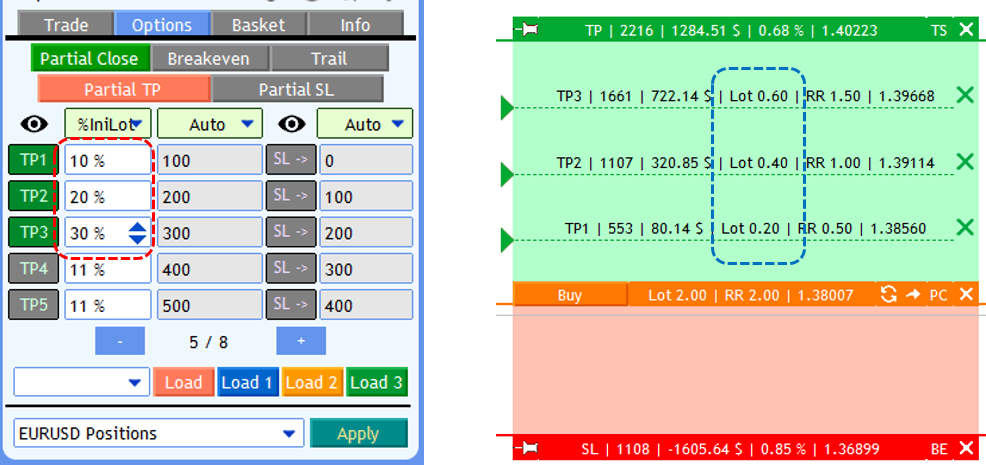
%IniLot
In this mode, the edit boxes become manually editable. Each value represents a percentage of the initial trade volume. In the example above, the initial trade size is 2.00 lots:
TP1: 10% = 0.20 lot
TP2: 20% = 0.40 lot
TP3: 30% = 0.60 lot
The calculated closure lot sizes are also displayed on the Buy/Sell Line tool.
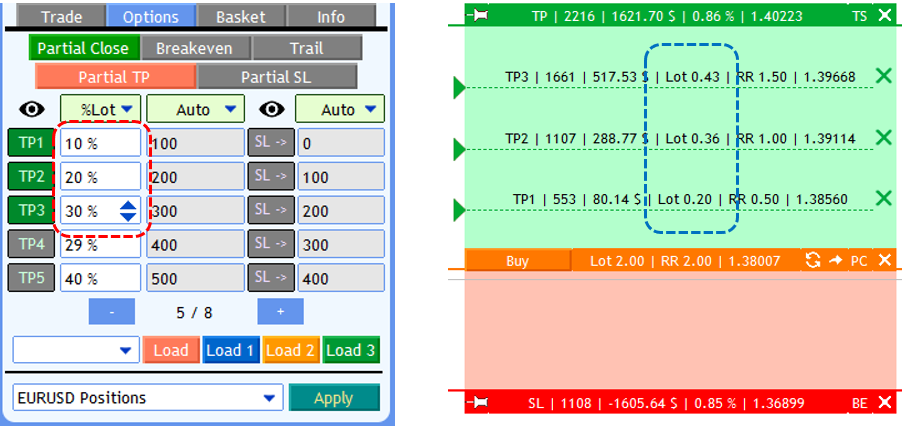
%Lot
In this mode, each value represents a percentage of the remaining trade volume after the previous Partial TP levels are executed. In the example above, the initial trade size is 2.00 lots:
TP1: 10% of 2.00 lots = 0.20 lot → Remaining volume: 1.80 lots
TP2: 20% of 1.80 lots = 0.36 lot → Remaining volume: 1.44 lots
TP3: 30% of 1.44 lots = 0.43 lot
Lot
In this mode, the closure lot size is set manually using fixed lot values for each Partial TP level.SL Move To
 Target Distance Column
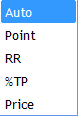
The second column which represents the target level column can be configured using five different modes.
Auto
In this mode, the target distance edit-boxes become gray and cannot be edited manually because all values are calculated automatically. Trade Dashboard divides the total Take Profit distance equally between all enabled Partial TP levels. In the example, the total TP distance is 2000 points, so the dashboard automatically sets:
TP1 = 500 points
TP2 = 1000 points
TP3 = 1500 points
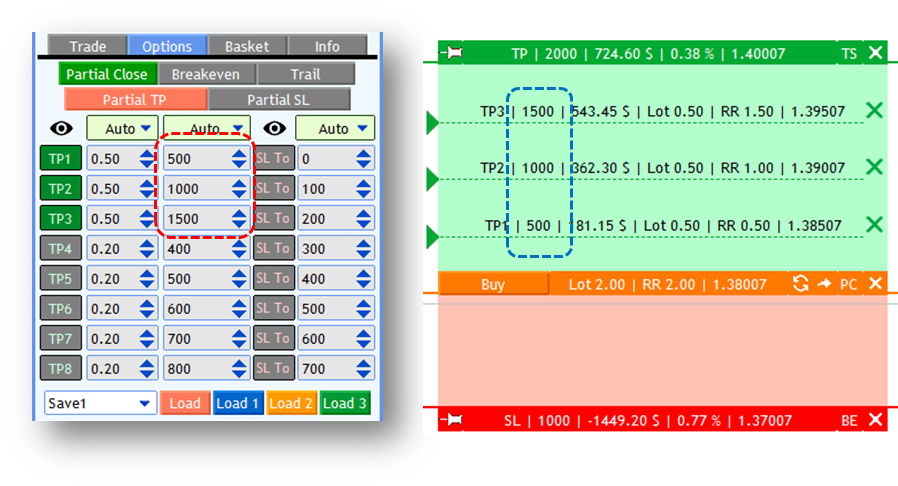
Point
In this mode, the target level is set using a fixed distance from the trade entry price.
⚠ Note: If the target mode is set to Auto and you move a Partial TP level manually using the left handle of its line on the chart, the mode will automatically switch to Point.
RR
In this mode, the target distance is calculated as a multiple of the Stop Loss distance.
%TP
In this mode, the target level is set as a percentage of the total Take Profit distance.
Price
In this mode, the target level is set directly using a specific price value.
SL Move To
The SL Move To function allows the Stop Loss to move automatically to a new level whenever a Partial TP level is reached.
This feature can be used as:
a multi-level breakeven system
a manual trailing stop system
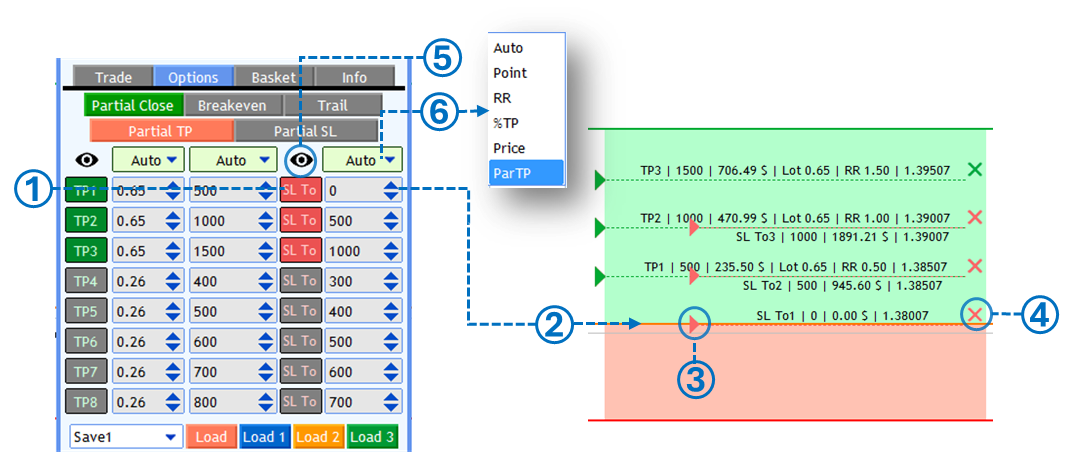
To enable an ‘SL Move To’ level, activate the corresponding ‘SL To’ button (1) next to a Partial TP level.
Once enabled, a corresponding ‘SL To’ line (2) will appear on the Buy/Sell Line tool. This visual line displays additional information about the new Stop Loss level, including:
‘SL To’ distance
Profit/Loss value at the ‘SL To’ level
‘SL To’ price
The ‘SL To’ line can be adjusted visually by dragging its left handle (3) directly on the chart. To remove an ‘SL To’ level, click the X button on the right side of the line (4). Removing the line will automatically disable the corresponding ‘SL To’ level.
If you prefer a cleaner chart appearance, you can hide the ‘SL To’ lines by clicking the eye-shaped button (5) located above the ‘SL To’ section.
The ‘SL To’ distance can be configured using different measurement modes (6).
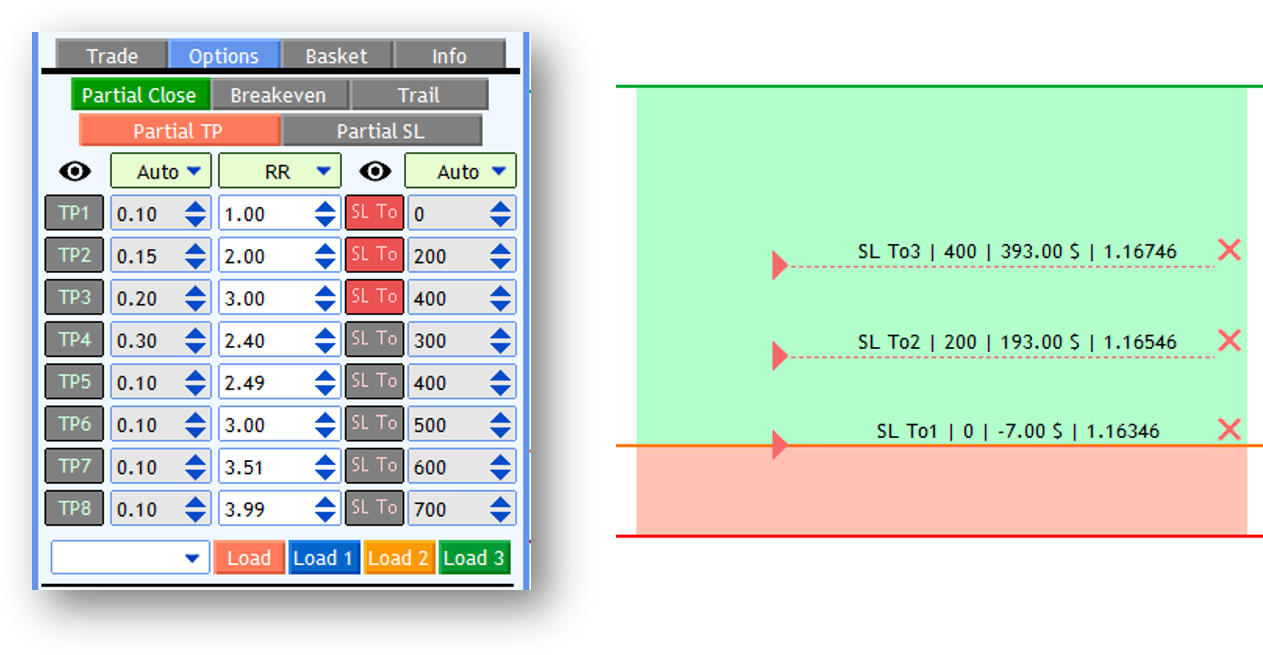
Auto: In Auto mode, Trade Dashboard automatically places each ‘SL To’ level based on equal spacing between the Partial TP levels. In the above example:
At TP1, the Stop Loss moves to breakeven.
At TP2, the Stop Loss moves to the TP1 level (500 points).
At TP3, the Stop Loss moves to the TP2 level (1000 points).
This creates a progressive Stop Loss movement as each Partial TP level is reached.
Point
In this mode, the ‘SL To’ level is set using a fixed distance from the trade entry price.
⚠ Note: If the ‘SL To’ mode is set to Auto and the line is moved manually using its left handle on the chart, the mode will automatically switch to Point.
RR
In this mode, the ‘SL To’ level is calculated as a multiple of the Stop Loss distance.
%TP
In this mode, the ‘SL To’ level is set as a percentage of the total Take Profit distance.
Price
In this mode, the ‘SL To’ level is set directly using a specific price value.
ParTP
In this mode, the user must choose one option from BE,TP1,TP2, upto TP8. So user can linked ‘SL To’ level to a partial TP level or BE level, BE mean breakeven which is the open price of the trade. In this case, if user change the corresponding partial TP level, the linked ‘SL To’ level will change as well.
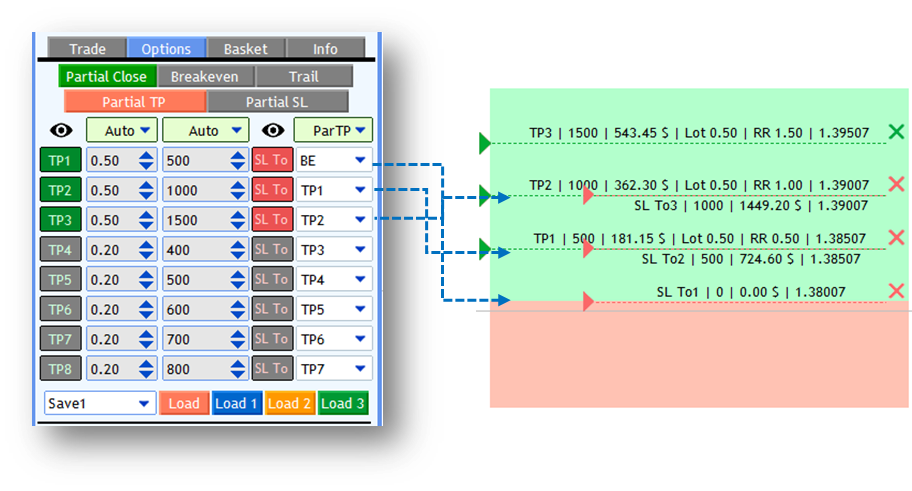
💡 Note: You may want to move the Stop Loss without partially closing the trade. In this case, the ‘SL To’ function can still be used even if no Partial TP levels are enabled.
Partial SL
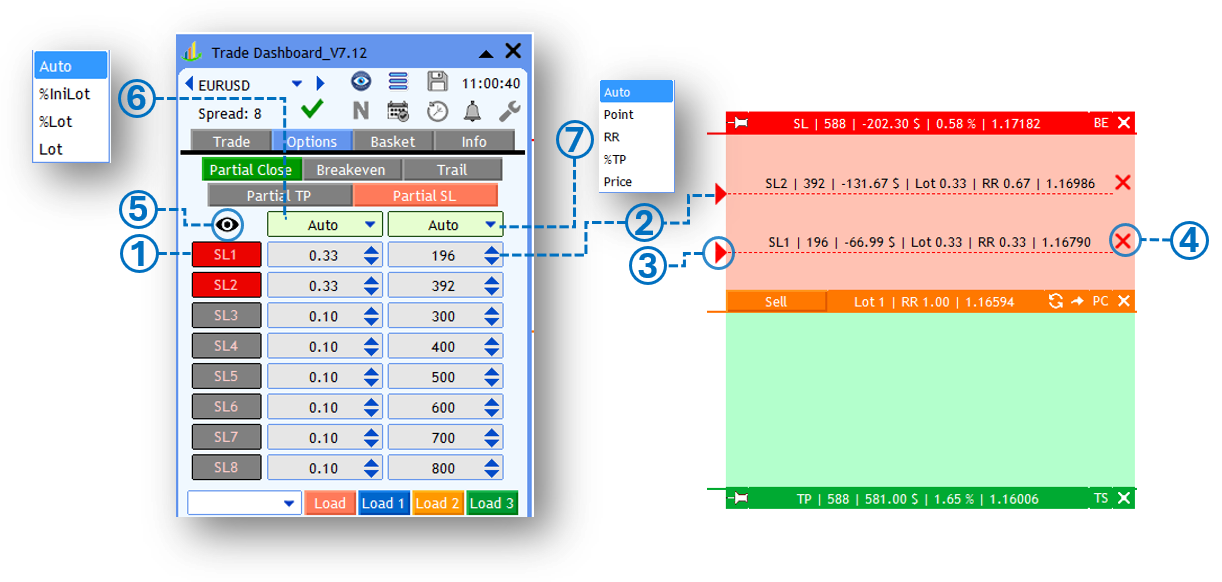
The Partial SL system works similarly to the Partial TP system, but instead of partially closing trades in profit, it partially closes trades while moving toward the Stop Loss.
To activate a Partial SL level, click its corresponding button (1) so that it turns red. Once enabled, a corresponding level line (2) will appear on the Buy/Sell Line tool.
The line can be adjusted visually by dragging its left handle (3) directly on the chart. To remove a Partial SL level, click the X button on the right side of the line (4).
If you prefer a cleaner chart appearance, you can hide the Partial SL lines using the eye-shaped button (5).
Like Partial TP, the Partial SL system also contains two main columns:
The first column (6) defines the closure volume for each level
The second column (7) defines the target distance or level where the partial closure will be executed
Here are several common trade management setups frequently requested by traders:
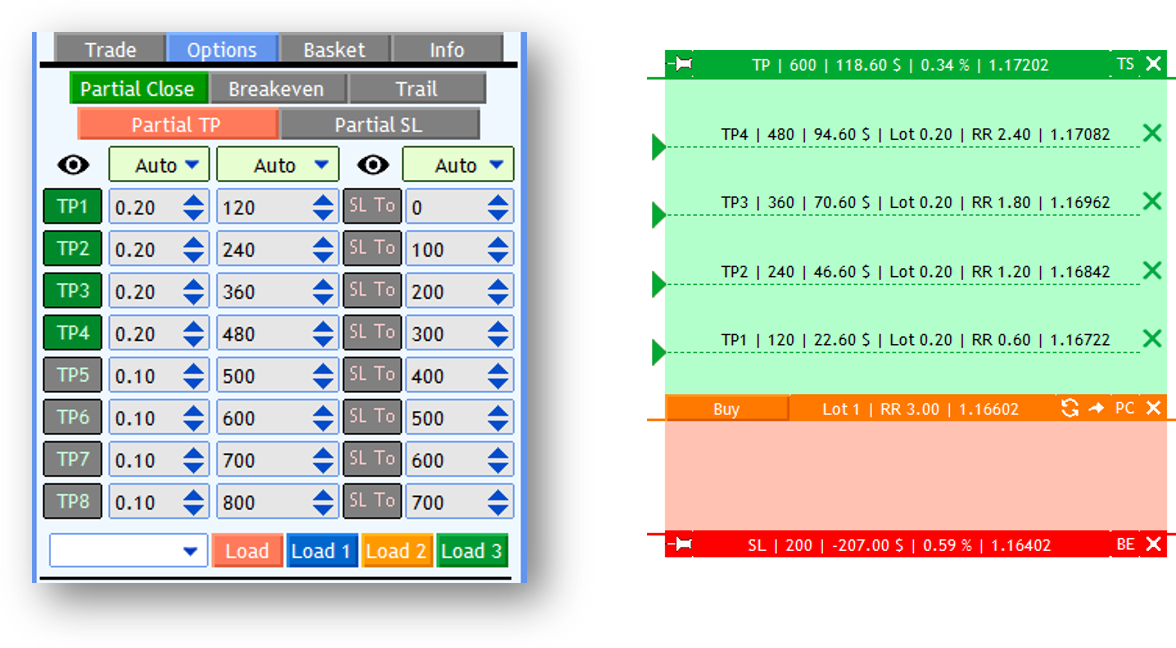
Example 1 — Equal Partial Profit Distribution
Close 20% of the trade at 20% of the TP distance
Close 20% at 40% of the TP distance
Close 20% at 60% of the TP distance
Close 20% at 80% of the TP distance
Since all Partial TP levels use identical closure sizes, the Auto closure lot mode can be used. Also, because the target levels are distributed evenly across the total TP distance, the Auto target distance mode can be used as well.
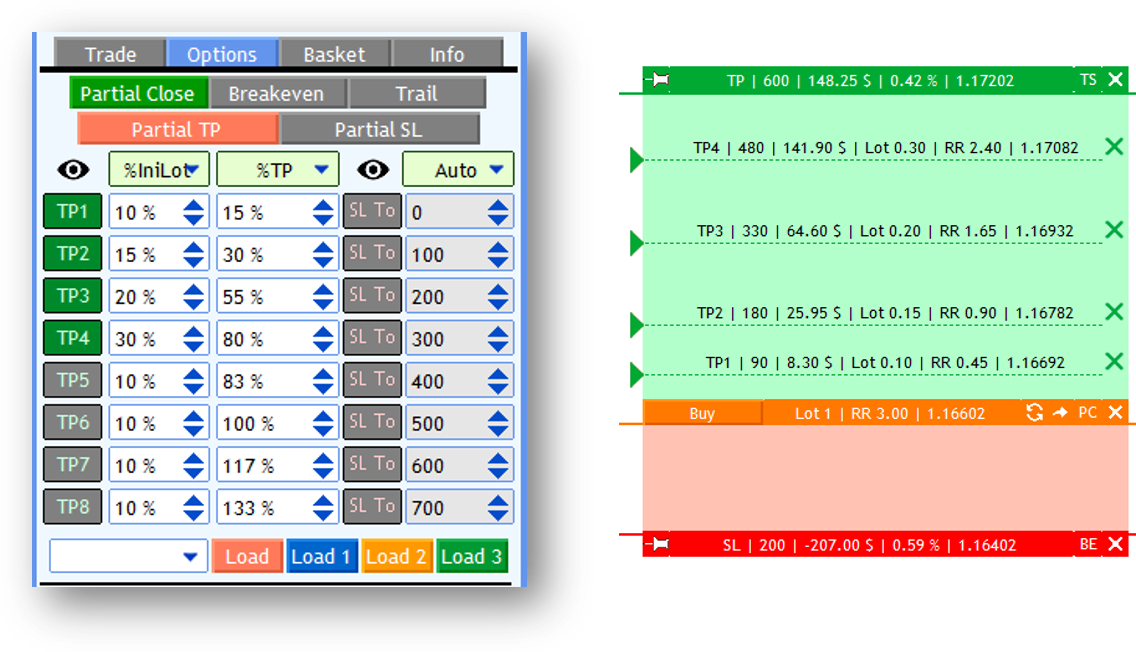
Example 2 — Custom Partial Profit Distribution
Close 10% of the trade at 15% of the TP distance
Close 15% at 30% of the TP distance
Close 20% at 55% of the TP distance
Close 30% at 80% of the TP distance
Since the Partial TP levels use different closure sizes, the %IniLot mode is used for the closure lot column. The %TP mode is used for the target distance column to define different target distances for each Partial TP level.
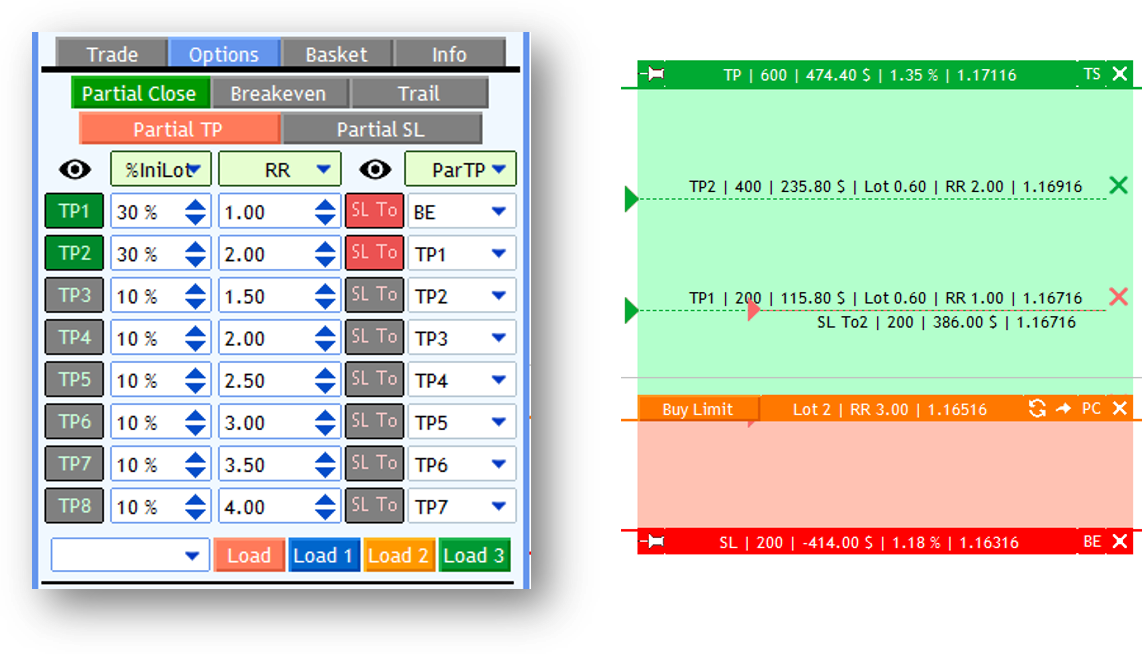
Example 3 — Scaling Out with Stop Loss Protection
Close 30% of the trade at 1 RR
Move the Stop Loss to Breakeven
Close another 30% at 2 RR
Move the Stop Loss to TP1 after TP2 is reached
Full TP at 3 RR
This setup allows the trader to secure profits gradually while continuously reducing risk as the trade moves further into profit.
Example 4 — Partial Profit with Dynamic Stop Loss
Close 25% of the trade at 1 RR
Close 25% at 1.5 RR
Move the Stop Loss to Breakeven at TP2
Close 25% at 2 RR
Move the Stop Loss to 1 RR at TP3
This setup allows the trader to secure profits progressively while reducing risk as the trade moves in favor. There are multiple ways to configure this setup using different closure lot modes and target distance modes.
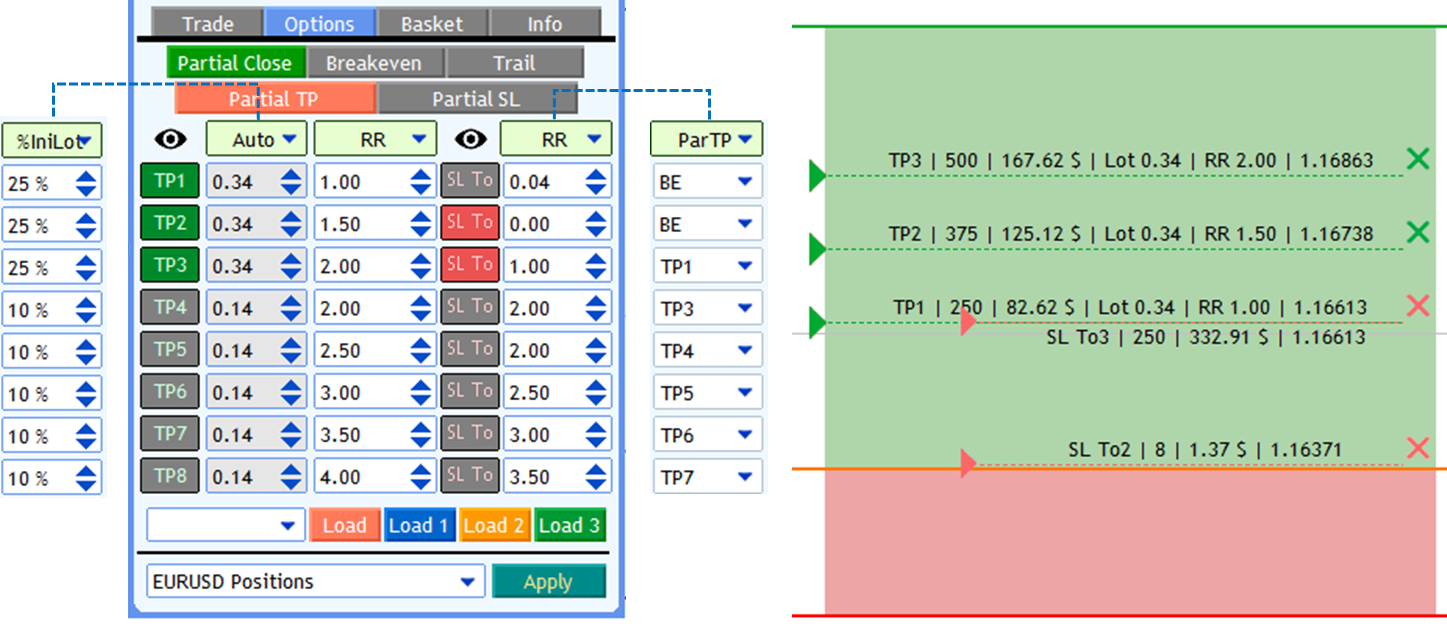
Since the goal is to close 25% at each level, you can use:
Auto lot mode, which divides the total lot size equally between all enabled TP levels
or %IniLot mode with 25% configured for each TP level
The target distances are configured using RR mode:
TP1 = 1 RR
TP2 = 1.5 RR
TP3 = 2 RR
The ‘SL To’ levels can also be configured using RR mode:
The first ‘SL To’ level is disabled because no Stop Loss movement is needed at TP1
The second ‘SL To’ level is set to 0 RR to move the Stop Loss to breakeven at TP2
The third ‘SL To’ level is set to 1 RR to move the Stop Loss into profit by one Stop Loss distance at TP3
Alternatively, the ‘SL To’ levels can be configured using ParTP mode:
The second ‘SL To’ level should be set to BE
The third ‘SL To’ level should be set to TP1, since TP1 is already positioned at 1 RR
Example 5 — Dynamic Stop Loss Management
Move the Stop Loss to Breakeven at 1 RR
Move the Stop Loss to 1 RR profit at 2 RR
Move the Stop Loss to 2 RR profit at 3 RR
In this example, the ‘SL To’ function is used without enabling any Partial TP levels, allowing the Stop Loss to move progressively as the trade moves further into profit.
🎯Breakeven
The Breakeven function automatically moves the Stop Loss to protect profits as the trade moves in favor.
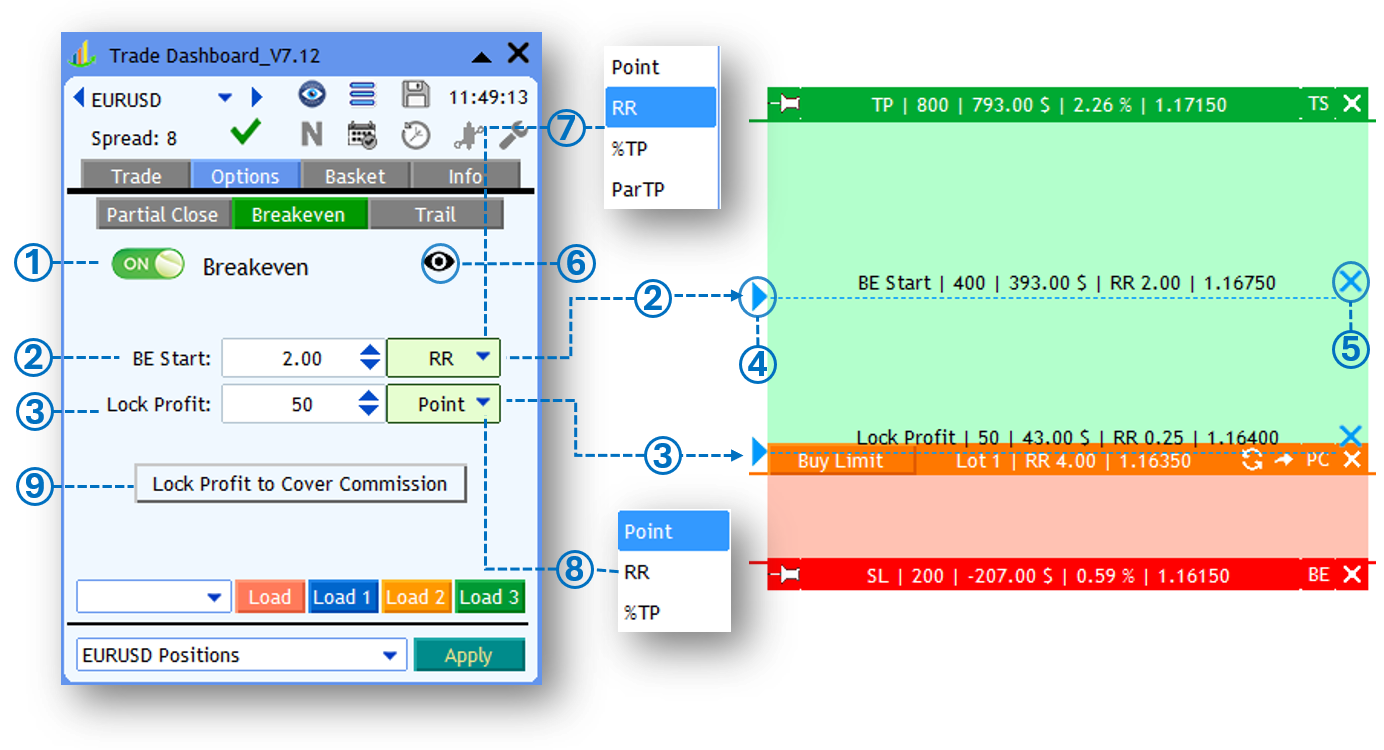
To activate Breakeven, click its corresponding button (1) so that it turns green.
Once enabled, two corresponding lines will appear on the Buy/Sell Line tool:
BE Start (2): Defines where the Breakeven function becomes active
Lock Profit (3): Defines where the Stop Loss will be moved after activation
In the example above, once the trade reaches 2 RR profit, the Stop Loss is moved to 50 points above the entry price.
Both lines can be adjusted visually by dragging their left handles (4) directly on the chart. Removing the breakeven line using the X button (6) will also disable the Breakeven function.
If you prefer a cleaner chart appearance, you can hide the Breakeven lines using the eye-shaped button (6).
The BE Start level supports different measurement modes (7):
Point: Distance from the trade entry price
RR: Multiple of the Stop Loss distance
%TP: Percentage of the total Take Profit distance
ParTP: Linked to a Partial TP level
The Lock Profit level supports:
Point
RR
%TP
If the Lock Profit to Cover Commission button (9) is enabled, the Lock Profit value is calculated automatically to cover the commission cost of the trade.
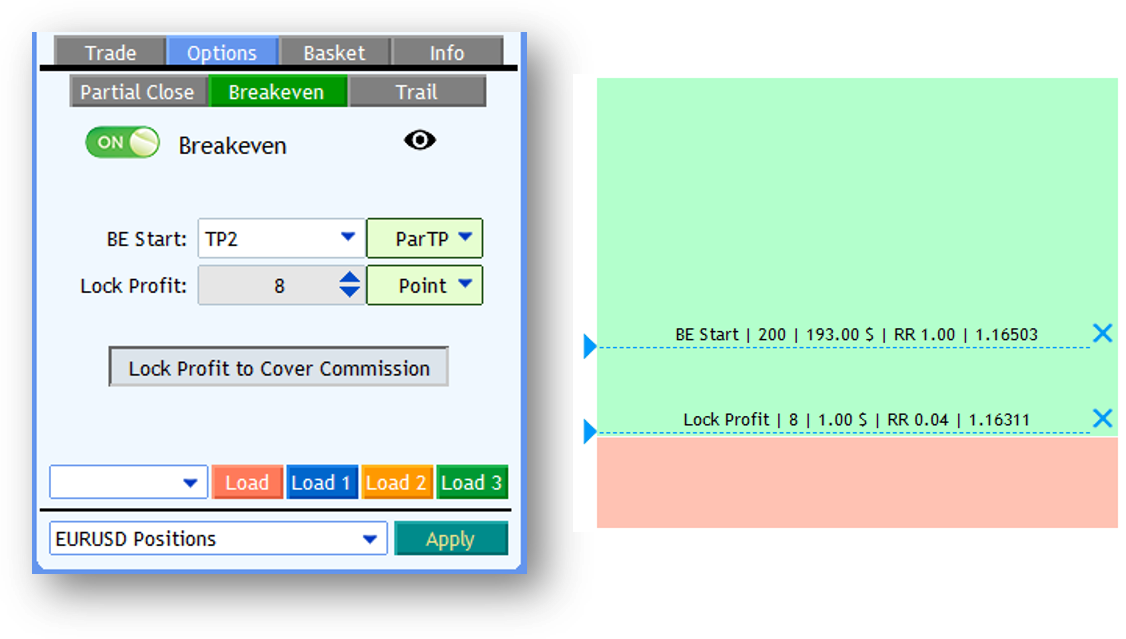
Another example is moving the Stop Loss to cover the commission after the trade reaches the second Partial TP level.
In this example:
BE Start is linked to TP2
Lock Profit is set to cover the commission
Once TP2 is reached, the Stop Loss will move slightly beyond the entry price, enough to cover the trade commission.
👣Trail
Trail Stop Loss
This tab allows the Stop Loss to trail automatically using different methods and indicators.
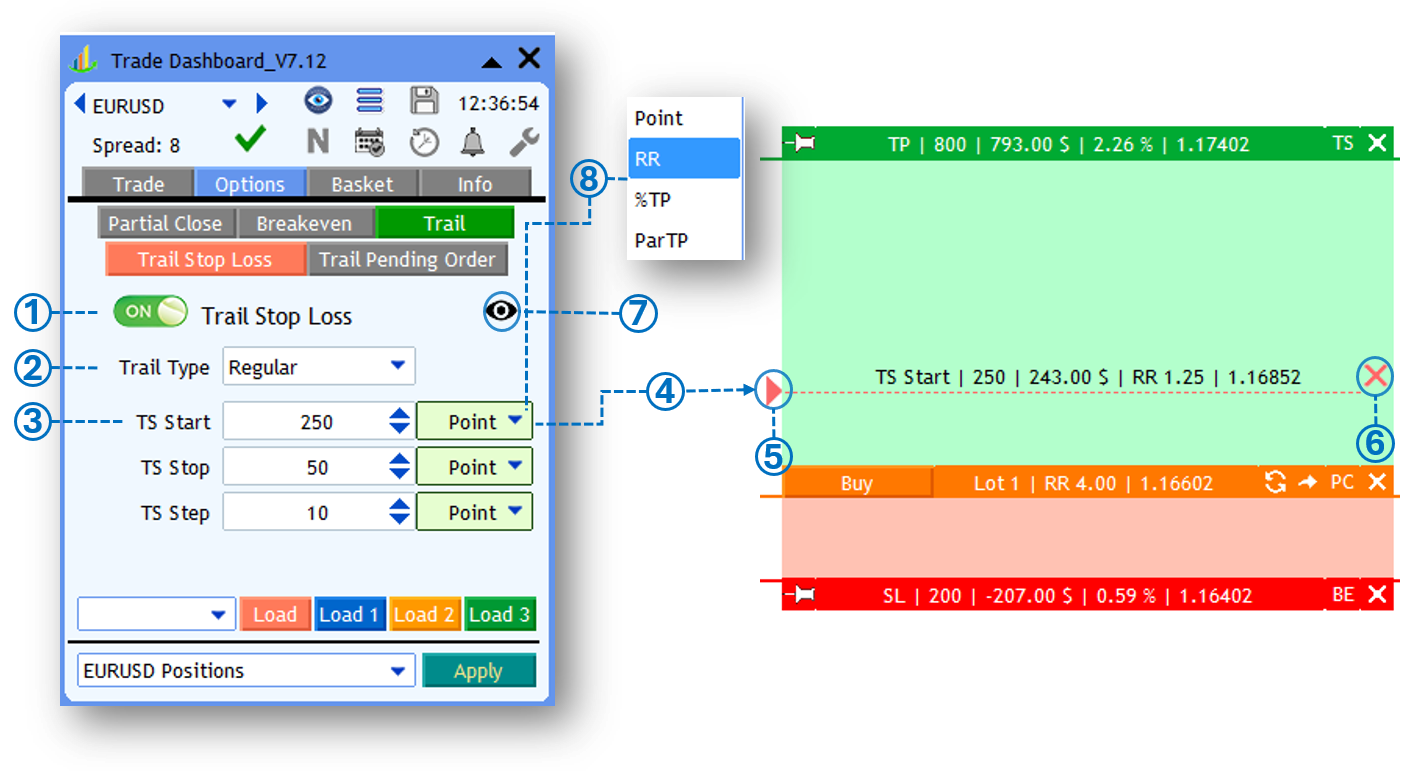
Enable Trail Stop Loss using button (1).
The Trail Type (2) setting allows you to choose between 8 different trail stop methods.
After Trail Stop Loss is enabled, a trail start level will appear on the Buy/Sell Line tool. The TS Start (3) setting defines where the trailing function becomes active and is common across all trail stop types.
The trail start level can be adjusted directly on the chart (5). Removing the trail start line using the X button (6) will also disable the Trail Stop Loss function.
The trail line can be hidden using the eye-shaped button (7).
The TS Start level supports different measurement modes (8):
Point: Distance from the trade entry price
RR: Multiple of the Stop Loss distance
%TP: Percentage of the total Take Profit distance
ParTP: Linked to a Partial TP level
Regular
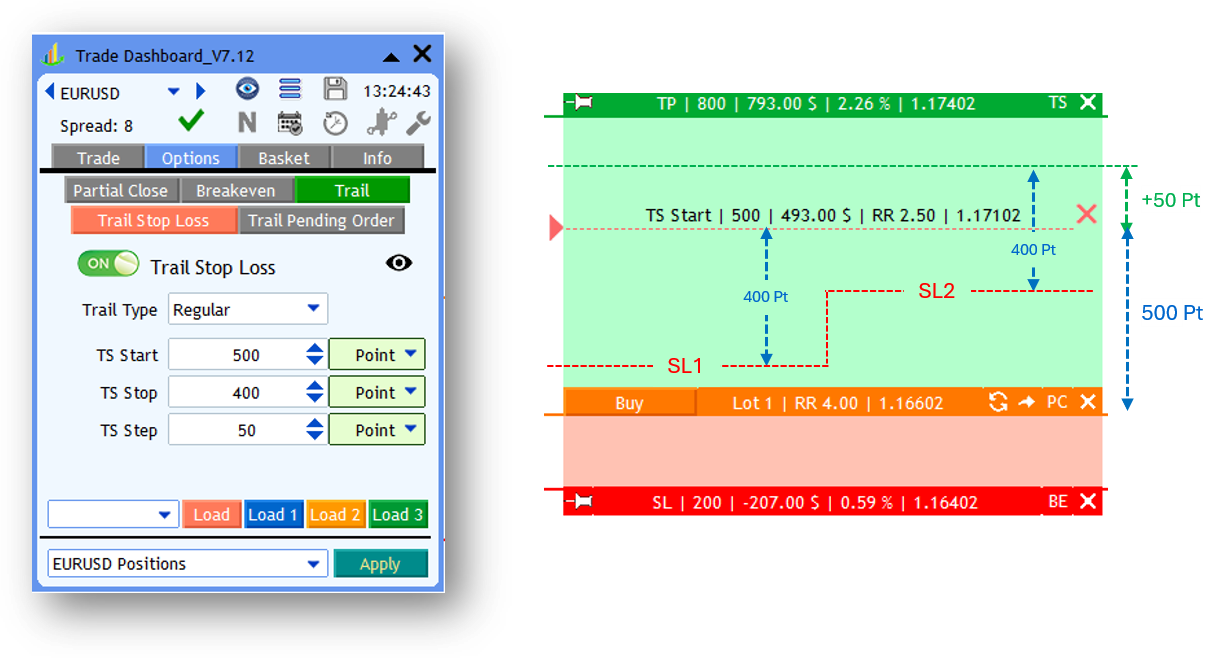
The Regular trail stop method uses three main settings:
TS Start: Defines where the trailing function becomes active
TS Stop: Defines the distance between the current market price and the Stop Loss after the trailing function becomes active
TS Step: Defines how much the trade must move before the Stop Loss is updated again
All three levels support different measurement modes such as:
Point
RR
%TP
ParTP
Additionally, TS Stop also supports the %Profit mode.
Example 1 — Regular Trail Stop
TS Start = 500 points
TS Stop = 400 points
TS Step = 50 points
The trailing function starts after the trade reaches 500 points of profit. The Stop Loss is then placed 400 points behind the market price. After that, for every additional 50 points of profit, the Stop Loss is updated again.
Example 2— Dynamic Profit Locking
TS Start = 1.5 RR
TS Stop = 50% Profit
TS Step = 50 points
The trailing function becomes active after the trade reaches 1.5 RR profit. The Stop Loss is then moved to preserve 50% of the current profit. After that, for every additional 50 points of profit, the Stop Loss is updated again while continuing to preserve 50% of the profit.
Dynamic
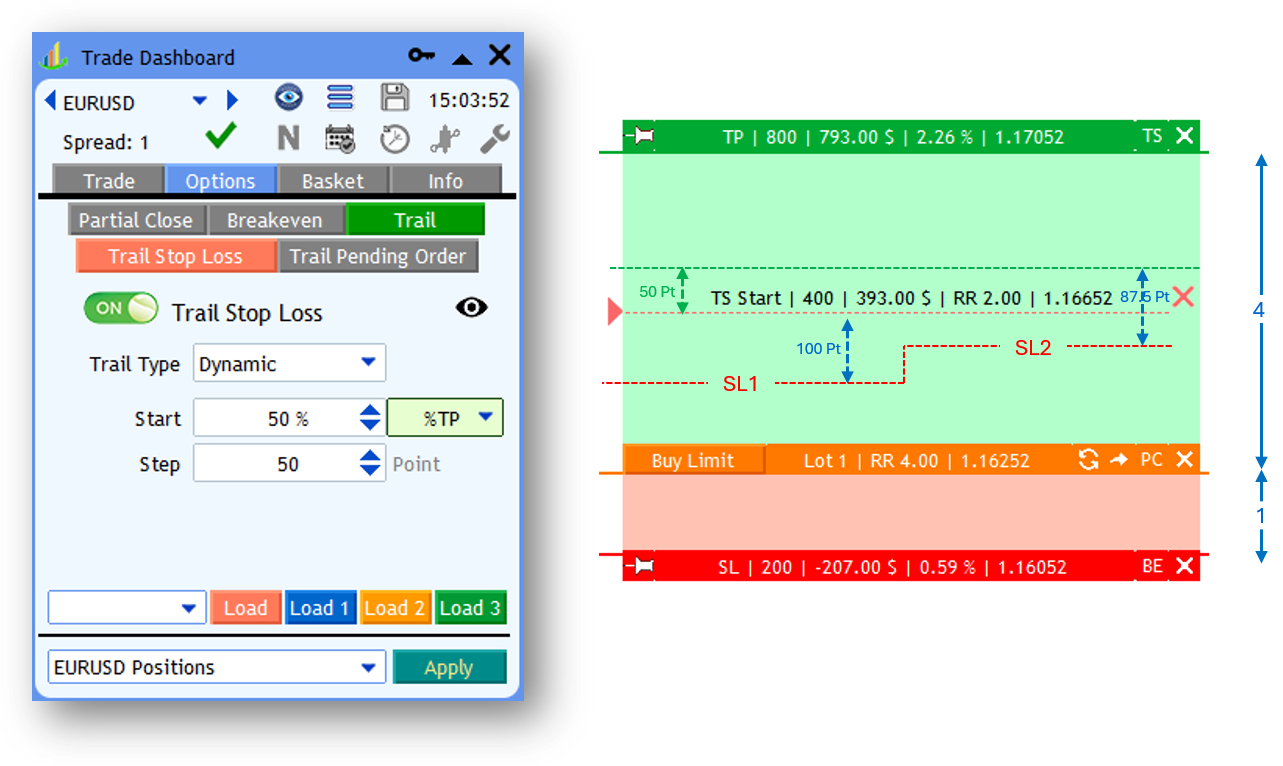
The Dynamic trail stop preserves the initial Risk-to-Reward ratio of the trade by adjusting the Stop Loss based on the remaining distance to Take Profit.
In the example above:
Trail Start = 50% of TP
Step = 50 points
Initial RR = 4
Once the trade reaches 50% of the TP distance (400 points), the remaining TP distance becomes 400 points. Since the RR is 4, the Stop Loss is placed:
400 / 4 = 100 points behind the market price.
After another 50 points of profit:
Remaining TP distance = 350 points
New Stop Loss distance = 350 / 4 = 87.5 points
As the trade moves closer to the Take Profit, the Stop Loss trails more aggressively.
Candle HH/LL
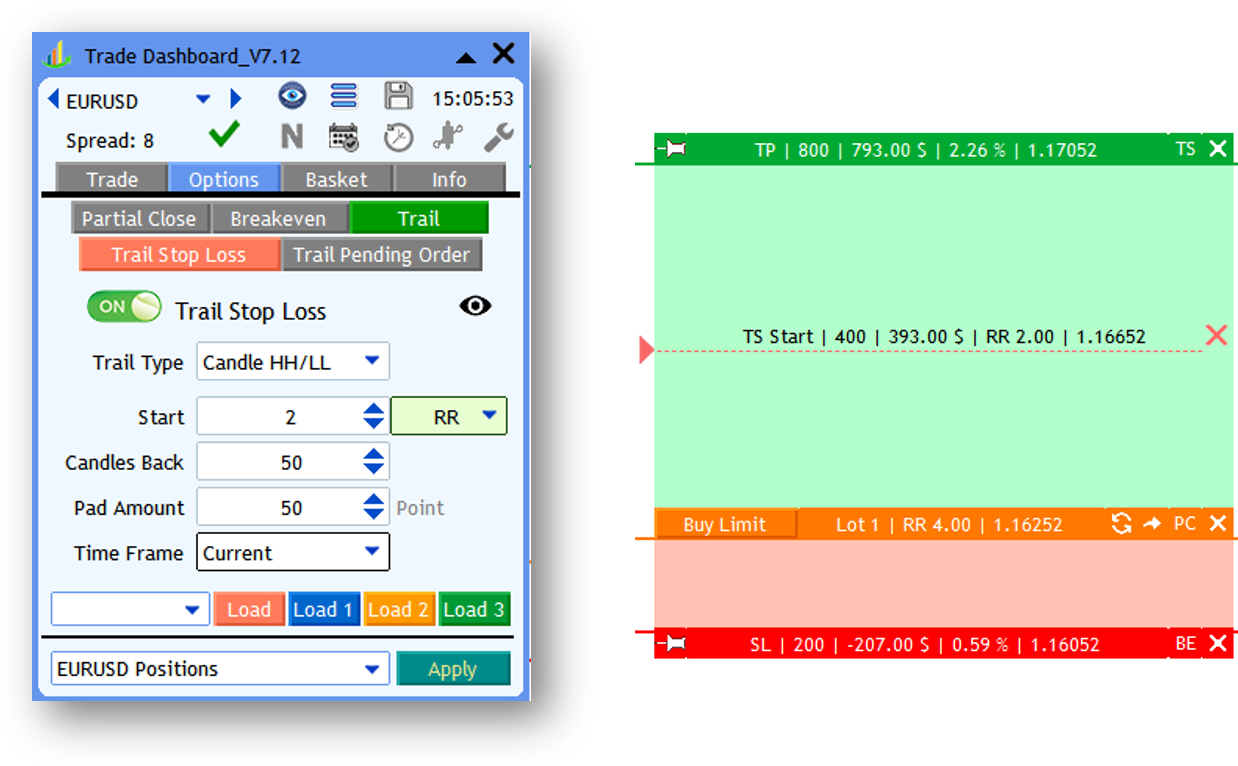
The Candle HH/LL trail stop updates the Stop Loss using candle High/Low levels:
For Buy trades, it uses the lowest low
For Sell trades, it uses the highest high
In the example above:
Trail starts at 2 RR
The dashboard checks the previous 50 candles of the Current timeframe
The Stop Loss is placed 50 points below the lowest low
The Stop Loss updates at the beginning of each new candle
The Stop Loss only moves in the trade direction and never to a worse level
The Pad Amount adds extra distance to the candle High/Low level.
Profit
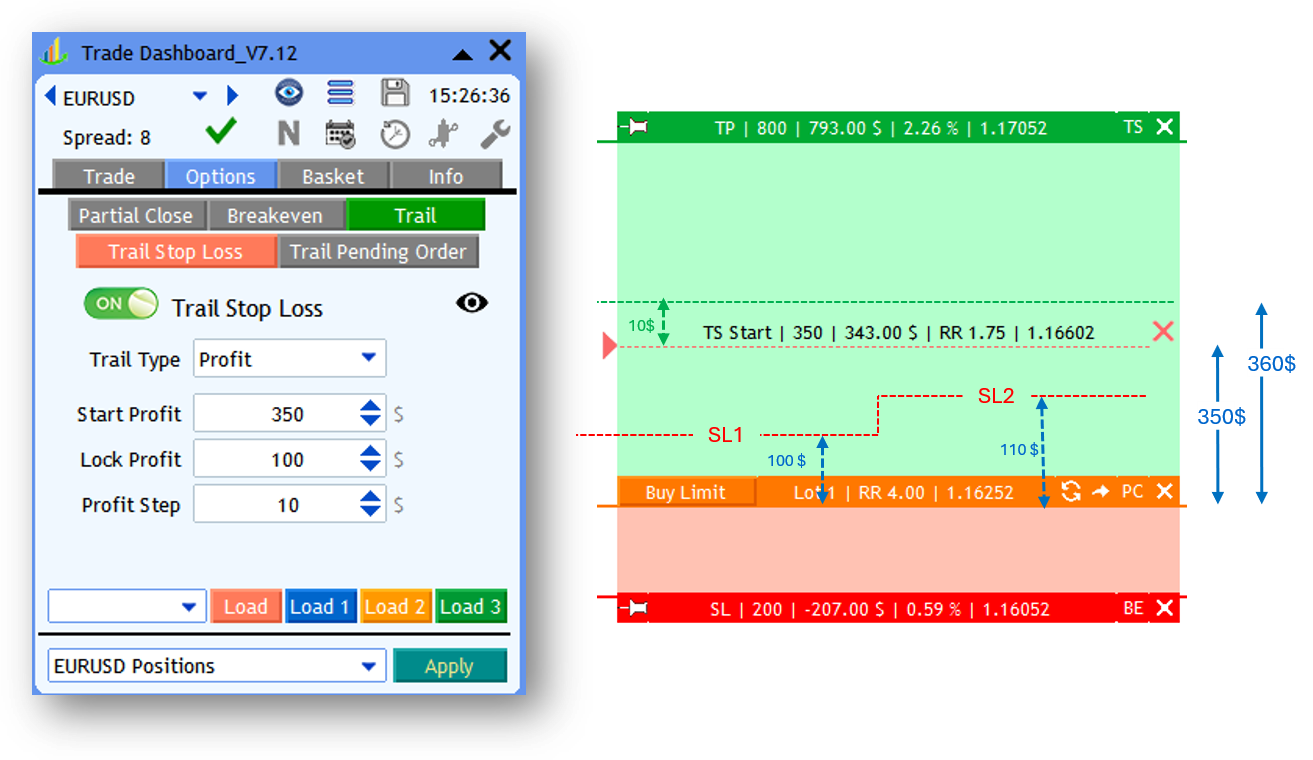
The Profit Based trail stop works using monetary profit values.
In the example above:
Trailing starts at 350$ profit
The Stop Loss is moved to lock 100$ profit
The Stop Loss updates for every additional 10$ of profit
Moving Average
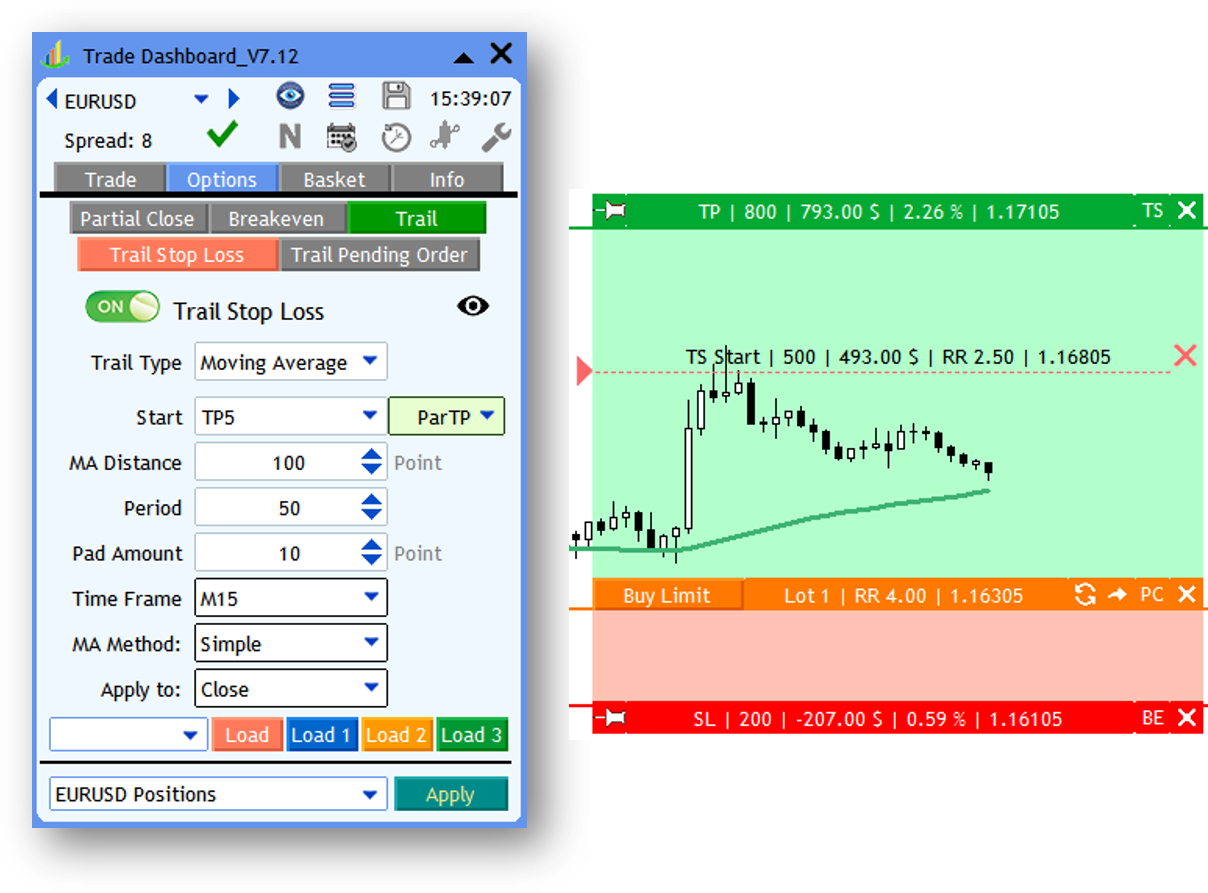
The Moving Average trail stop updates the Stop Loss based on a Moving Average indicator.
In the example above:
The trailing function starts at Partial TP5
A 50-period Simple Moving Average is used
The indicator is calculated on the M15 timeframe
The Moving Average is applied to the Close price
Additional settings:
MA Distance: Minimum allowed distance between the market price and the Moving Average.
In this example: 100 points
Pad Amount: Extra distance added below/above the Moving Average before placing the Stop Loss
In this example: 10 points
The Stop Loss updates at the beginning of each new candle and only moves in the trade direction.
Parabolic SAR
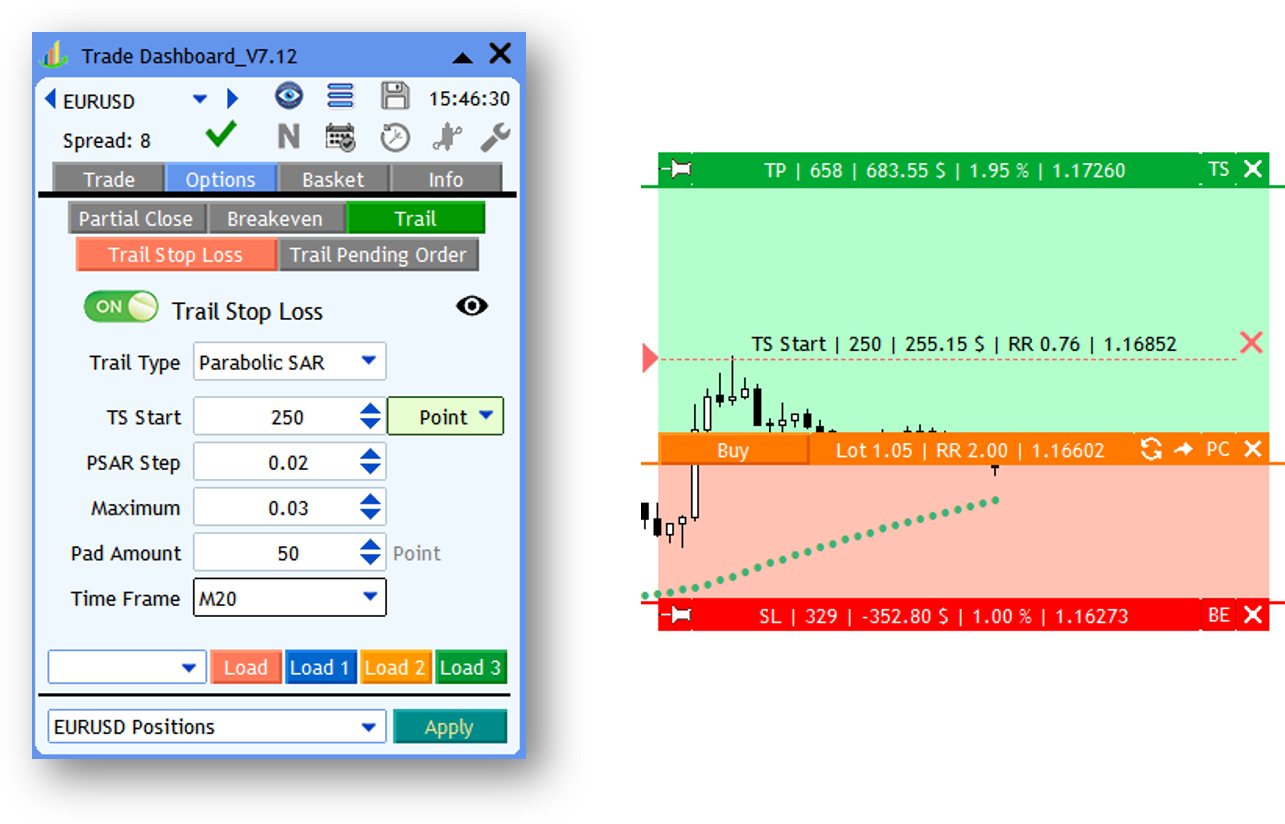
The Parabolic SAR trail stop updates the Stop Loss using the Parabolic SAR indicator.
In the example above:
The trailing function starts at 250 points of profit
PSAR Step = 0.02
PSAR Maximum = 0.03
The indicator is calculated on the M20 timeframe
Pad Amount = 50 points, which adds extra distance below/above the PSAR level before placing the Stop Loss
The Stop Loss updates at the beginning of each new candle and only moves in the trade direction.
ATR
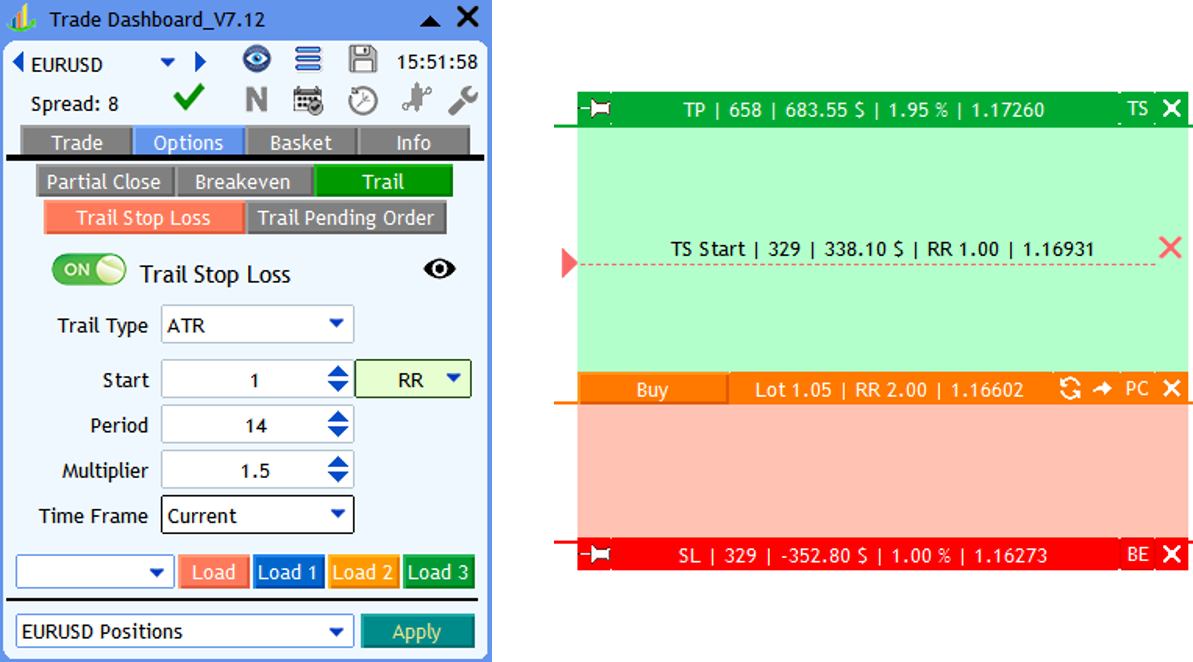
The ATR trail stop uses the Average True Range (ATR) indicator to determine the Stop Loss distance.
In the example above:
The trailing function starts at 1 RR
ATR Period = 14
Multiplier = 1.5
The indicator is calculated on the current timeframe
The Stop Loss is set using:
Current Price − (ATR Value × Multiplier) for Buy trades
Current Price + (ATR Value × Multiplier) for Sell trades
The Stop Loss updates whenever a nearer Stop Loss level can be applied and only moves in the trade direction.
Fractals
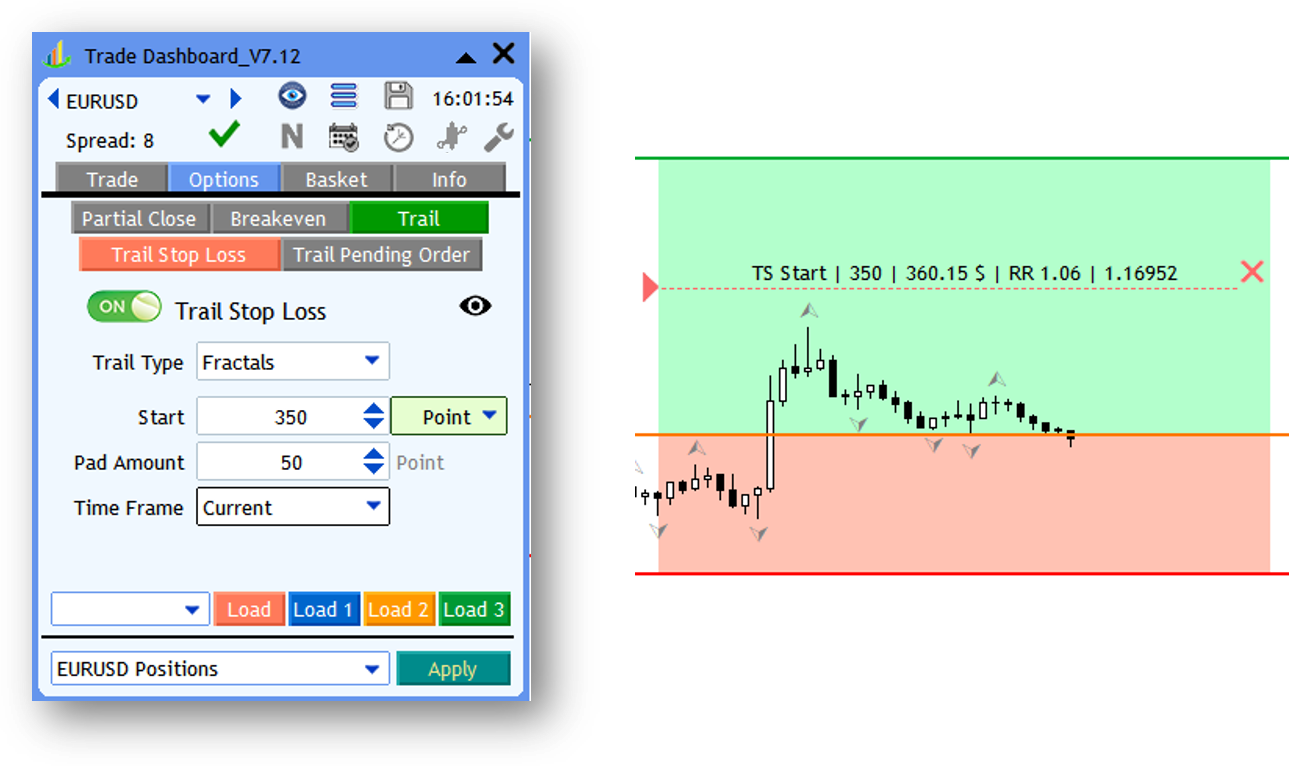
The Fractals trail stop updates the Stop Loss using Fractal indicator levels.
In the example above:
The trailing function starts at 350 points of profit
For Buy trades, it uses fractals below the candles
For Sell trades, it uses fractals above the candles
The Stop Loss is placed 50 points away from the latest fractal using the Pad Amount
The indicator is calculated on the selected timeframe.
The Stop Loss updates at the beginning of each new candle and only moves in the trade direction.
Trail Pending Order
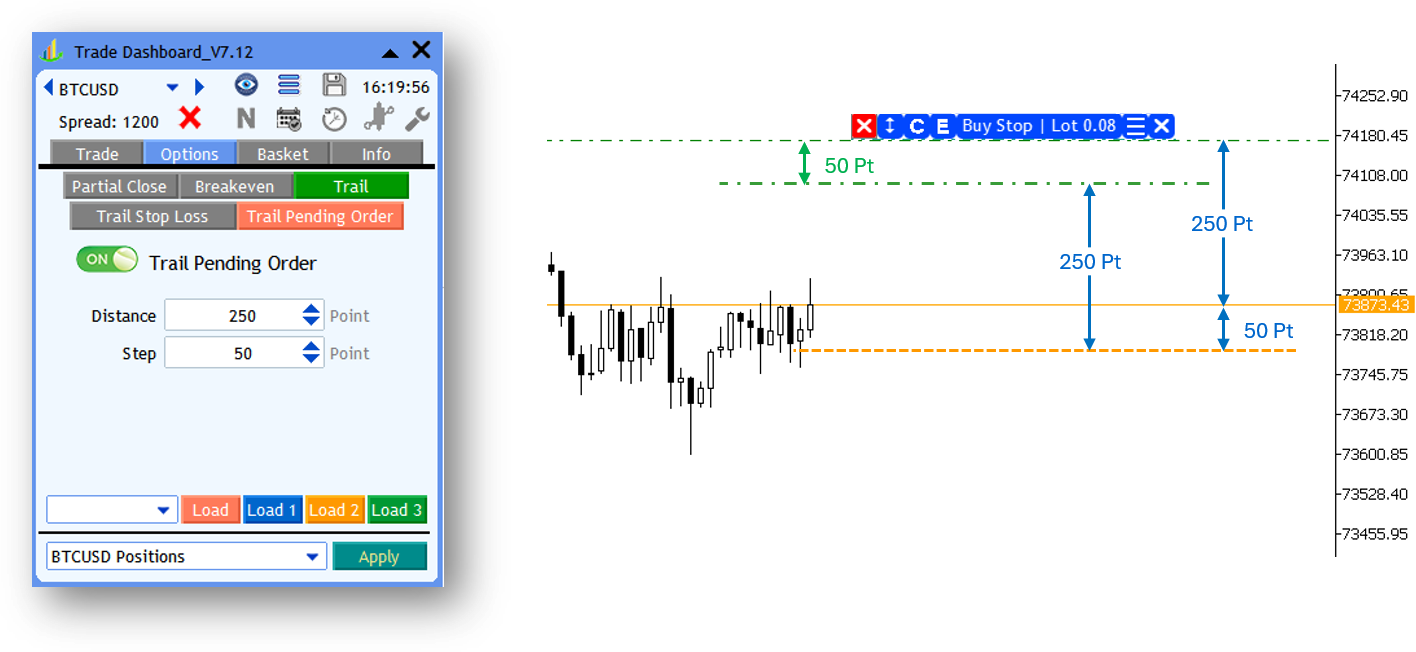
While Trail Stop Loss moves the Stop Loss of active trades, Trail Pending Order moves the open price of pending orders. This function keeps the pending order at a predefined distance from the current market price.
In the example above:
Distance = 250 points
Step = 50 points
When the distance between the market price and the pending order becomes greater than 250 points, the order price is modified to remain 250 points away from the market price.
Then, for every additional 50 points of movement, the pending order price is updated again.
🛠️Option Line Settings
You can customize the displayed information and colors of Partial Close, Breakeven, Trail Stop, and ‘SL To’ lines from: Settings → Chart & Display → Buy/Sell Lines
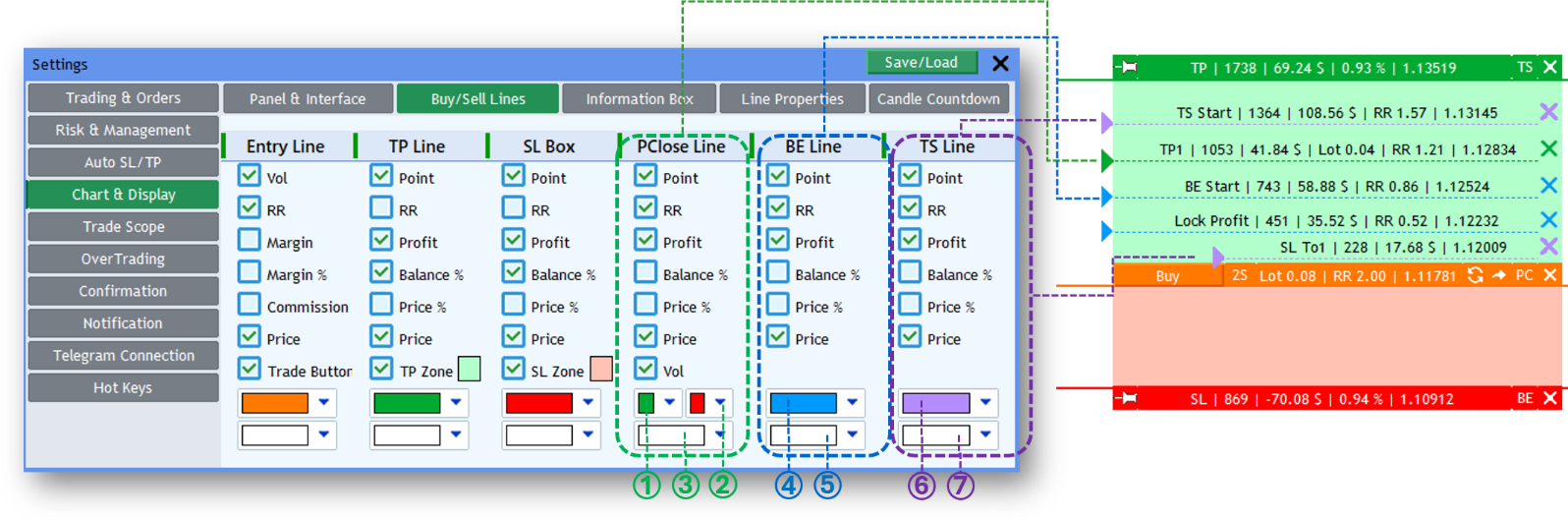
Checking or unchecking each item will show or hide that information on the corresponding line.
1 — Partial TP line color
2 — Partial SL line color
3 — Partial SL/TP label color
4 — Breakeven line color
5 — Breakeven label color
6 — Trail Stop and ‘SL To’ line color
7 — Trail Stop and ‘SL To’ label color
Shared Controls
The bottom section of all tabs under the Options tab contains shared controls.
Load Buttons
The Load button loads the selected file only for the currently opened tab:
In Partial Close, it loads Partial TP, Partial SL, and ‘SL To’ settings
In Breakeven, it loads Breakeven settings
In Trail, it loads Trail Stop or Trail Pending Order settings
Load1, Load2, and Load3 are quick-load buttons:
Load1 → Save1
Load2 → Save2
Load3 → Save3
These buttons load saved configurations directly without selecting a file manually.
💡 For instructions on saving settings, see the Save/Load System section.
Apply Button
The Apply button applies the settings of the currently opened tab to the selected trades.
In Partial Close, it applies Partial TP, Partial SL, and ‘SL To’ settings
In Breakeven, it applies Breakeven settings
In Trail Stop Loss, it applies Trail Stop settings
In Trail Pending Order, it applies Trail Pending Order settings
You can choose which trades the settings should apply to:
Current Symbol Positions → Only trades of the current chart symbol
All Positions
Specific Position → Select a specific trade from the list
📋Working with a trade
ℹ️ Information Box
Each open trade and pending order has an information box at its entry price. Use it to view the order, adjust its chart controls, or open the trade-specific modification panel.
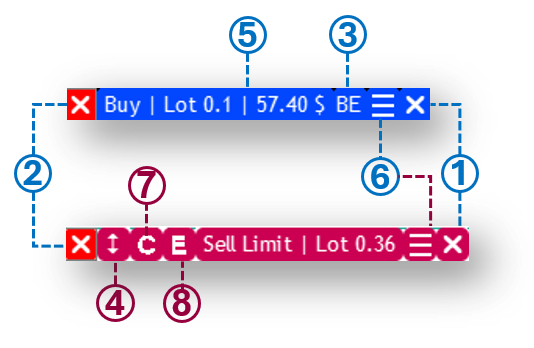
1 — The X button on the right hides this information box from the chart. Use the dashboard's information-box icon to show all hidden boxes again.
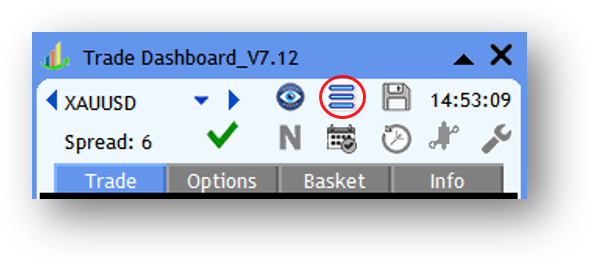
2 — The red X button on the left closes an open trade or deletes a pending order.
3 — For an open trade, BE moves its Stop Loss to breakeven using the configured offset.
💡 The BE button uses the same breakeven offset settings as the main Breakeven button. You can configure its behavior from:
Settings → Trading & Orders → Trade Actions → “Offset for Breakeven Button”
For more details, see the Breakeven Button Section under Close & Breakeven Panel.
4 — For a pending order, drag the ⇕ button vertically to change its entry price on the chart.
5 — Drag the information box horizontally to reposition it. Click the box to display its SL/TP boxes and colored zones.
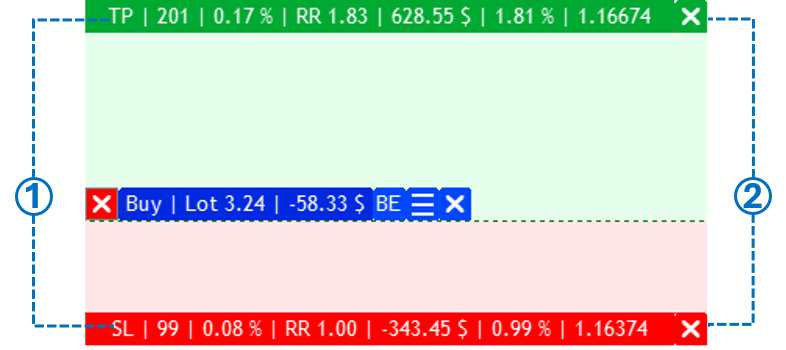
The TP and SL boxes (1) show their levels and values. Drag either box vertically to change that level.
The X button (2) on a TP or SL box removes that level from the trade.
6 — The menu button opens the modification panel for this trade or order.
7 — The C button is available for pending orders. Click it to place a Cancel Price on the chart, then select or drag the price level. The dashboard deletes the pending order if the market reaches this level before the order opens. Click C again to remove the Cancel Price.
8 — The E button is available for pending orders. Click it to set an expiration time on the chart. A vertical line and time label show the selected deadline; drag the line to adjust it. Click E again to remove the expiration.
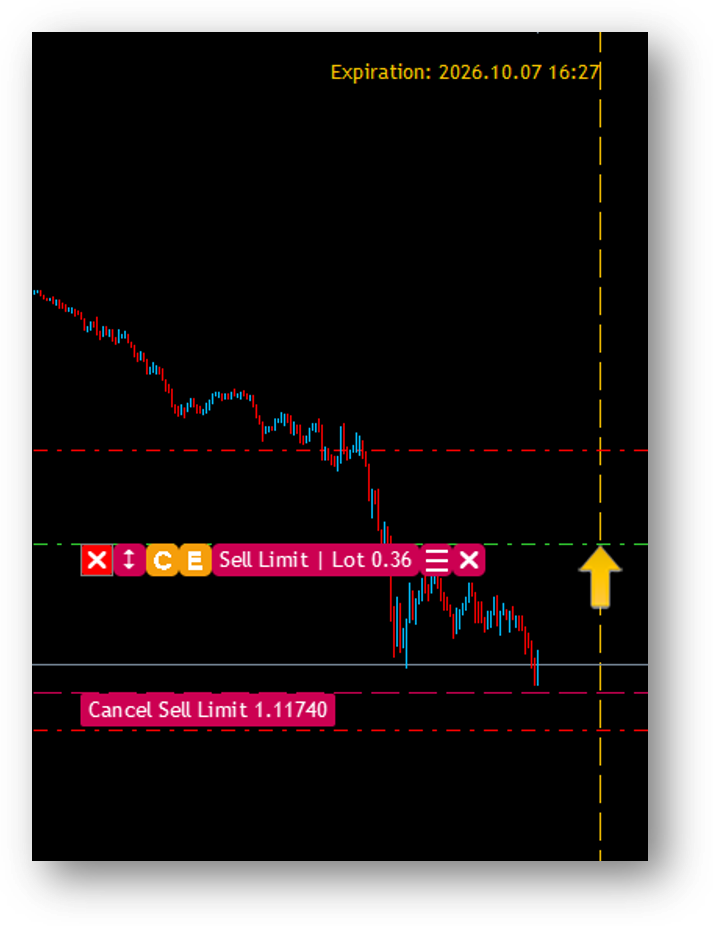
Choose which values appear in the information boxes and adjust their colors at:
Settings → Chart & Display → Information Box
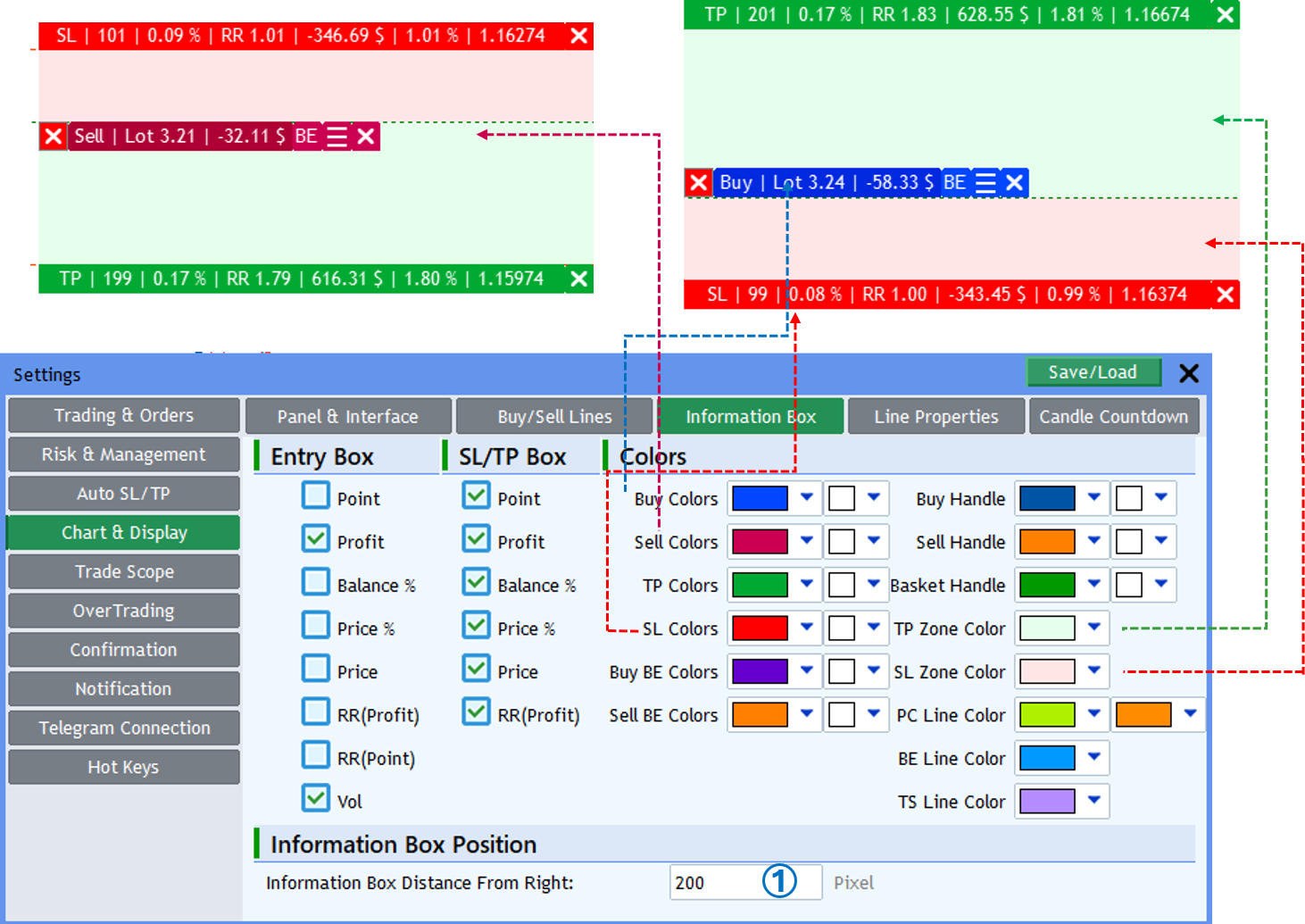
The Entry Box and SL/TP Box columns let you show or hide each value independently. The Colors section sets the box, handle, zone, and line colors shown on the chart.
Entry Box — Select the entry-box values to show: points, profit, balance %, price %, price, RR (profit), RR (points), and volume.
SL/TP Box — Select the stop-loss and take-profit values to show: points, profit, balance %, price %, price, and RR (profit).
Colors — Set separate colors for Buy and Sell boxes, TP and SL boxes, breakeven boxes, handles, TP/SL zones, and PC, BE, and TS lines.
Information Box Distance From Right — Enter the horizontal distance, in pixels, between the chart's right edge and the default position of an information box. A larger value places the box farther to the left; a smaller value places it closer to the right edge. Individual boxes can still be dragged on the chart.
🔧Trade Modification Panel
SL/TP Tab
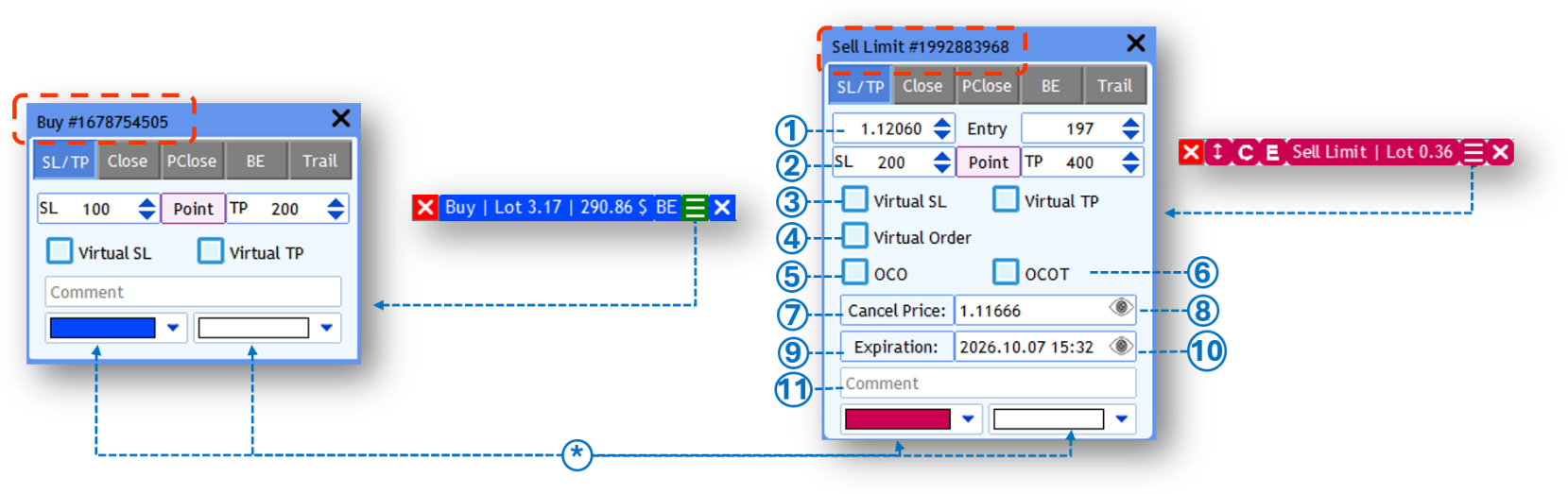
Click the menu button on an information box to open the modification panel for that trade or pending order. The title shows its type and ticket number.
The left example shows an open trade; the right example shows a pending order. Controls that apply only to pending orders appear in the right panel.
Use the two color selectors at the bottom of the panel (*) to change the information-box background and text colors for that trade or order.
1 — Entry Boxes (pending orders)
The left field sets the pending order's entry price. The Entry field on the right sets its distance from the current market price in the selected measurement unit. Changing either value updates the order entry level.
2 — SL / TP Boxes
Enter Stop Loss and Take Profit distances or prices in the SL and TP fields. Changes apply to the selected trade or pending order.
Use the purple button between them to switch the fields between Point and Price modes.
3 — Virtual SL / Virtual TP
Virtual SL and Virtual TP are managed by Trade Dashboard instead of resting with the broker. Enable either option independently to keep that protection level virtual; the corresponding broker-side level is zero. When the selected quote reaches the virtual level, the dashboard sends a request to close the trade.
💡 Default Virtual SL/TP behavior can be configured from: Settings → Trading & Orders → Spread & Stops
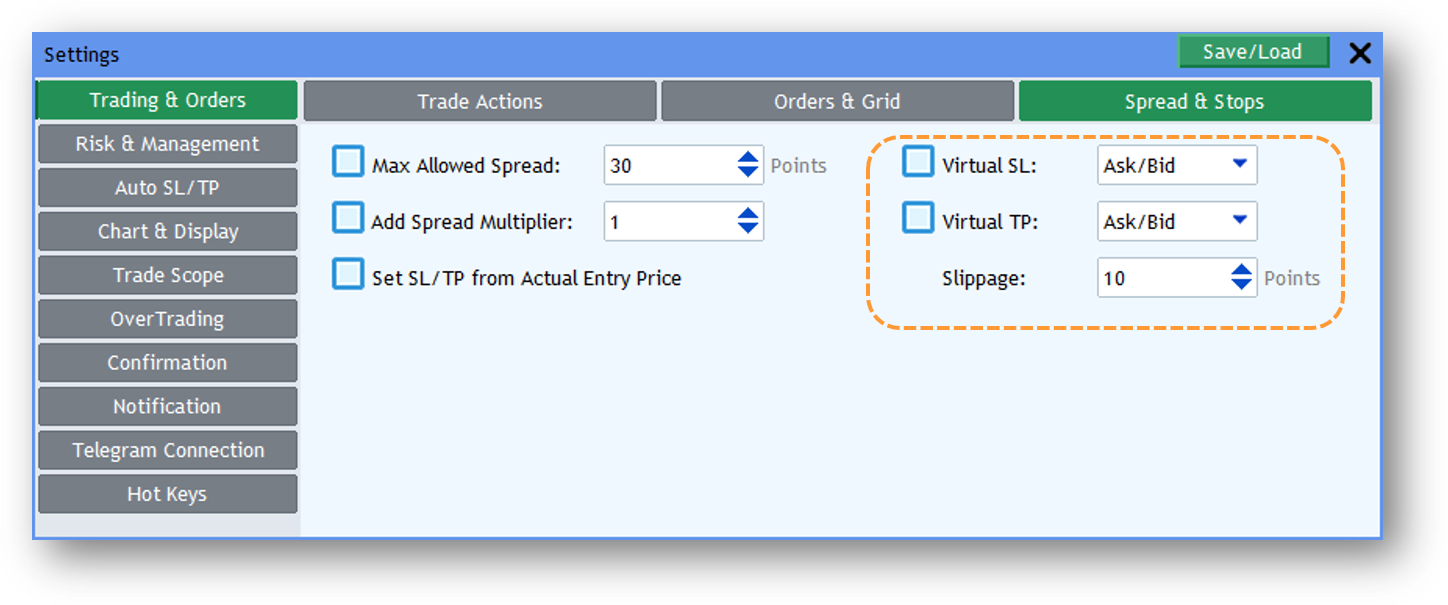
The separate Virtual SL and Virtual TP dropdowns select which price is checked against each level:
Ask/Bid — Use Bid for Buy trades and Ask for Sell trades, matching the normal closing side of the market.
Ask — Check Ask for both Buy and Sell trades.
Bid — Check Bid for both Buy and Sell trades.
Middle — Check the midpoint between Ask and Bid: (Ask + Bid) ÷ 2.
Choose SL and TP modes independently. The selected quote determines when the closing request is triggered; the actual closing price depends on execution and may differ from the virtual level. Keep the terminal, dashboard, and broker connection running for virtual protection to operate.
Slippage — Set the requested maximum price deviation in points for trade requests that use this setting. Broker execution rules determine how the request is handled.
4 — Virtual Order
A Virtual Order is a pending entry held locally by Trade Dashboard rather than submitted as a broker pending order. When its entry condition is reached, the dashboard sends a market-order request. Its entry line remains available for chart adjustment. Enable the option for an individual order here, or set the default at Settings → Trading & Orders → Orders & Grid.
5 — OCO
OCO (One Cancels Others) automatically deletes the remaining orders once one order becomes active.
6 — OCOT
OCOT (One Cancels Other Types) deletes all other pending order types once one order becomes active.
🔄Example: If a Buy Limit order is activated, all Buy Stops, Sell Stops, and Sell Limits will be deleted automatically.
💡 Default Virtual Order, OCO, and OCOT behavior can be configured from: Settings → Trading & Orders → Orders & Grid
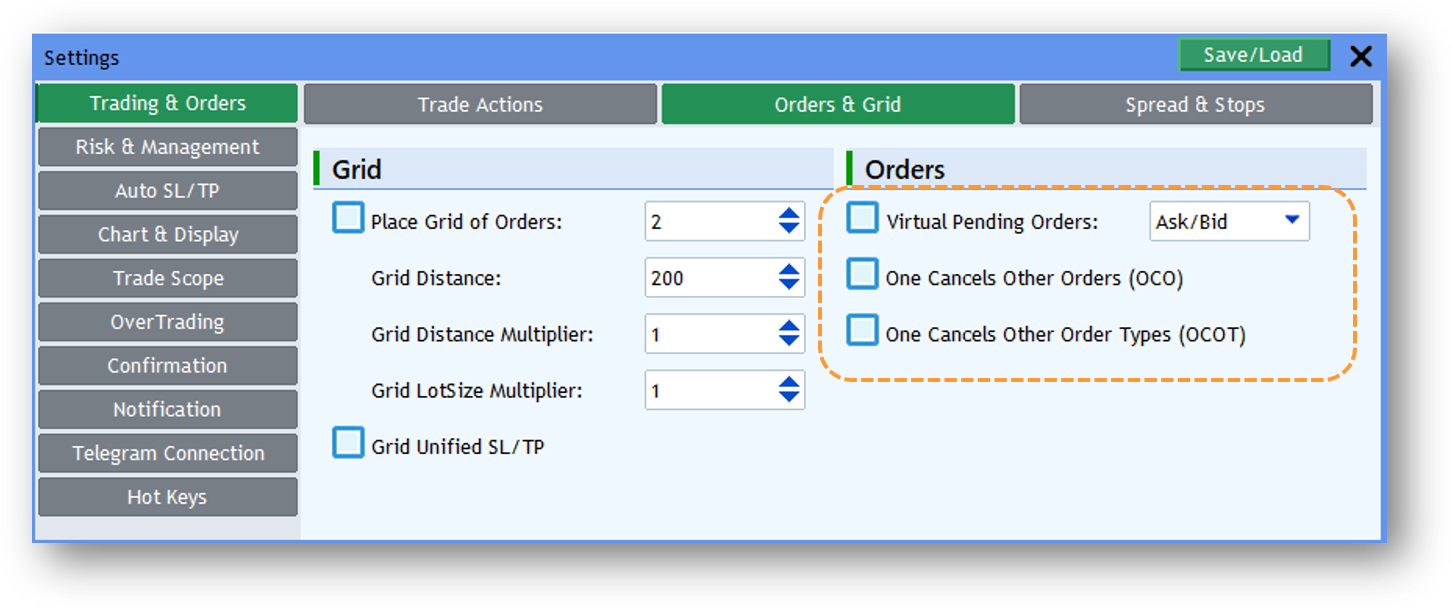
The Virtual Pending Orders dropdown selects the quote used to check the entry condition:
Ask/Bid — Use Ask for Buy Limit and Buy Stop orders, and Bid for Sell Limit and Sell Stop orders.
Ask — Check Ask for all virtual pending orders.
Bid — Check Bid for all virtual pending orders.
Middle — Check the midpoint between Ask and Bid: (Ask + Bid) ÷ 2.
Using the selected quote, each order type activates as follows:
Buy Limit — Activate when the checked price falls to or below Entry.
Buy Stop — Activate when the checked price rises to or above Entry.
Sell Limit — Activate when the checked price rises to or above Entry.
Sell Stop — Activate when the checked price falls to or below Entry.
The quote choice controls activation, not the execution side: a market Buy executes on Ask and a market Sell on Bid. The fill can differ from the planned Entry because of spread and price movement. Keep the terminal, dashboard, and broker connection running for virtual orders to activate.
For a waiting two-stage order, the first-stage execution mode is determined by the 2S workflow. Its Virtual Order toggle is hidden while Trigger is waiting; see Two Stage Order Panel for the MT4/MT5 execution differences.
7 — Cancel Price (pending orders)
Enter a valid cancellation price, then click Cancel Price to activate it. The dashboard deletes the pending order if the market reaches this level before it opens. Click Cancel Price again to disable it. Clearing or entering an invalid field does not remove an active level; the dashboard suggests a valid value for review.
8 — Cancel Price Eye Icon
Show or hide the Cancel Price line and label on the chart. Hiding them does not disable the Cancel Price.
9 — Expiration (pending orders)
Set the date and time after which the pending order expires. The deadline must be later than server time. Depending on the order and broker, expiration is managed by the broker or by the dashboard; if it is dashboard-managed, MT4 and the EA must remain running.
10 — Expiration Eye Icon
Show or hide the expiration line and time label on the chart. The visible line can be dragged to adjust the deadline; hiding it does not remove expiration.
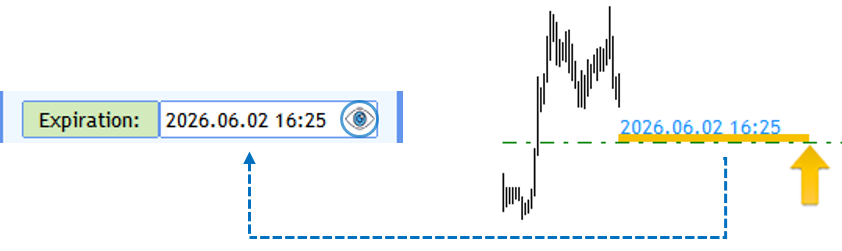
11 — Comment Box
Enter or change the selected trade's comment after it opens. This is separate from the initial comment sent to MetaTrader when the trade is placed.
Close Tab
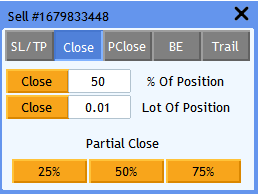
The Close tab allows you to close trades partially using quick close buttons based on percentage or fixed lot size.
PClose, BE, and Trail Tabs
The PClose, BE, and Trail tabs use the same functionality and settings as the corresponding tabs under the main Options tab, but they apply only to the selected trade.
When any setting is modified, the Apply Changes and Revert buttons become active:
Apply Changes → Applies the new settings
Revert → Restores the previous settings
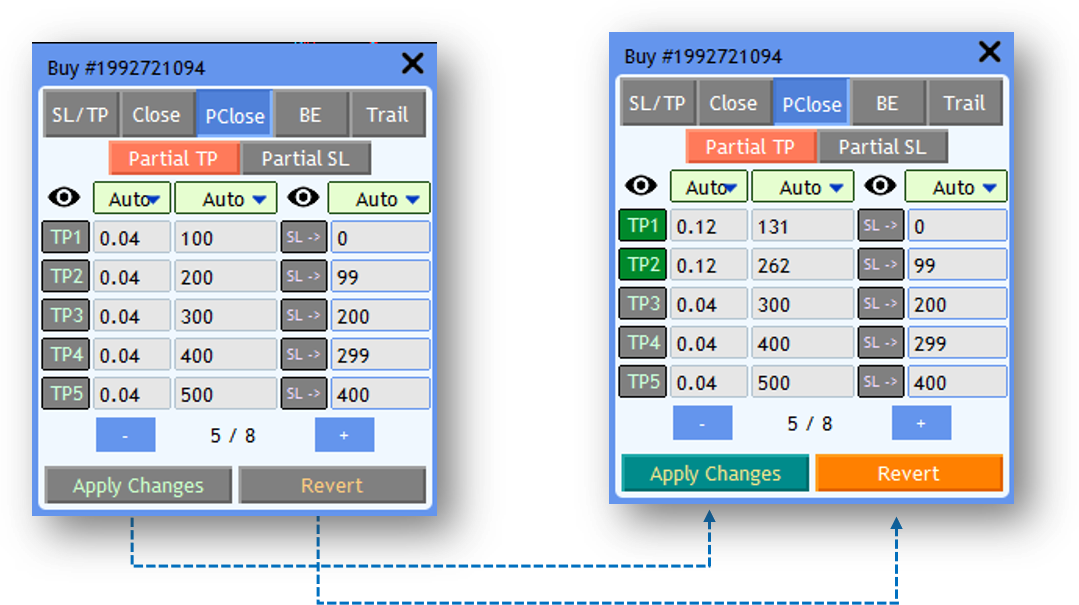
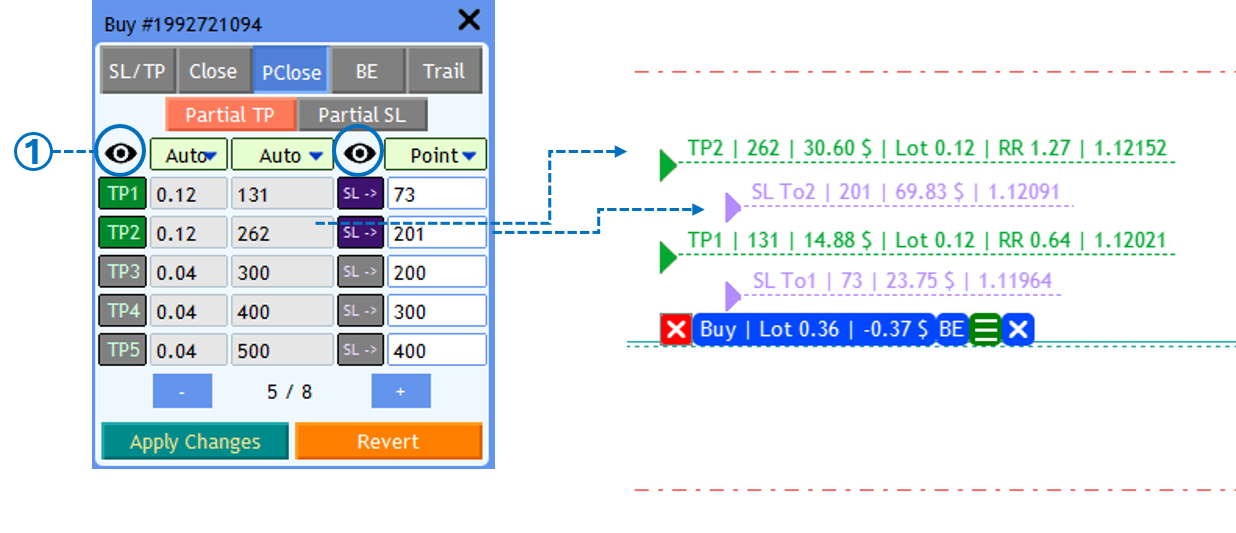
In the PClose tab, you can enable, disable, or modify Partial TP, Partial SL, and ‘SL To’ levels.
Each active function displays its corresponding line on the chart for visual adjustment. The eye button (1) can be used to show or hide these lines.
When a Partial TP/SL level is triggered, its corresponding button turns black to indicate that the level has already been hit.
💡 You can manually enable the level again at any time.
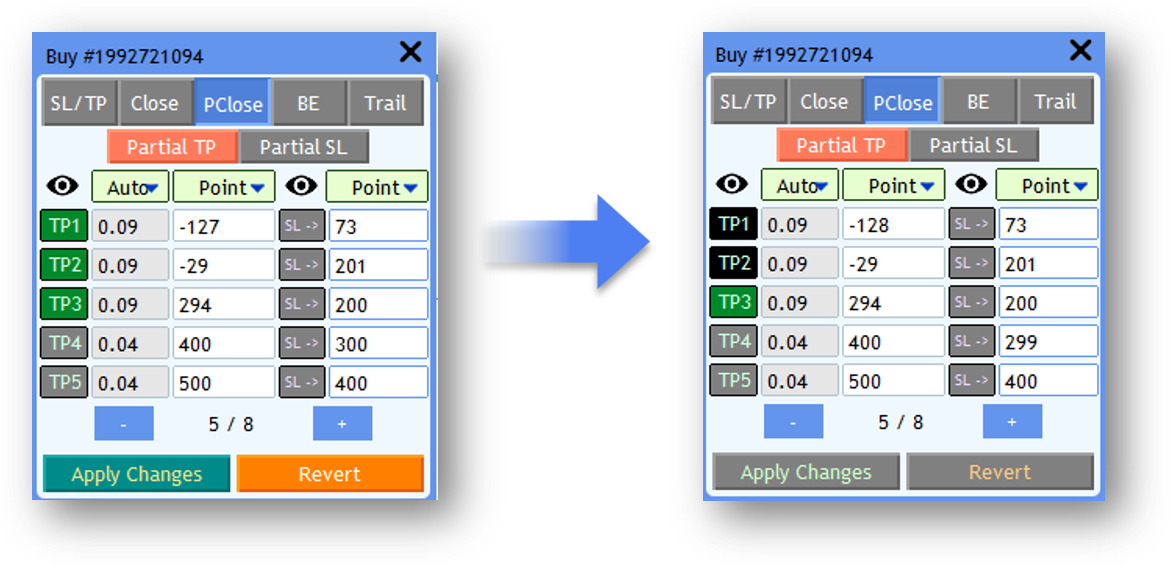
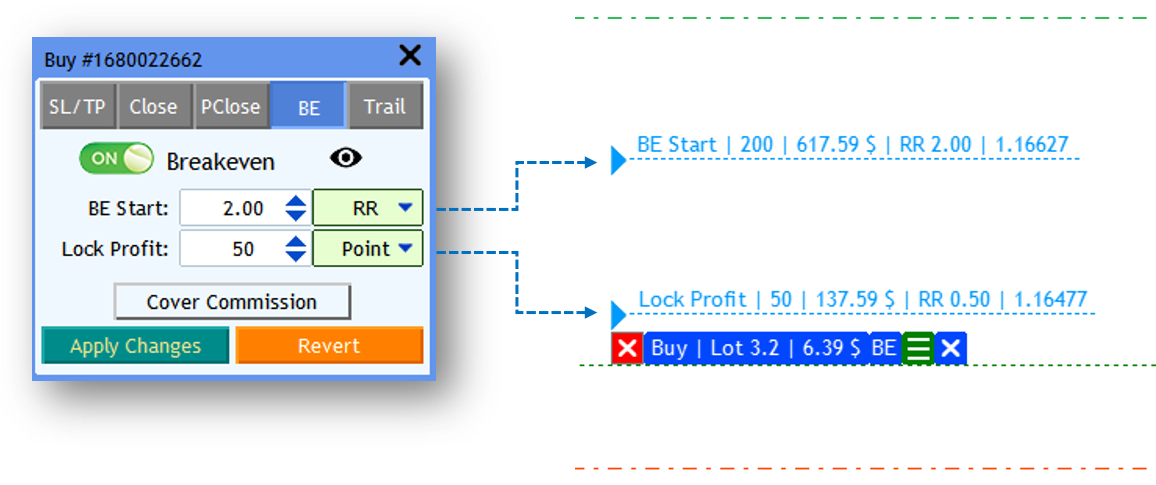
In the BE tab, you can configure or modify Breakeven settings and visually adjust the BE Start and Lock Profit levels directly on the chart. The eye button can also be used to show or hide the Breakeven lines.
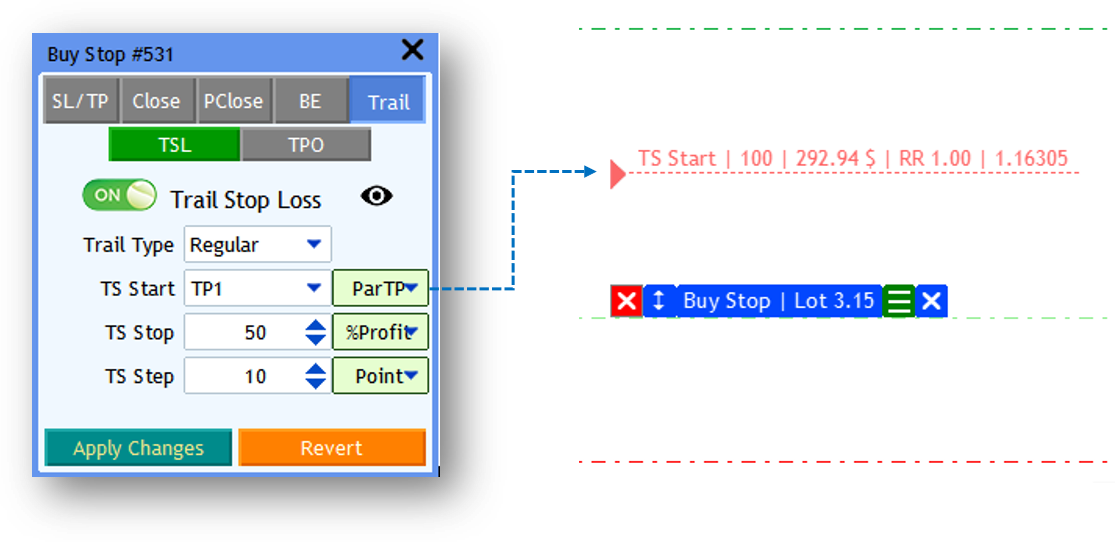
In the Trail tab, you can configure or modify Trail Stop Loss and Trail Pending Order settings and visually adjust Trail Stop Loss levels directly on the chart. The eye button can also be used to show or hide the Trail Stop Loss lines.
The displayed information and colors of these lines follow the Partial Close, Breakeven, and Trail line settings from the main panel and can be customized from: Settings → Chart & Display → Buy/Sell Lines
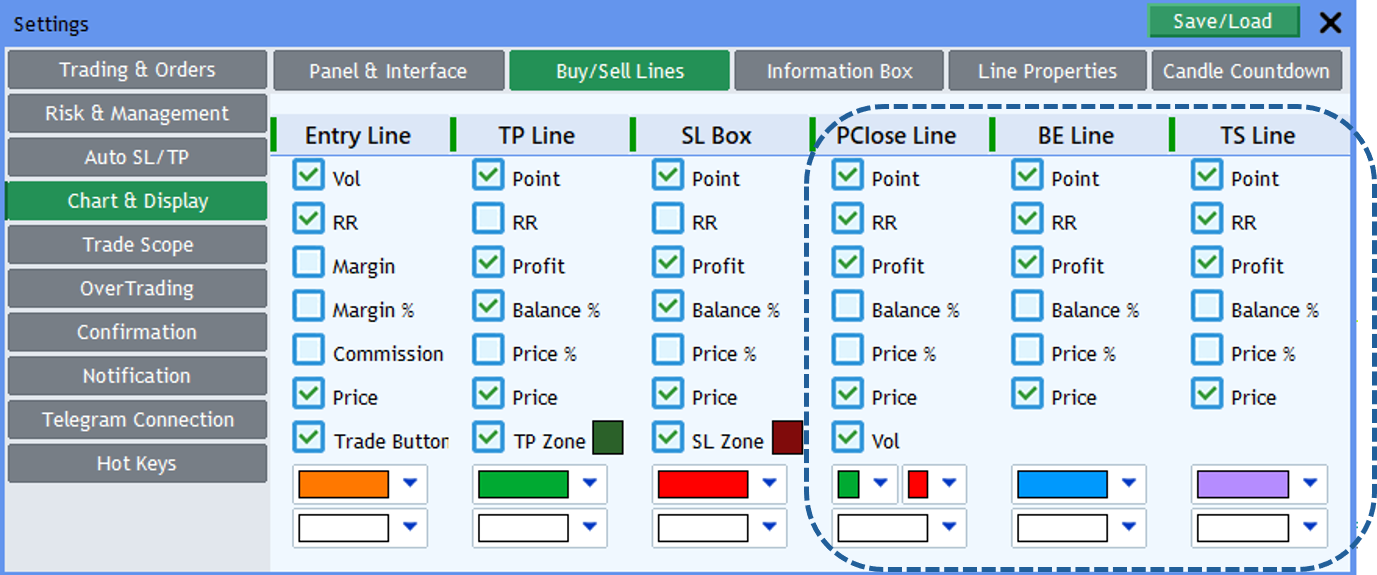
When you enable Partial TP/SL, Breakeven or Trail Stop Loss, a dotted line is displayed on the chart for each active level. These lines visually show Partial TP/SL levels, Breakeven levels, and Trail Start levels.
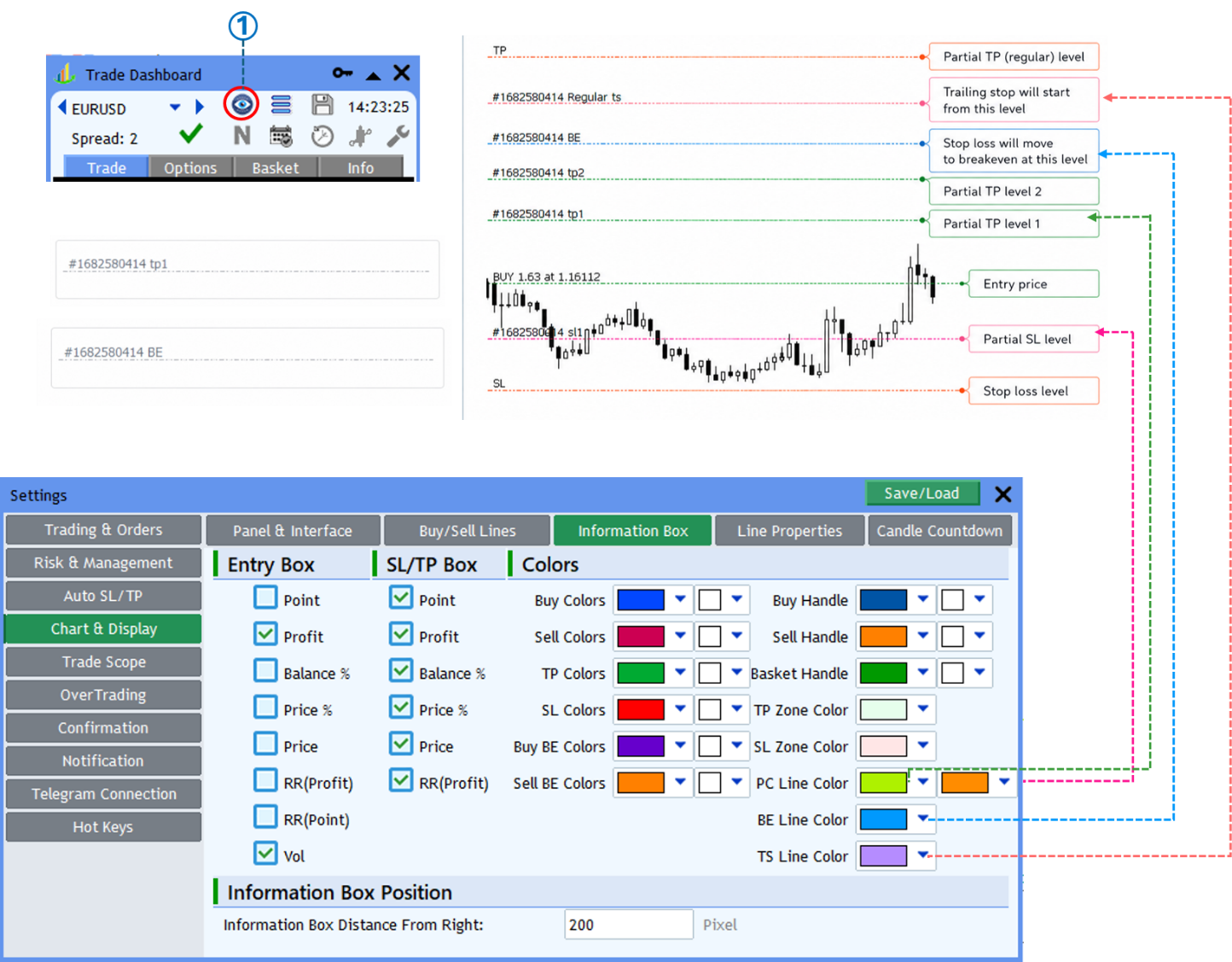
💡 Partial TP/SL line and Breakeven start line becomes gray after the level is triggered.
You can show or hide these lines using the eye-shaped icon (1) at the top of the Trade Dashboard to keep the chart cleaner.
🎨 Their colors and line styles can be configured from: Settings → Chart & Display → Information Box
🧺Basket Tab
📂Positions Tab
The Positions tab displays all active positions managed by Trade Dashboard. All Trade Dashboard functions are applied only to trades under its control.
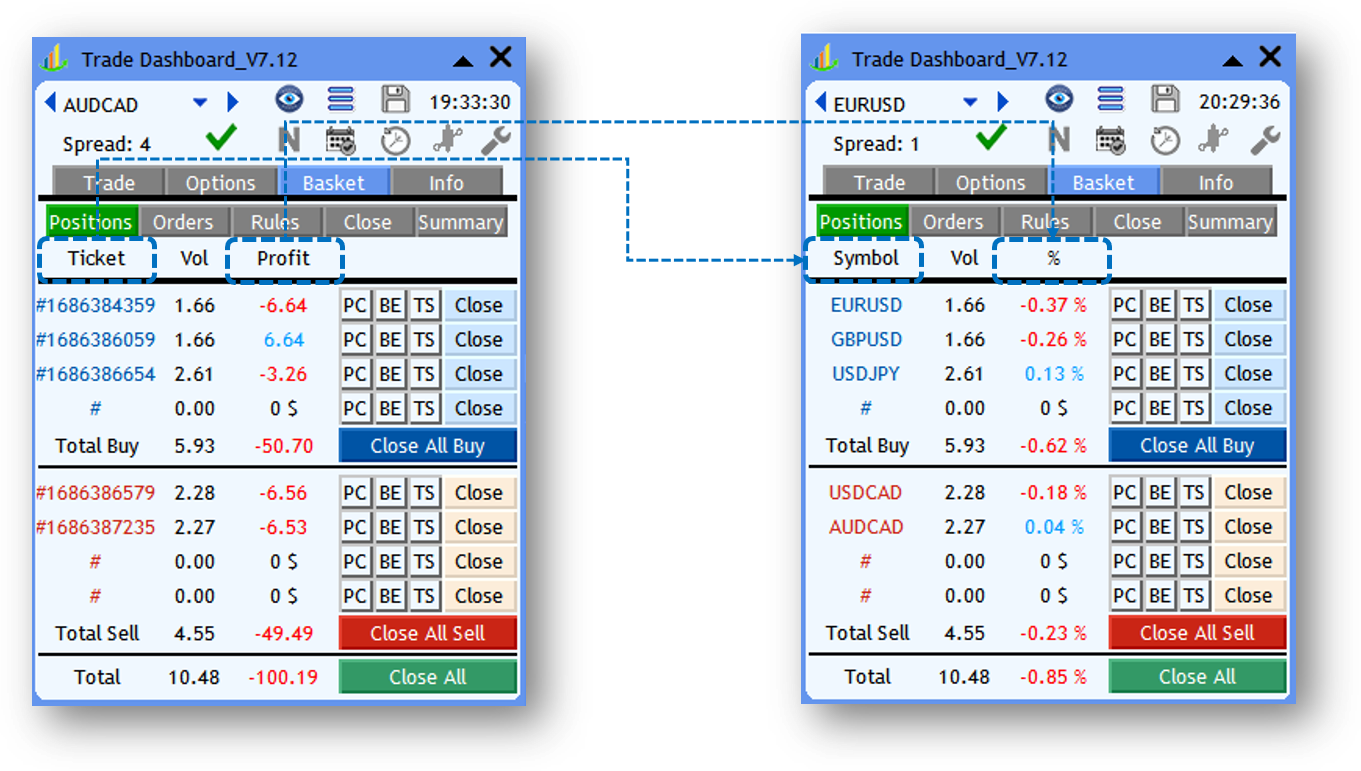
Click the Ticket title to switch between displaying the ticket number and the trade symbol.
Click the Profit title to switch between displaying profit in account currency or as a percentage of the account balance.
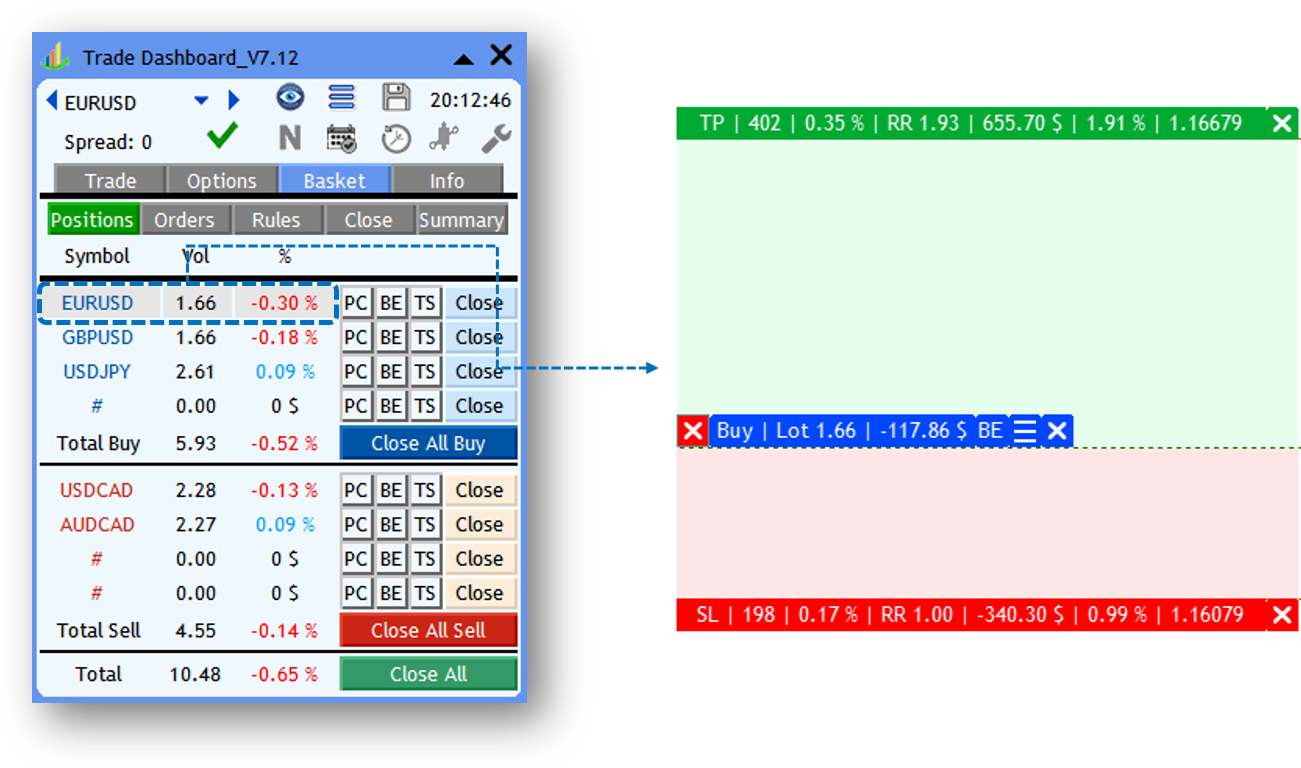
When you click a trade row (Symbol, Volume, or Profit area), Trade Dashboard checks whether the current chart matches that trade’s symbol.
If the chart is already on the same symbol, the trade’s information box along with its TP/SL boxes and zones will be displayed for quick modification.
If the chart is on a different symbol, the chart will automatically switch to the selected trade’s symbol.
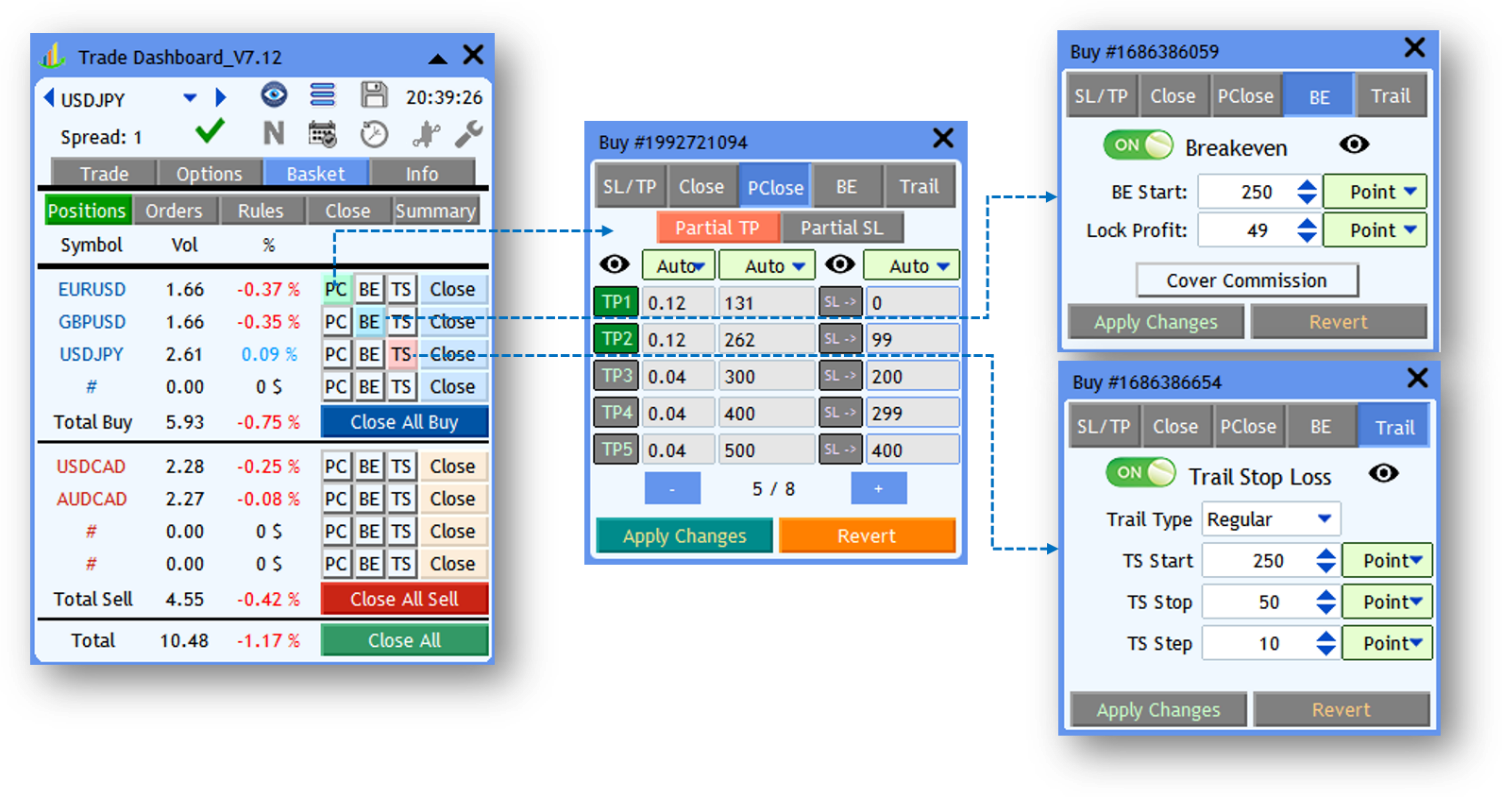
Clicking the PC, BE, or TS button opens the Trade Modification Panel directly in the PClose, Breakeven, or Trail tab, allowing you to configure or modify Partial Close, Breakeven, or Trail settings for that trade.
The PC button turns green when any Partial TP/SL level is active.
The BE button turns blue when Breakeven is enabled.
The TS button turns red when any Trail Stop option is enabled.
📝 Orders Tab
The Orders tab works similarly to the Positions tab, but it manages only pending orders instead of active trades.
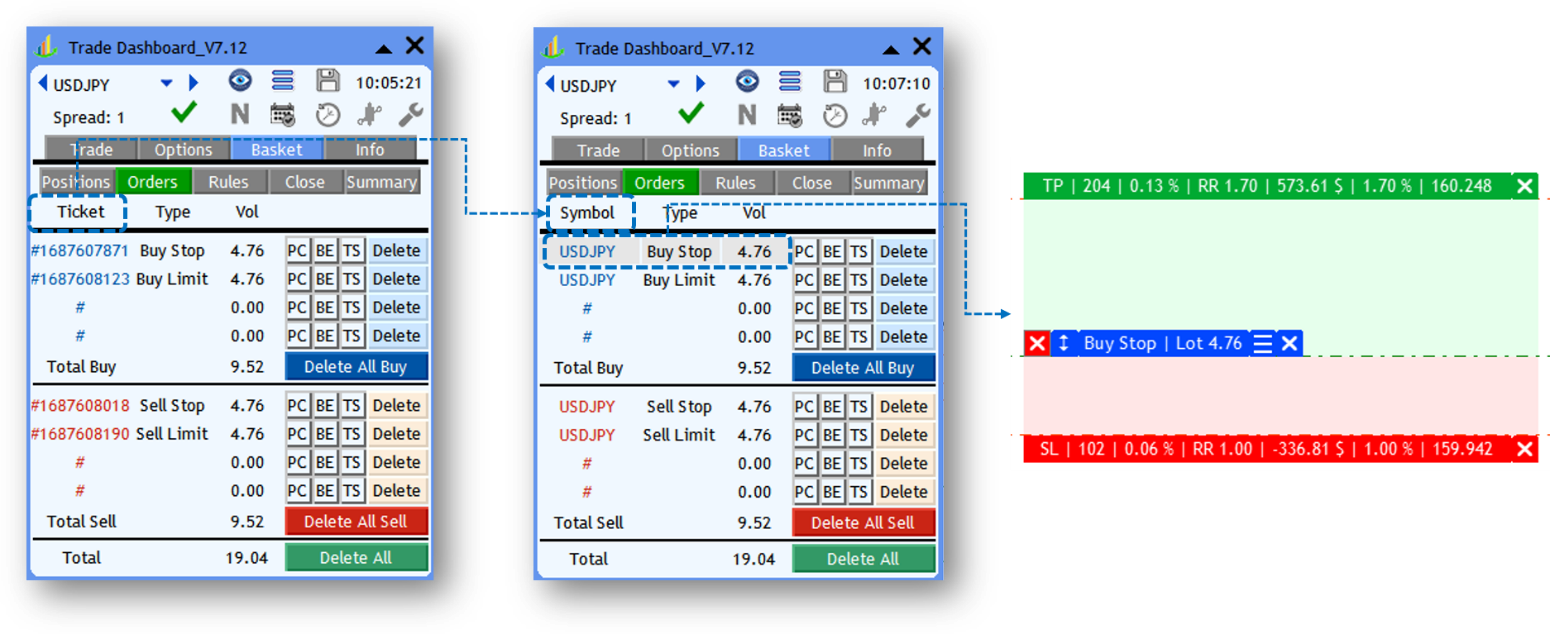
📜 Rules Tab
The Rules tab provides powerful tools for managing baskets of trades and setting Stop Loss / Take Profit levels for the entire basket.
The Rules tab has two main sections:
The upper blue section (1) manages Buy trades in the basket.
The lower orange section (2) manages Sell trades in the basket.
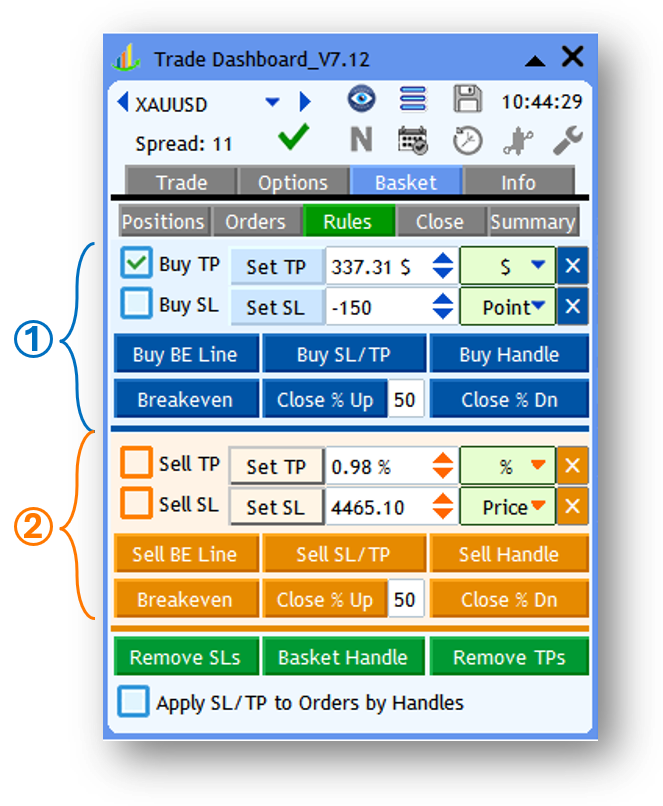
⚠️ The Rules tab applies only to trades of the current chart symbol, even if Trade Dashboard is managing trades from other symbols.
Basket SL/TP Controls
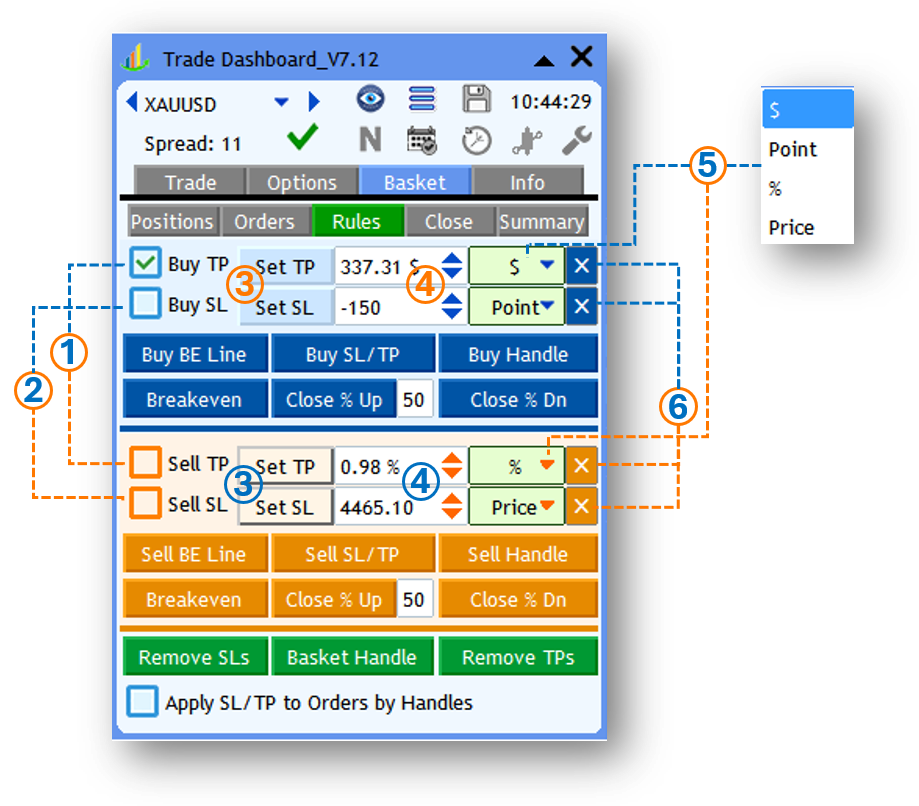
1 — Buy TP / Sell TP Check Boxes
When enabled, Trade Dashboard continuously manages the Take Profit of all Buy or Sell trades for the current chart symbol using the selected rule and value.
🔄 In this example:
• The Buy basket TP is managed at 337.31 $
• The Sell basket TP is managed at 0.98 %
If a new trade is opened or an existing trade is closed, the basket TP levels are automatically recalculated and updated.
2 — Buy SL/Sell SL Check Boxes
This option works the same way for the Stop Loss of all Buy or Sell trades on the current chart symbol.
🔄 In this example:
• The Buy basket SL is managed at 150 points from Buy breakeven.
• The Sell basket SL is managed at the exact price of 4465.10
The dashboard continuously adjusts the basket SL to maintain the defined Stop Loss rule and value.
3 — Set TP/ Set SL Buttons
Clicking these buttons applies the current TP or SL settings to the entire Buy or Sell basket one time only.
⚠️ After applying:
Opening new trades will NOT update the basket automatically.
Closing trades will NOT recalculate the basket automatically
4 — Value Boxes
Defines the value used for the basket SL/TP calculation.
5 — Calculation Mode
Defines how the basket SL/TP value should be interpreted.
$ → Sets basket SL/TP based on monetary profit or loss.
Point → Sets basket SL/TP based on point distance from the basket breakeven price.
% → Sets basket SL/TP based on a percentage of the account balance.
Price → Sets basket SL/TP at an exact market price.
6 — X Button
Removes the Stop Loss or Take Profit from the entire Buy or Sell basket.
Basket Action Buttons
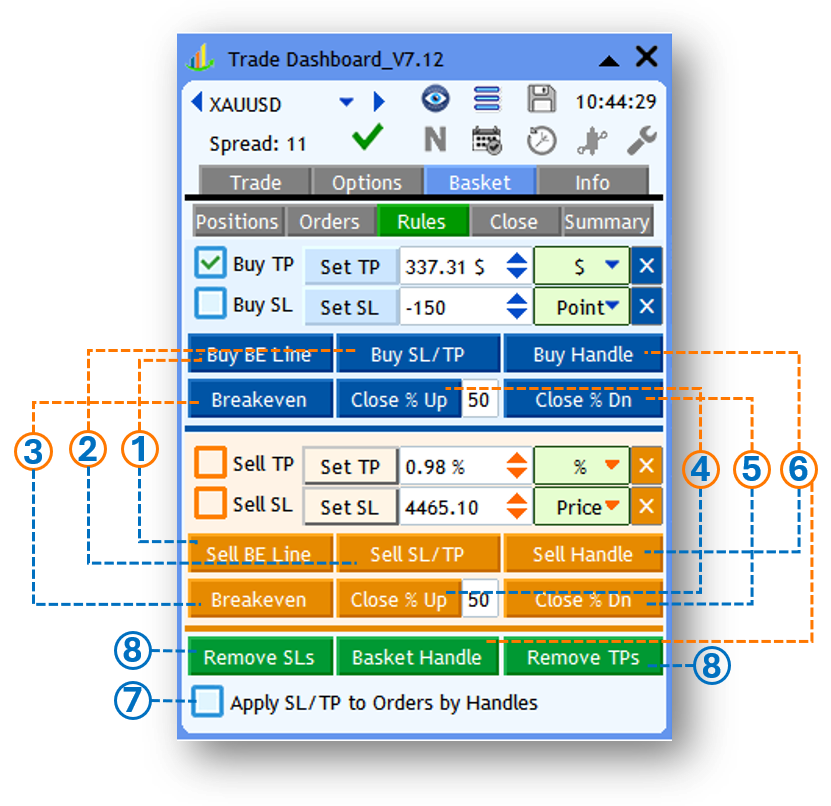
💡 Breakeven price of a basket is the price where the total combined profit of all trades in that basket becomes zero after including all commissions and swap fees.
1 — Buy BE Line-Sell BE Line
Clicking this button displays an information line on the chart showing the breakeven price of the entire Buy basket.
💡 The breakeven price is the price where the total profit of all Buy/Sell trades becomes zero.
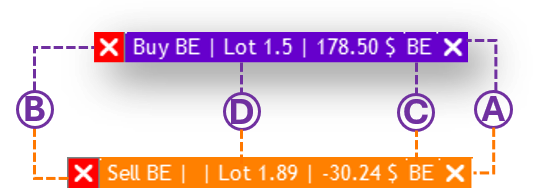
A — The X button on the right side removes the information box from the chart.
B — The red X button on the left side closes the entire Buy/Sell basket.
C — The BE button moves the Stop Loss of all Buy/Sell trades to the basket breakeven level.
D — You can drag the information box left or right on the chart. Clicking the box displays the basket TP/SL boxes and zones.
2 — Buy SL/TP - Sell SL/TP
Clicking this button is the same as clicking on the basket breakeven information box (D). it displays two information boxes on the chart:
One for the basket Take Profit
One for the basket Stop Loss
You can drag these boxes to visually modify the SL or TP of the entire Buy or Sell basket.
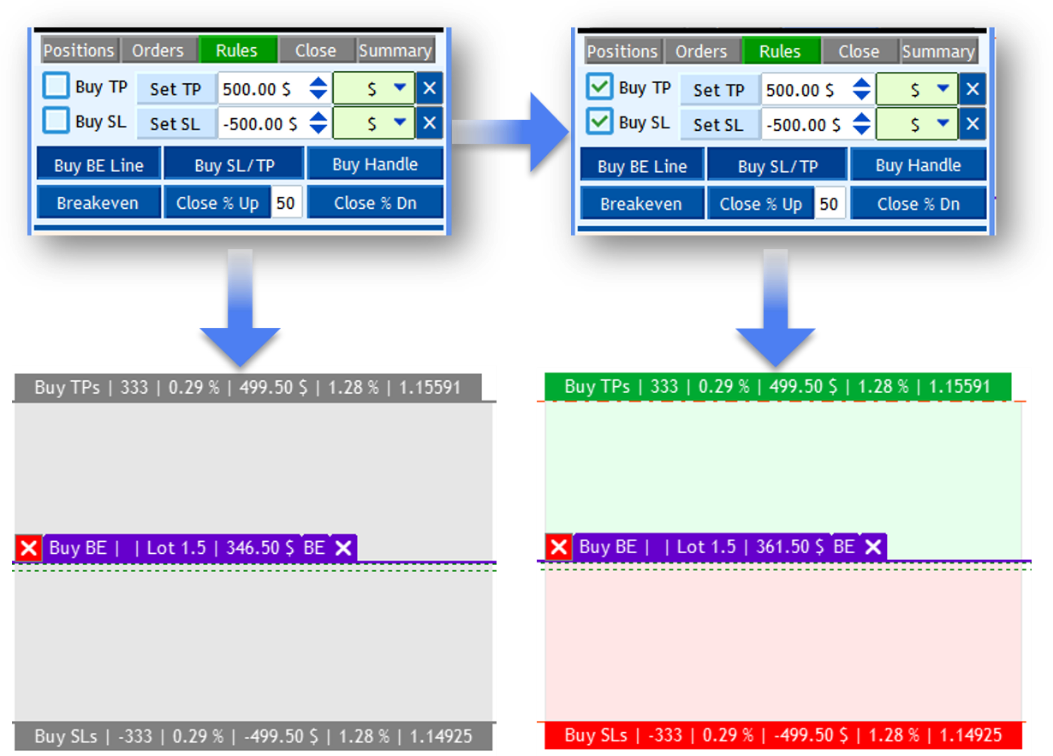
If a box is gray, it means the corresponding Buy TP / Buy SL or Sell TP / Sell SL option is disabled. In this case, moving the box only displays an imaginary SL/TP level without applying it.
When TP is enabled, the TP box turns green.
When SL is enabled, the SL box turns red.
When active, moving these boxes directly modifies the SL or TP of the entire basket.
3 — Breakeven
Clicking the Breakeven button works the same as clicking the BE icon (C) on the basket breakeven information box. It moves the Stop Loss of all Buy or Sell trades to the breakeven price of the corresponding basket.
⚠️ This is different from moving each trade to breakeven individually. This function calculates the breakeven price of the combined basket and moves the Stop Loss of all trades to that level.
💡 This function uses the same breakeven offset settings as the main Breakeven button. You can configure its behavior from:
Settings → Trading & Orders → Trade Actions → “Offset for Breakeven Button”
4—Close % Up
This button closes a portion of the entire Buy basket based on the percentage defined in the edit box next to it.
💡 For example, a value of 50 means closing 50% of the total Buy basket lot size.
⚠️ This is different from the Close % button on the Trade tab:
Close % on the Trade tab closes the same percentage from each individual trade.
Close % Up closes trades starting from the highest Buy price downwards.
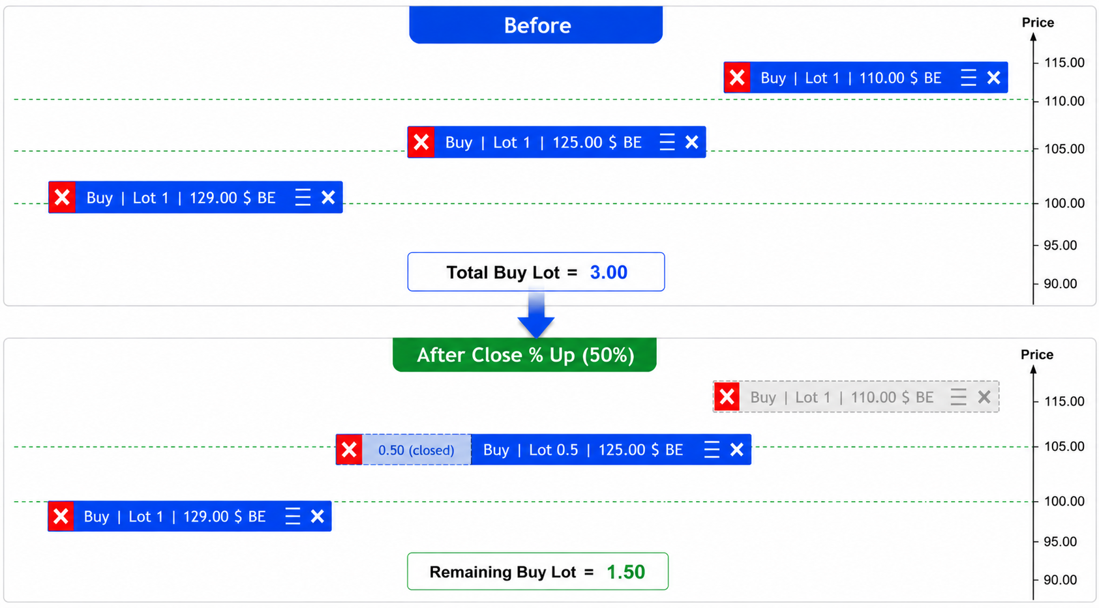
🔄 In this example, the total Buy basket volume is 3 lots. Pressing Close % Up with a value of 50% closes:
The highest Buy trade completely
50% of the middle Buy trade
5—Close % Dn
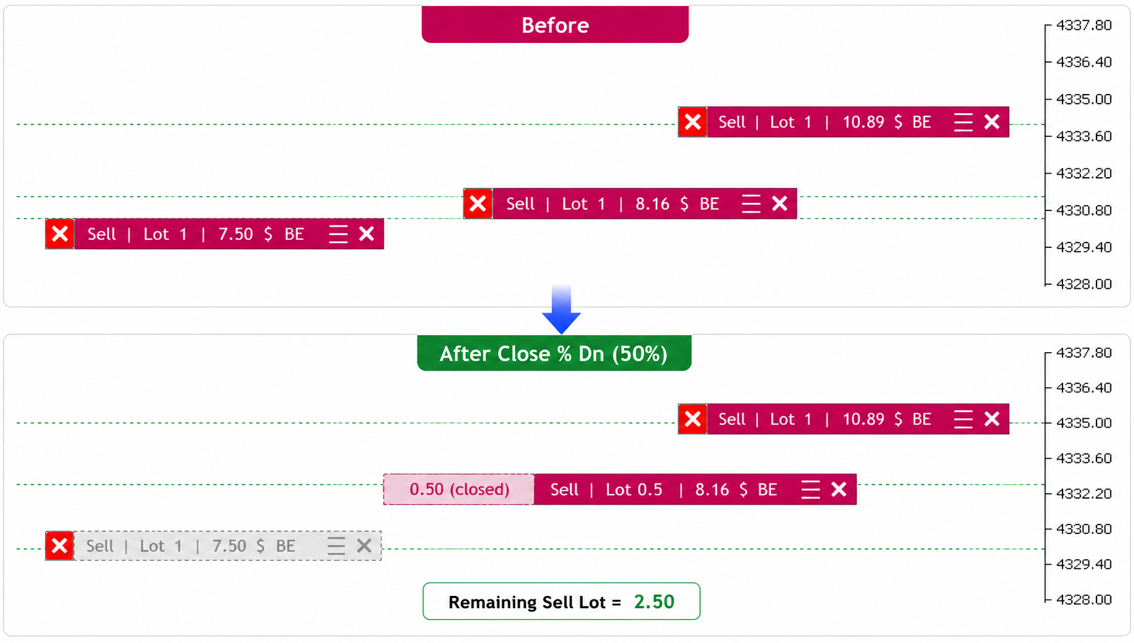
This button works similarly to Close % Up, but instead of starting from the highest trade, it starts from the lowest trade and closes a portion of the total Buy basket lot size.
6 — Buy Handle / Sell Handle / Basket Handle
The Handle buttons provide a visual handle on the chart, allowing you to freely and visually manage the Stop Loss or Take Profit of a basket.
Buy Handle → Manages all Buy trades using the blue handle
Sell Handle → Manages all Sell trades using the orange handle
Basket Handle → Manages all trades together using the green handle
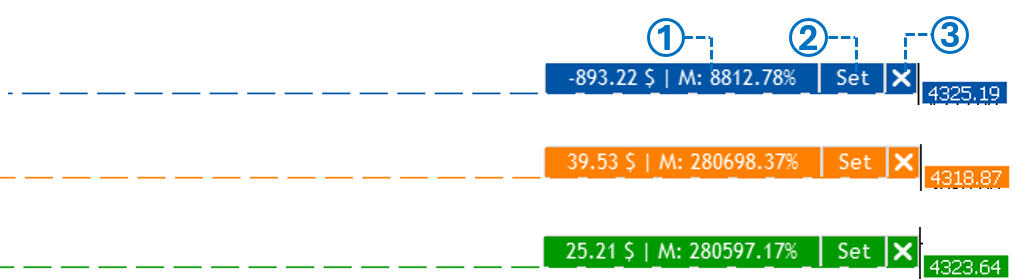
You can drag the handle information box (1) up or down on the chart.
At each price level, the handle displays:
The total floating profit/loss of the basket at that price
The estimated margin level at that price
💡 Margin Level = Equity at that price ÷ Current Margin × 100
The margin level helps you estimate how much free margin will remain if price reaches that level. In many brokers, a Margin Level near 100% may result in a margin call.
💡 This feature helps you visually estimate basket risk and identify price levels that may lead to low margin levels or margin calls.
Clicking the Set button (2) applies the handle price as the new Stop Loss or Take Profit for the basket.
Clicking the X button (3) removes the handle from the chart.
7 — Apply SL/TP to Orders by Handles
If this option is enabled, the Buy Handle, Sell Handle, and Basket Handle will also include pending orders in their calculations, assuming those orders become active.
The Buy Handle displays the estimated profit/loss of all active and pending Buy orders.
The Sell Handle displays the estimated profit/loss of all active and pending Sell orders.
The Basket Handle displays the estimated profit/loss of all active and pending orders together.
🔄 When the Set button is pressed, the Stop Loss or Take Profit is applied to both active trades and pending orders.
8 — Remove SLs/ Remove TPs
These buttons remove the Stop Loss or Take Profit of all active trades. If “Apply SL/TP to Orders by Handles” is enabled, pending orders will also be included.
BE Line Appearance
The information displayed in Buy/Sell BE boxes and SL/TP boxes follows the same settings as normal Buy/Sell information boxes.
🎨 You can customize their colors, box appearance, and related line colors from:
Settings → Chart & Display → Information Box
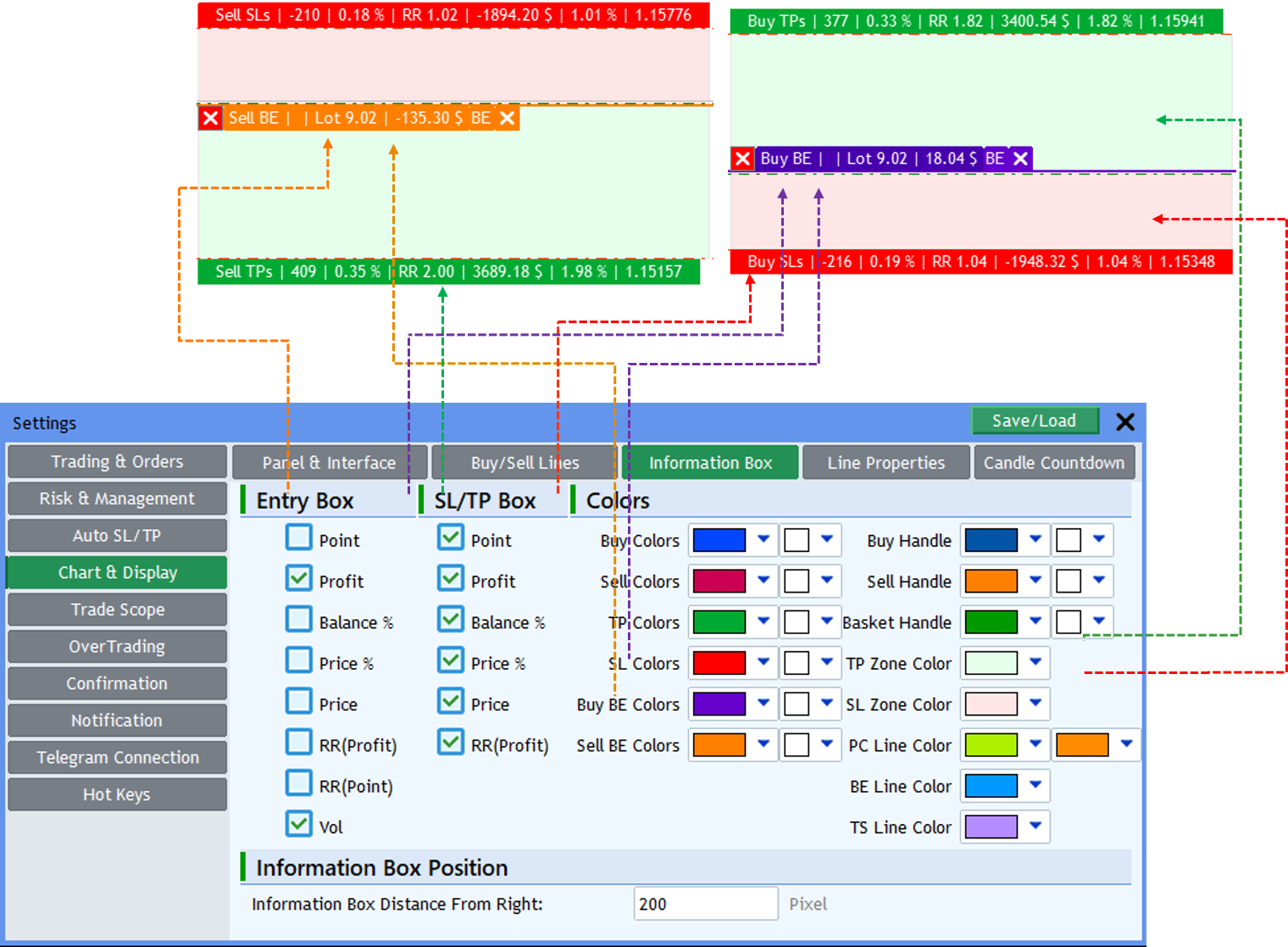
💰 Close Tab
The Close tab provides powerful tools for closing baskets of trades.
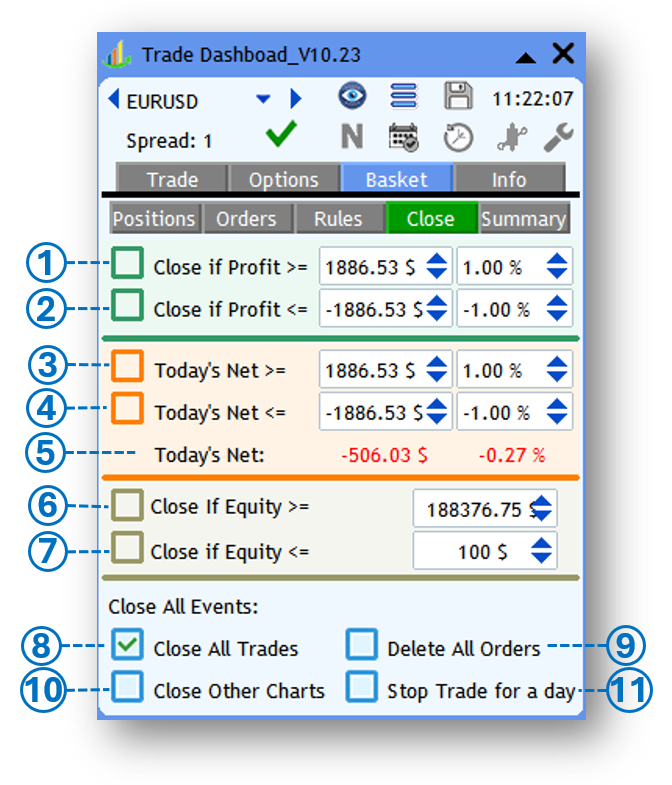
⚠️ Close tab Opposite to The Rules tab applies to all trades under control of Trade Dashboard, the trades could be from different symbols
Floating Profit Close Conditions
1 — Close if Profit >=
If this option is enabled, Trade Dashboard monitors the total floating profit/loss of all trades under its control.
When the floating profit/loss becomes greater than or equal to the specified value, all open trades will be closed.
You can define the target either:
By monetary amount using the left value box
By account balance percentage using the right value box
2 — Close if Profit <=
Similar to the previous option, but it closes all open trades when the total floating profit/loss becomes less than or equal to the specified value.
⚠️ Positive and negative values are important for both conditions.
🔄Example 1
Your floating profit is currently near zero:
Close all trades if profit reaches 200 $
Close all trades if loss reaches -100 $
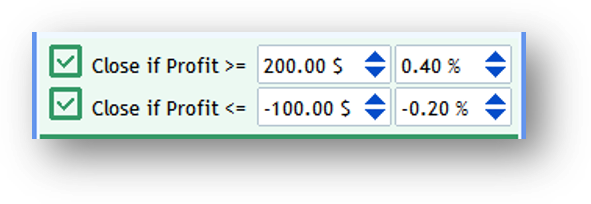
🔄Example 2
Your current floating loss is -200 $: Close all trades if the floating loss improves to -50 $
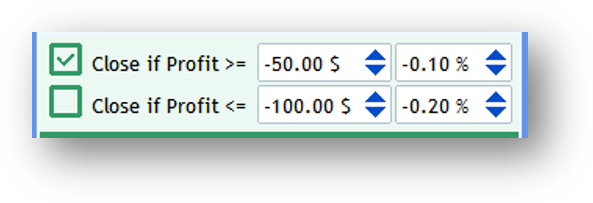
🔄Example 3
Your current floating profit is 500 $: Close all trades if the floating profit drops to 350 $
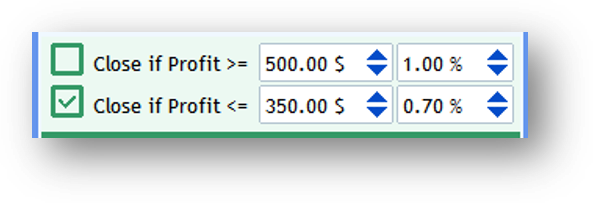
Today’s Net Close Conditions
3 — Today’s Net >=
When this option is enabled, Trade Dashboard monitors the total daily net profit/loss of all trades under its control. When today’s net profit becomes greater than or equal to the specified value, all open trades will be closed.
What is Today’s Net?
Today’s Net =
Total floating profit/loss of all active trades under Trade Dashboard control
+
All realized account profit/loss since the beginning of the current daily candle.
You can define the target either:
By monetary amount using the left value box
By account balance percentage using the right value box
4 — Today’s Net <=
Similar to the previous option, but it closes all open trades when today’s net profit/loss becomes less than or equal to the specified value.
⚠️ Positive and negative values are important for both conditions.
5—Today’s net
Trade Dashboard displays the current daily net amount both in monetary value and as a percentage of the account balance.
This value updates continuously while trades are open and helps you monitor your current daily trading performance.
⚠️ After a Today’s Net condition is triggered, that condition will be disabled automatically to prevent newly opened trades from being closed immediately.
💡 This feature is especially useful for prop firm trading, where many firms enforce maximum daily loss limits. It can help prevent exceeding those limits.
🔄Example 1
Current Today’s Net = 100 $
Close all trades if Today’s Net reaches 1000 $ (requires another 900 $ profit)
Close all trades if Today’s Net reaches -1000 $ (requires -1100 $ loss)
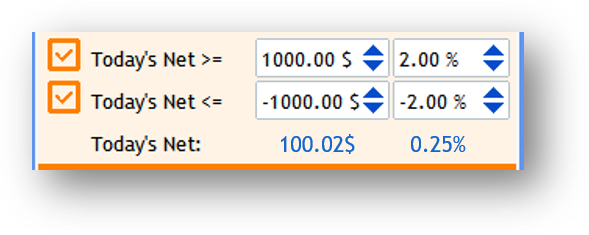
🔄Example 2
Current Today’s Net = -500 $
Close all trades if Today’s Net reaches 0 $ (requires 500 $ profit)
Close all trades if Today’s Net reaches -1000 $ (requires -500 $ loss)
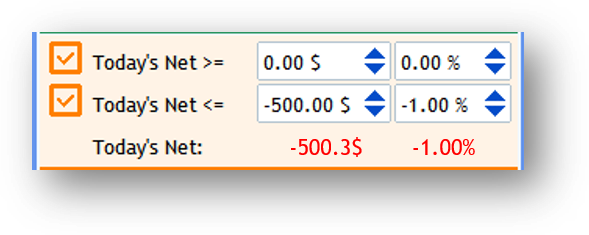
🔄Example 3
Current Today’s Net = 300 $
Close all trades if Today’s Net reaches 1000 $ (requires 700 $ profit)
Close all trades if Today’s Net reaches 0 $ (requires -300 $ loss)
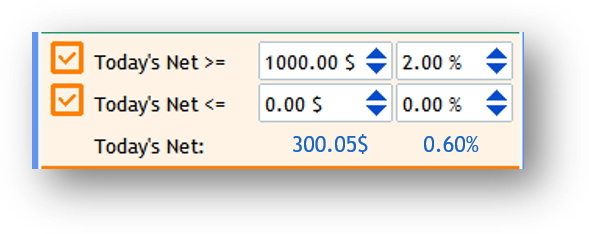
Equity Protection
6 — Close if Equity >=
This feature works based on your account equity:
💡 Equity = Balance + floating profit/loss of open positions.
If the account equity becomes greater than or equal to the specified value, Trade Dashboard will close all trades under its control.
7 — Close if Equity <=
Similar to the previous option, but it closes all trades when the account equity becomes less than or equal to the specified value.
🔄Example
Your account balance is 5000 $.
You want to close all trades if your equity reaches 5500 $ or falls to 4500 $.
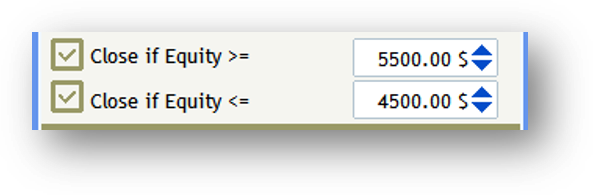
Close All Events
When any condition in the Close tab is triggered, you can define what actions should happen next.
8 — Close All Trades
By default, the Close All Trades option is enabled, but you can disable it or enable additional actions.
9 — Delete All Orders
If this option is enabled, all pending orders will be deleted when any Close tab condition is triggered.
10 — Close Other Charts
If this option is enabled, all other charts will be closed when a Close tab condition is triggered.
💡 Combined with Close All Trades, this feature can also stop other EAs running on other charts by closing their charts.
11 — Stop Trade for a Day
If this option is enabled, Trade Dashboard will stop opening new trades for the rest of the day after any Close tab condition is triggered. In this case, the trading buttons will turn gray, but manual trades and trades opened by other EAs can still be executed.
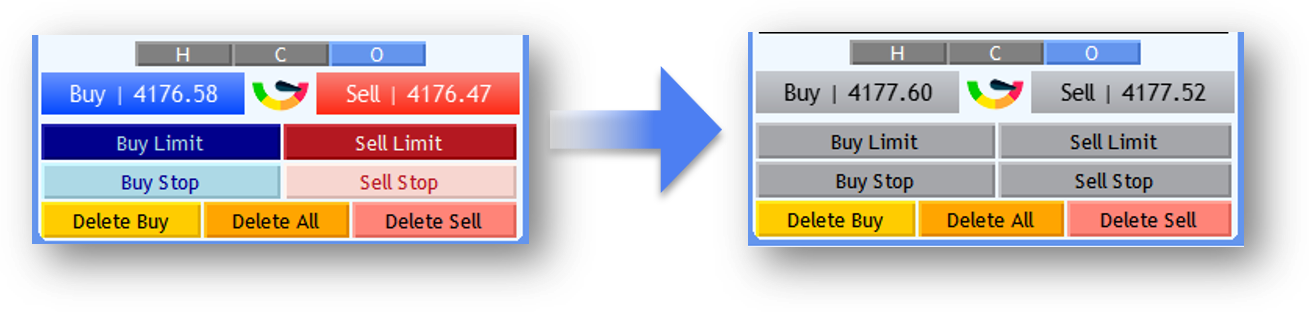
📊 Summary
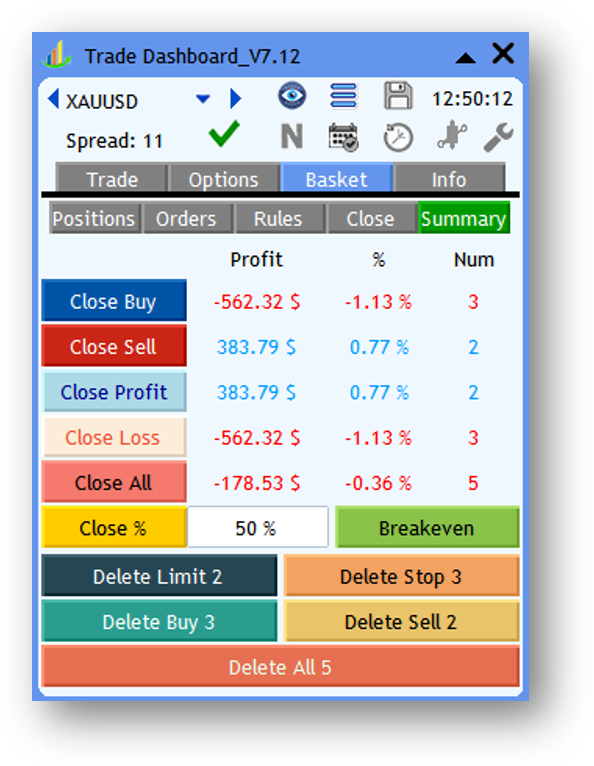
The Summary tab provides a quick overview of all trades and orders under the control of Trade Dashboard. For each trade category, it displays:
Total profit/loss
Profit/loss as a percentage of the account balance
Number of related trades
For example:
‘Close Buy’ shows the total profit/loss, percentage, and number of Buy trades.
‘Close Loss’ shows the total profit/loss, percentage, and number of losing trades.
The Close % and Breakeven buttons work similarly to the same buttons in the Trade tab.
For each order deletion button, the related number of orders is displayed:
Delete Sell 2 → There are 2 Sell pending orders.
Delete Stop 3 → There are 3 Stop pending orders.
🖥️ Dashboard Customization
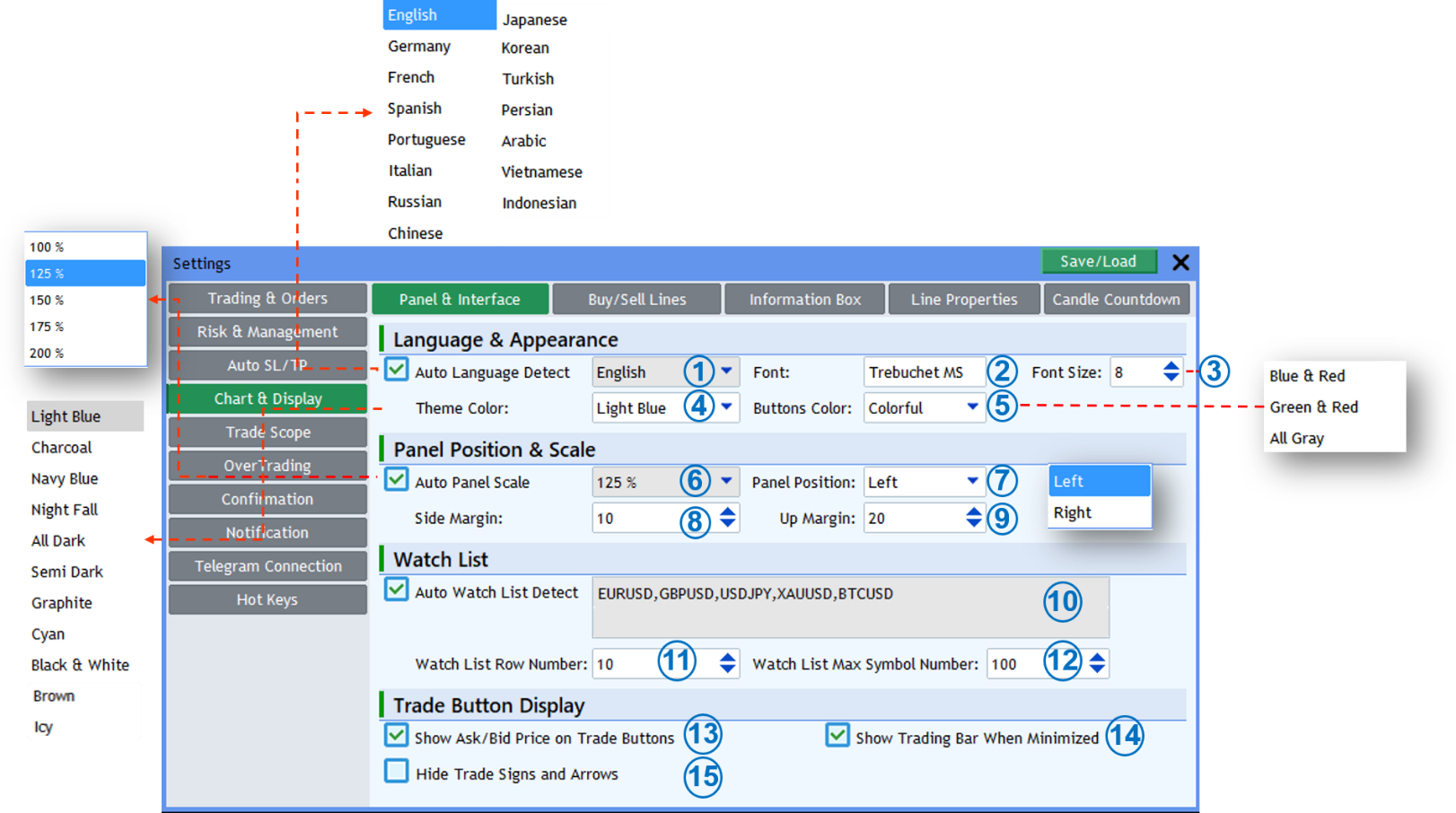
Open Settings → Chart & Display → Panel & Interface to adjust the dashboard's language, appearance, position, Watch List, and trade-button display.
1 — Auto Language Detect
When checked, the dashboard follows the MetaTrader platform language. Clear the checkbox to choose a language manually from the adjacent menu.
2 — Font
Enter the name of an installed font for the dashboard text. The example shown is Trebuchet MS.
3 — Font Size
Increase or decrease the font size used in the dashboard controls. A larger value makes labels easier to read but uses more space.
4 — Theme Color
Choose the overall dashboard theme from the menu, such as Light Blue, Charcoal, Navy Blue, Night Fall, Graphite, or Icy. This setting controls the panel appearance separately from button colors.
5 — Buttons Color
Choose the button color scheme independently of the theme. The available styles include Colorful, Blue & Red, Green & Red, and All Gray.
6 — Auto Panel Scale
When checked, the panel scale follows the display DPI automatically. Clear the checkbox to select 100%, 125%, 150%, 175%, or 200% manually.
7 — Panel Position
Choose whether the dashboard appears on the left or right side of the chart.
8 — Side Margin
Set the horizontal distance from the chosen side of the chart to the dashboard.
9 — Up Margin
Set the vertical distance from the top of the chart. Increasing it moves the dashboard lower.
10 — Auto Watch List Detect
When checked, the symbol list follows MetaTrader Market Watch and the list box is read-only. Clear the checkbox to enter your own comma-separated symbols in the box.
11 — Watch List Row Number
Set how many symbols appear in each Watch List column before the next column starts.
12 — Watch List Max Symbol Number
Limit the total number of symbols displayed in the Watch List.
13 — Show Ask/Bid Price on Trade Buttons
Show the current Ask price on Buy and the current Bid price on Sell.
14 — Show Trading Bar When Minimized
Keep the compact trading bar visible when the main dashboard is minimized.
15 — Hide Trade Signs and Arrows
Hide trade signs and arrows on the chart for a cleaner view. This dashboard setting is available only in MT4. In MT5, right-click the chart, open Properties, and turn off Show trade history to hide trade entry and exit markers.
ℹ️ Info Tab
The Info tab provides quick access to trading statistics, symbol specifications, and account information without leaving the chart.
📊 Performance
Performance summarizes closed trading results for a chosen date range, symbol, and Magic number. The six cards and chart update together when these filters change.
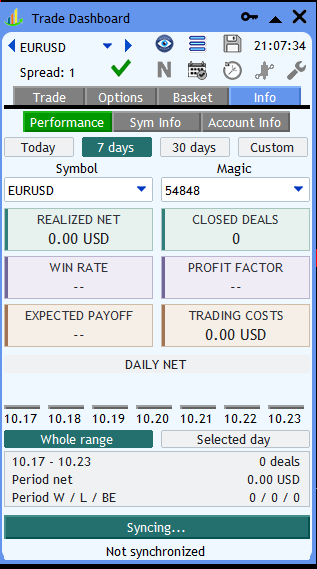
Performance overview
1 — Choose the period
Select Today, 7 days, 30 days, or Custom. Custom opens separate From and To calendars. Dates follow the broker server's calendar days. The chosen end date is included.
2 — Filter Symbol and Magic
Symbol selects the current chart symbol or All symbols. Magic selects All or a specific Magic number; Magic 0 represents manual trades. Changing the chart symbol selects the new symbol in Performance. Changing the chart timeframe leaves the selected symbol filter in place.
3 — Read the six metrics
Realized Net: closed profit after commission and swap. Trading Costs: the signed total of commission and swap; spread is already included in trade profit.
Closed Trades in MT4 counts closed market-order records, including separate partial-close records. Closed Deals in MT5 counts closing deals, including partial exits.
Win Rate: profitable closed records divided by all closed records. Profit Factor: positive net results divided by the absolute value of negative net results. Expected Payoff: realized net divided by the number of closed records.
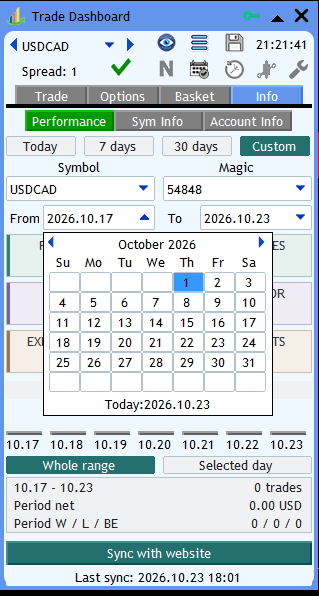
Custom period and calendar
4 — Explore the chart
The chart divides the selected period into up to seven date groups. A green bar is positive net; a red bar is negative net. Click a group covering several days to open that shorter range, then use Back to return. Click a single-day bar or its date label to show its result below the chart. Whole range and Selected day/group switch the footer's date, trade count, net, and win/loss/break-even counts together.
5 — Check history coverage
Performance uses the history currently available in MetaTrader. For full MT4 coverage, select All History in the Account History tab. MT5 uses closing deals and allocates available entry costs; a warning appears when entry history is incomplete. These figures describe closed trades, not current floating profit.
6 — Sync with website
Click Sync with website to request a fresh online license check and upload available account history. This sync covers the account, regardless of the visible Performance period, Symbol, or Magic filter. A successful online license check can also start sync automatically. The status below the button reports progress or the last result. Development and Quick Demo editions do not upload. A failed upload does not change license validity; retry after correcting the connection.
📑 Symbol Info
Symbol Info shows the chart symbol's current broker specifications. Values can change when the chart symbol or the broker's settings change.
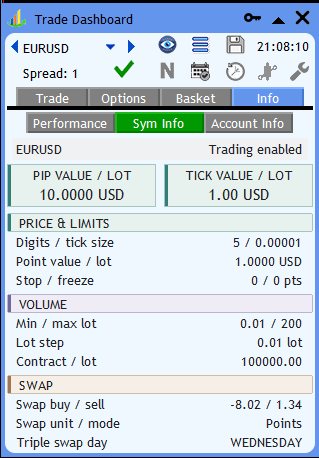
Symbol specifications
The header shows the symbol and its trading status. MT5 can display Buy only, Sell only, Close only, Trading enabled, or Trading disabled. MT4 reports only Trading enabled or Trading disabled from the broker's symbol permission. Account permission and terminal AutoTrading are separate checks.
Pip Value / Lot and Tick Value / Lot show the value of one pip or one tick for one lot in the account currency. Price & Limits lists digits, tick size, point value, and the broker's stop and freeze distances in points.
Volume lists minimum and maximum lot, lot step, and contract size. Swap lists the buy and sell values, the broker's swap unit or mode, and the triple-swap day when the broker provides it. An unavailable value is shown as such rather than estimated.
👤 Account Info
Account Info displays the connected account's live balance, equity, floating profit or loss, and free margin. These four values are shown in separate cards in the account currency.
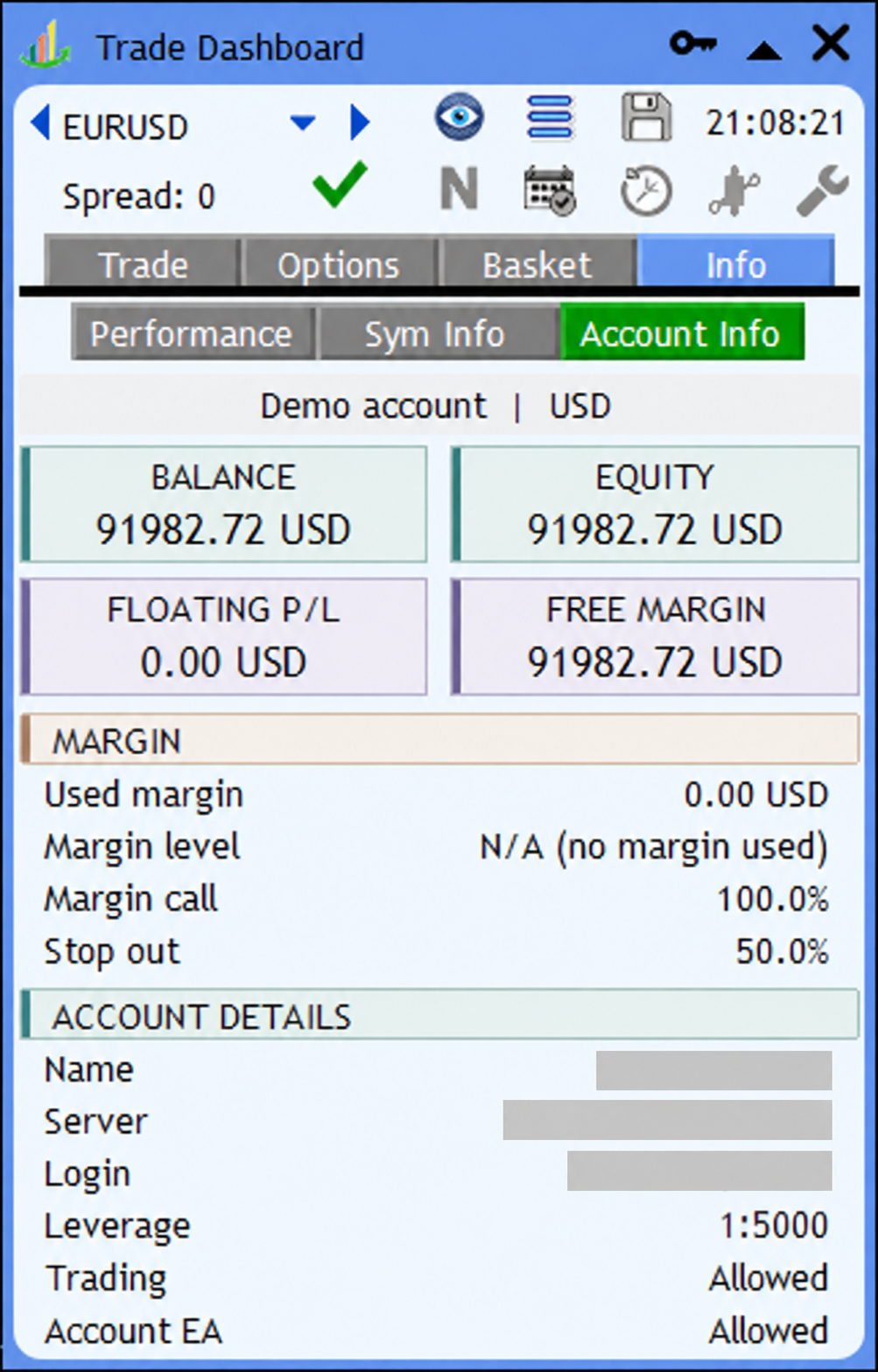
Account overview
The Margin section shows used margin and Margin Level. Margin Level is Equity divided by Used Margin, multiplied by 100. When no margin is used, the dashboard shows N/A. Margin Call and Stop Out display the thresholds in the broker's configured unit, either a percentage or account currency.
Account Details lists name, server, login, leverage, account trading permission, and Expert Advisor trading permission. The EA permission shown here is a broker/account property; the terminal AutoTrading switch is separate.
🧰 Utility & Assistant Tools
📰 News
Trade Dashboard includes a built-in Economic Calendar, allowing you to monitor important news events directly from your chart without relying on external websites.
To open the News window, click the N icon at the top of Trade Dashboard.
To receive news data, MetaTrader must be allowed to access the external news source. When the News window is opened, you may see a message box like this:
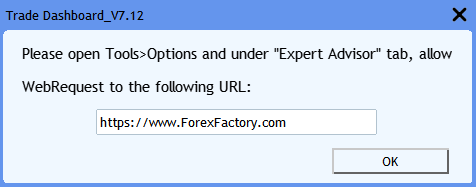
To grant permission, go to Tools → Options, open the Expert Advisors tab, and enable Allow WebRequest for listed URL.
Then copy the URL from the message box and add it to the list of allowed URLs, as shown below.
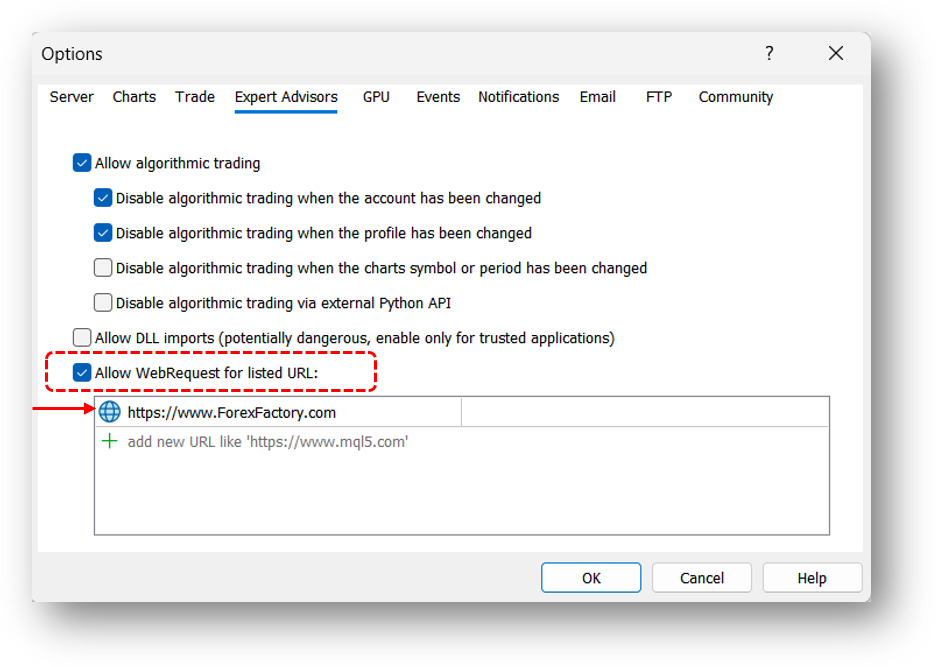
News Window Controls
The News window provides several options and filters to help you monitor and manage economic news events.
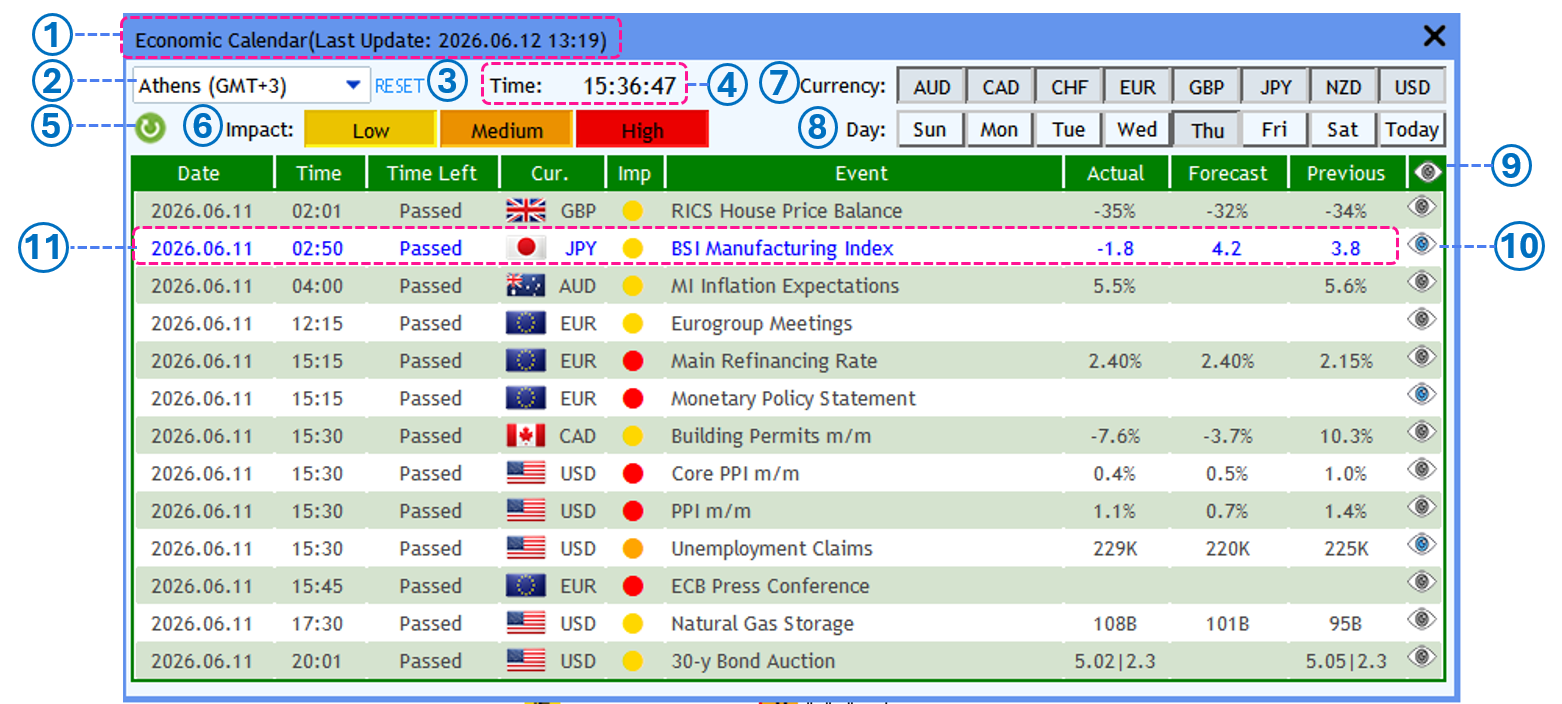
1 — News Status
Displays the status of the news feed and the last update time.
💡 If a Last Update time is shown, the news has been downloaded successfully. Otherwise, an error message will be displayed.
2 — Time Zone
Select the time zone used to display news dates and times.
💡 By default, the news is displayed using your broker's time zone.
💡 The selected time zone is saved together with your settings.
3 — RESET
Restores the selected time zone to the default broker time zone.
4 — Time
Displays the current time in the selected time zone.
5 — Reload Icon
Attempts to download the latest news data from the news source again.
6 — Impact
Filters news events based on their importance:
Low
Medium
High
7 — Currency
Filters news events by currency.
8 — Day
Filters news events by day.
💡 Only one day can be selected at a time. Clicking Today automatically displays today's news events.
9 — Show/Hide All News
The eye icon at the top-right of the table shows or hides all news events on the chart.
10 — Show/Hide Individual News
The eye icon next to each news event shows or hides only that specific event on the chart.
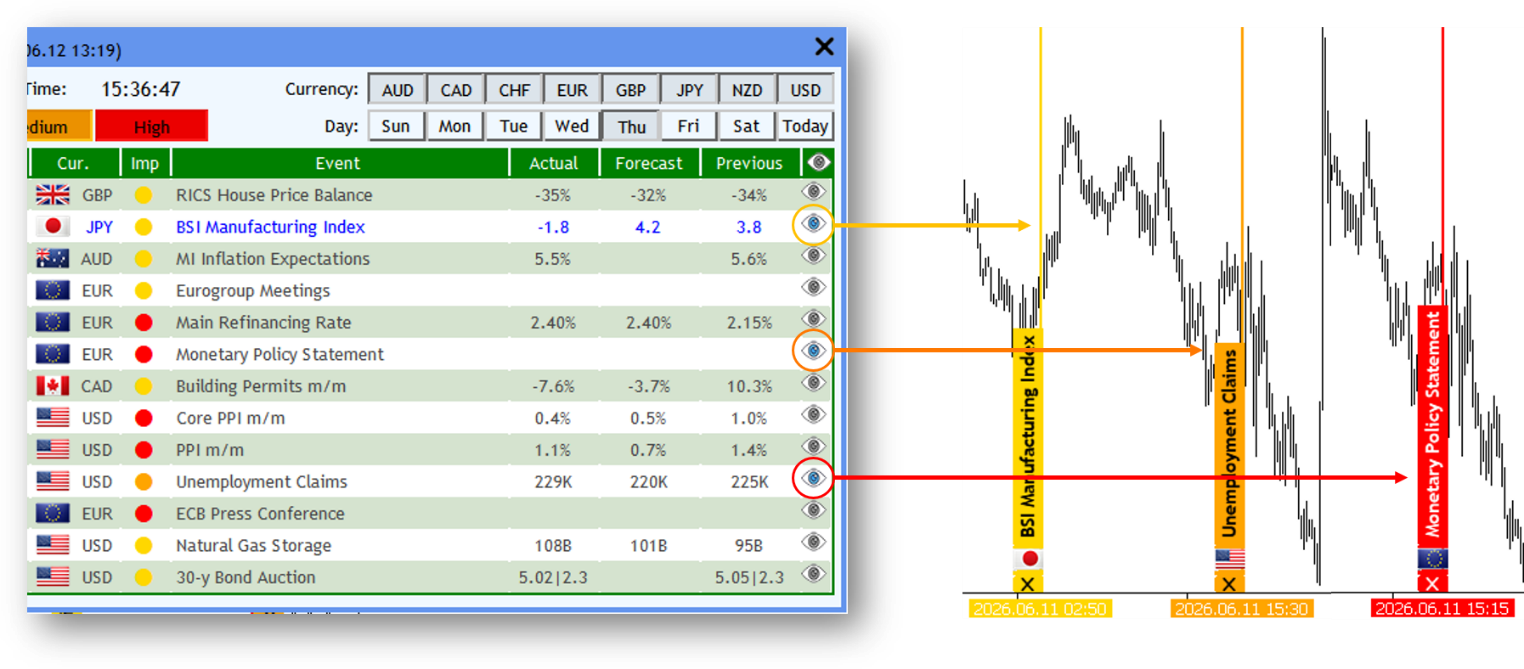
11 — News Event Settings
Clicking a news row opens a settings box where you can configure notifications and Close All actions for that specific news event.
💡 News events with at least one active configuration are displayed in blue text color.
News Event Actions
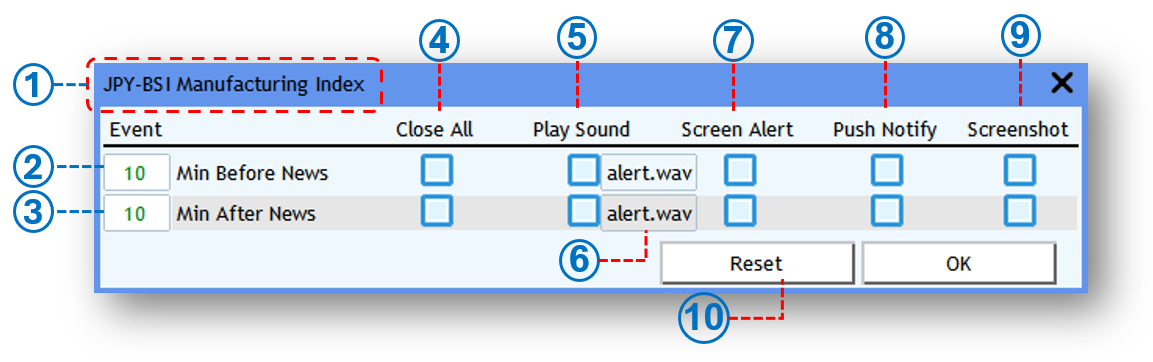
1 — News Event
Displays the name of the selected news event.
2 — Min Before News
Specifies how many minutes before the news event an action should be performed.
If an action is enabled in this row, it will be triggered the specified number of minutes before the news release time (10 minutes in the example above).
3 — Min After News
Specifies how many minutes after the news event an action should be performed.
If an action is enabled in this row, it will be triggered the specified number of minutes after the news release time (10 minutes in the example above).
4 — Close All
Closes all active trades and deletes all pending orders under the control of Trade Dashboard.
5 — Play Sound
Plays a sound notification when the event is triggered.
6 — Sound Name
Specifies the sound file to be played. The default sound is alert.wav.
The file must:
Be in .wav format
Exist in the MetaTrader Sounds folder
To access the Sounds folder:
File (top-left corner of MetaTrader) → Open Data Folder → Sounds
7 — Screen Alert
Displays a popup message on the screen when the event is triggered.
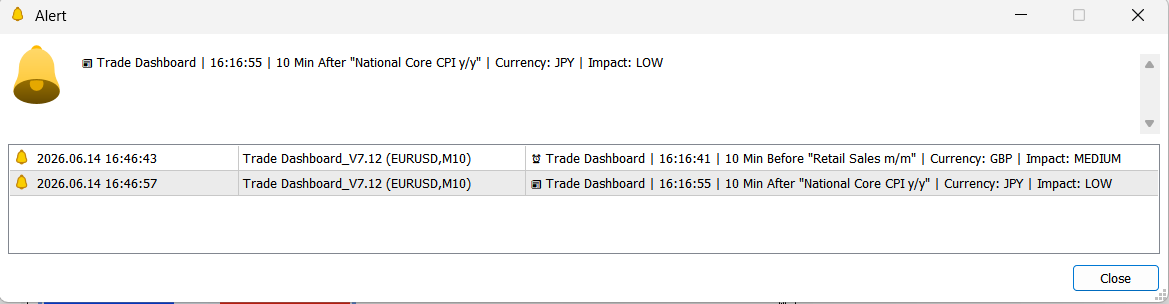
8 — Push Notification
Sends a push notification to your mobile device through MetaTrader.
To use this feature:
Install the MetaTrader mobile application.
Open Settings → Messages in the mobile app and note your MetaQuotes ID.
In MetaTrader desktop, go to Tools → Options → Notifications.
Enable Push Notifications and enter your MetaQuotes ID.
Click Test to verify that notifications are working correctly.
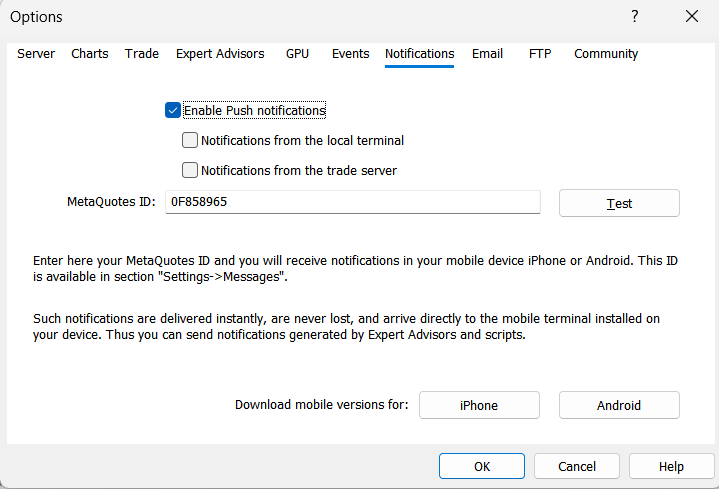
9 — Screenshot
Takes a screenshot of the chart when the event is triggered.
Screenshots are saved in:
File (top-left corner of MetaTrader) → Open Data Folder → MQL4/MQL5 → Files → Trade Dashboard → Screenshots → Before News / After News
10 — Reset
Unchecks all notification and action settings for the current news event.
📅 Task Scheduler
Task schedular gives powerful ability to set timer to do trading actions at a predefined time.
Scheduler Configuration
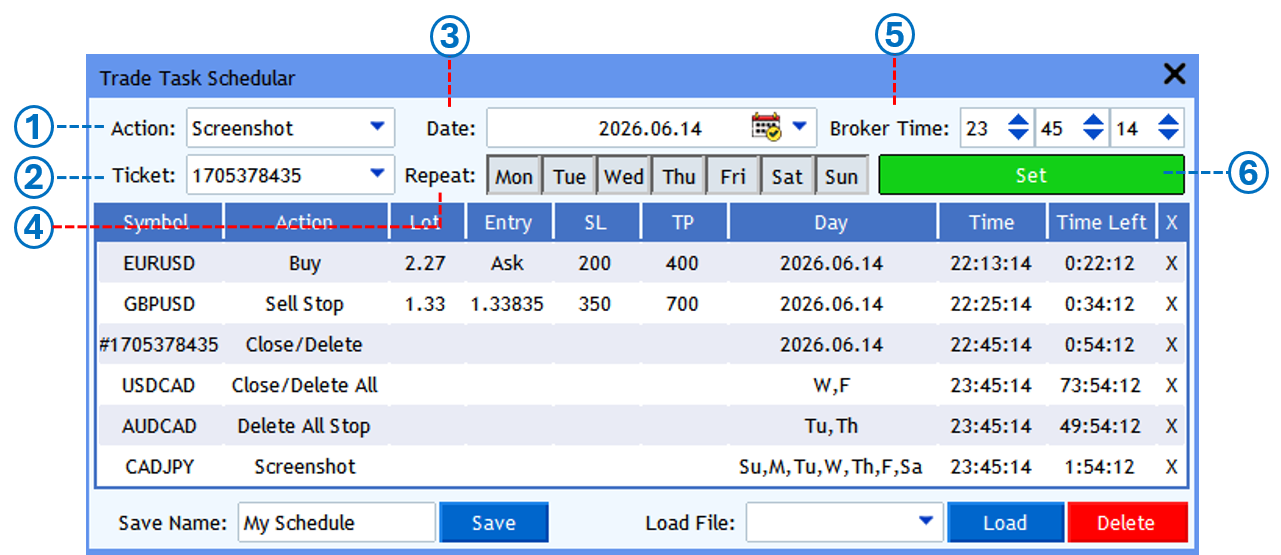
1 — Action
Select the action to be performed at the scheduled time. Available actions include:
Trade Actions: Buy, Sell, Buy Limit, Buy Stop, Sell Limit, Sell Stop
Utility Actions: Screenshot
Close Actions: Close/Delete, Close/Delete All, Close All Buy, Close All Sell, Close All Profit, Close All Loss, Close All
Delete Actions: Delete Buy Stop, Delete Sell Stop, Delete Buy Limit, Delete Sell Limit, Delete All Buy, Delete All Sell, Delete All Stop, Delete All Limit, Delete All
2 — Ticket
Select the ticket number for the Close/Delete action.
💡 A ticket number is only required for the Close/Delete action. All other actions ignore this field.
3 — Date
Select the date on which the action should be performed.
4 — Repeat
Select one or more days to repeat the action at the specified time.
💡 If no day is selected, the action will be performed only once when the broker time reaches the scheduled date and time.
5 — Broker Time
Specifies the execution time based on the broker's server time in the format: Hour | Minute | Second
6 — Set
Adds the configured action to the Scheduler list.
Scheduled Tasks List
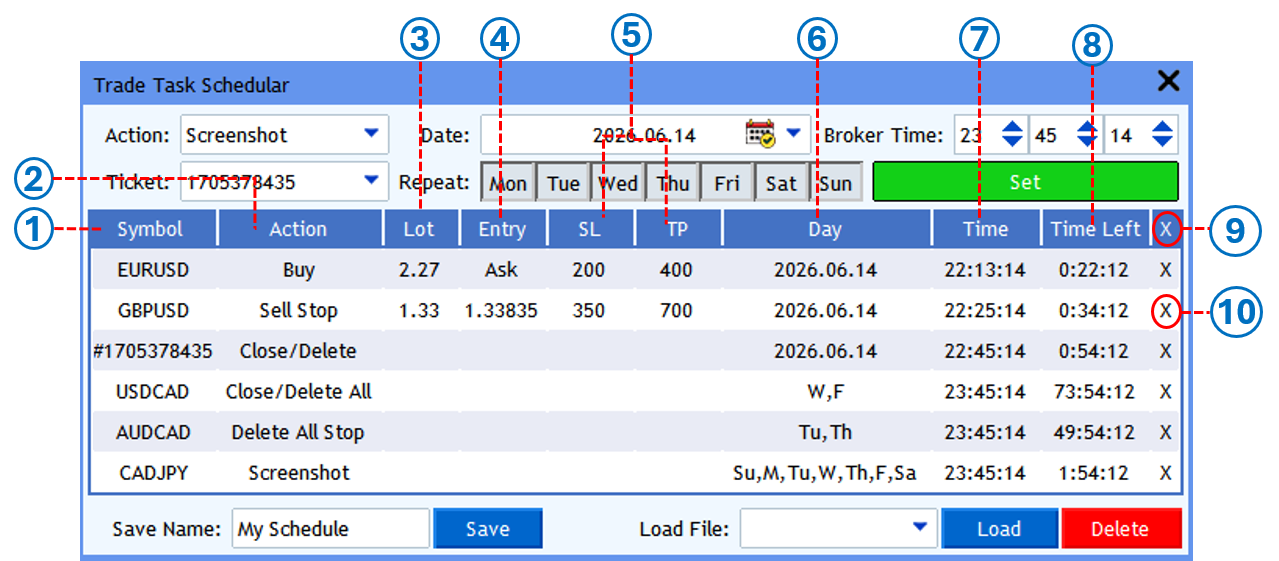
1— Symbol
Displays the symbol associated with the scheduled task.
💡 Each task is linked to the symbol of the chart on which it was created. You can create scheduled tasks for multiple symbols within the same Scheduler.
For the Close/Delete action, the trade ticket number is displayed instead of the symbol name.
2 — Action
Displays the action that will be performed.
3 — Lot
Displays the trade volume for the scheduled trade.
The value is initially taken from the Trade tab of the main panel, but it can also be edited directly in the Scheduler table.
4 — Entry
Displays the entry price of the scheduled trade.
For Buy trades, the entry price is the current Ask price.
For Sell trades, the entry price is the current Bid price.
For pending orders, the entry price is taken from the Entry Price box in the Trade tab.
The entry price can also be edited directly in the Scheduler table.
5 — SL / TP
Displays the Stop Loss and Take Profit distances for the scheduled trade.
These values are initially taken from the Trade tab of the main panel, but they can be edited directly in the Scheduler table.
6 — Day
Displays the execution date or recurring days for the scheduled task.
If no repeat days are selected, the execution date is displayed.
If repeat days are selected, the selected days are displayed using abbreviations such as: Su, M, Tu, W, Th, F, Sa
7 — Time / GMT Time
Displays the scheduled execution time.
💡 Clicking the column header switches the display between Broker Time and GMT Time.
8 — Time Left
Displays the remaining time until the next execution of the scheduled task.
9 — Remove All Tasks
The X button at the top of the column removes all scheduled tasks from the Scheduler.
10 — Remove Task
Removes the scheduled task for that row.
Save/Load Schedules
The Scheduler allows you to save and load groups of scheduled tasks, making it easy to reuse frequently used schedules without recreating them manually.
1 — Save Name
Enter a name for the schedule file.
2 — Save
Saves all current scheduled tasks using the name specified in the Save Name box.
3 — Load File
Select a previously saved schedule file from the list.
4 — Load
Loads all scheduled tasks from the selected schedule file.
5 — Delete
Deletes the selected schedule file.
💡 Saved schedule files contain all tasks currently listed in the Scheduler table, including their actions, symbols, dates, repeat settings, and execution times.
🌍 Market Session Indicator
Session Quick View
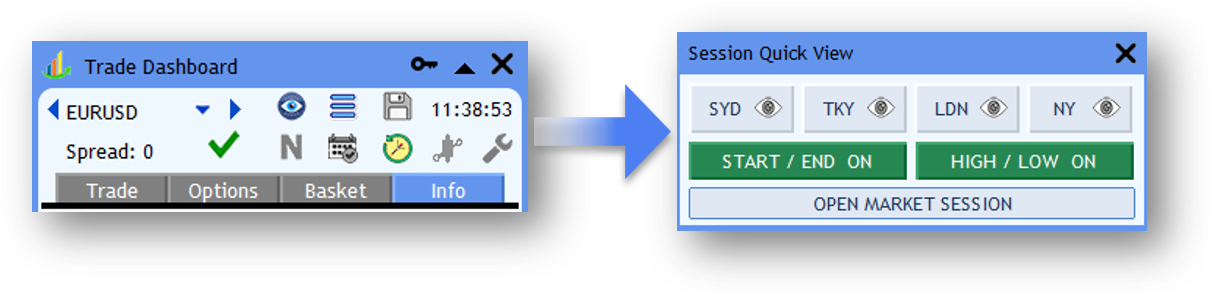
Click the Session icon in the dashboard header to open Session Quick View. Drag its title bar to move the window.
Select SYD, TKY, LDN, or NY to show or hide that session's guides on the chart. These controls share their selection with the eye icons in the full window.
START / END turns the session boundary markers on or off. HIGH / LOW independently controls the session price-range guides for the selected sessions.
Click OPEN MARKET SESSION to open the full session timeline.
Full Market Session Window
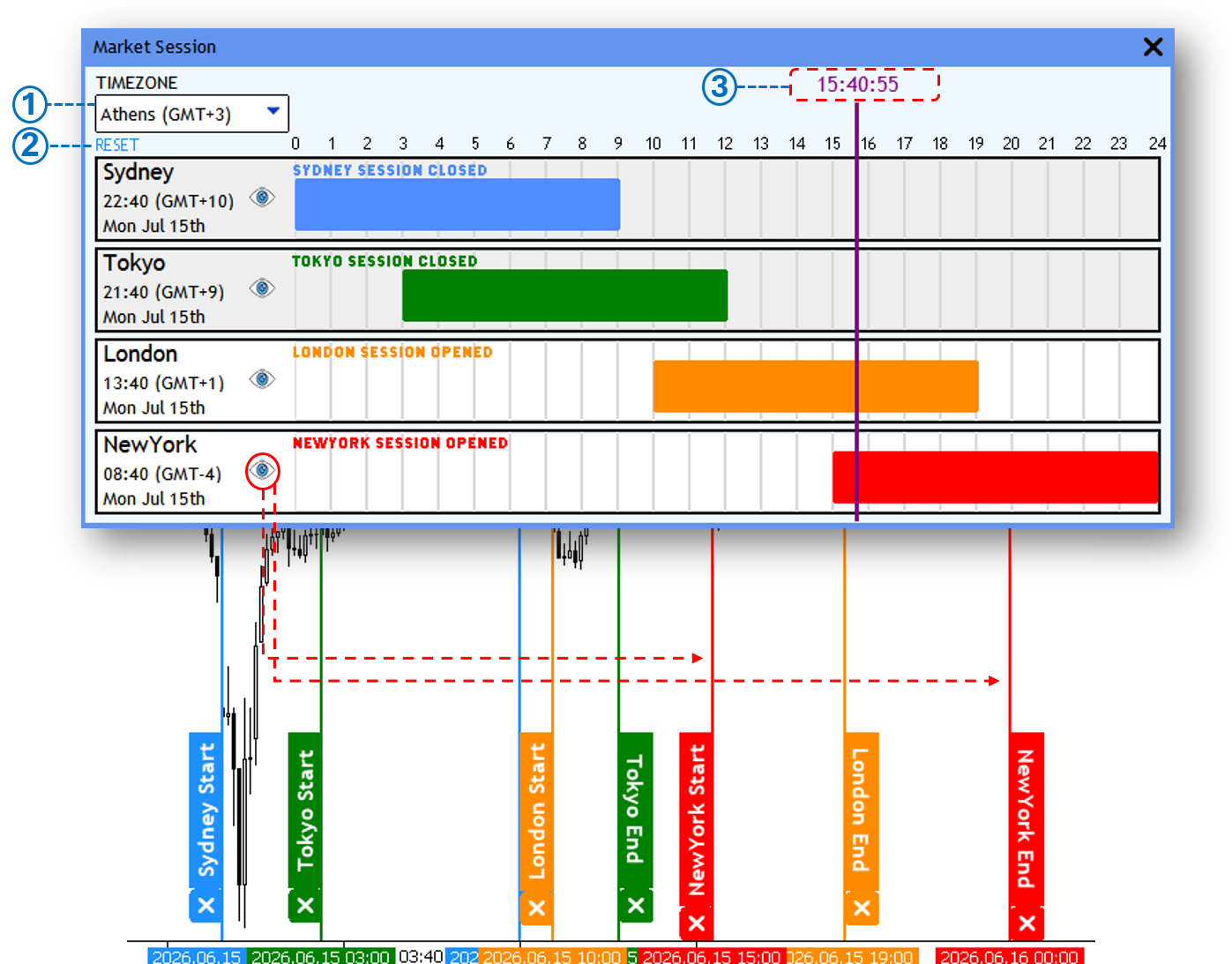
The full window shows Sydney, Tokyo, London, and New York on a 24-hour timeline. Each row shows whether the session is open or closed, while its colored bar marks the session hours.
💡 The session range uses prices recorded during that session; for a session still open, it extends to the current time.
1 — Time Zone
Choose the time zone used for the timeline and displayed clock.
The session bars and current-time marker follow this selection.
💡 You can save the selected time zone with Trade Dashboard settings.
2 — Reset
Return the timeline to the default broker time zone.
3 — Current Time Marker
The vertical marker shows the current time in the selected time zone.
Use it to see:
Which sessions are open now
Which sessions are closed now
When a session is due to open or close
The eye icon beside a session selects its chart guides. It shares the same selection as the corresponding chip in Session Quick View; the START / END and HIGH / LOW switches control which guides are drawn.
🎯 Trade Object Rules
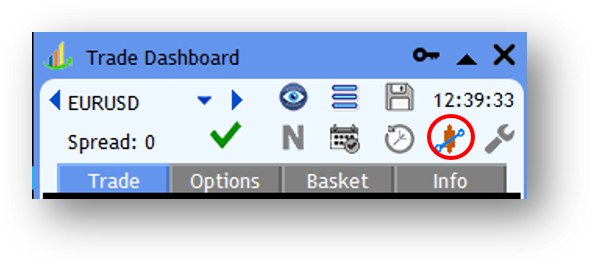
Click the Object Rules icon in the dashboard header, shown in the first image, to open this window. Attach a one-time alert or trading action to a drawing on the current chart.
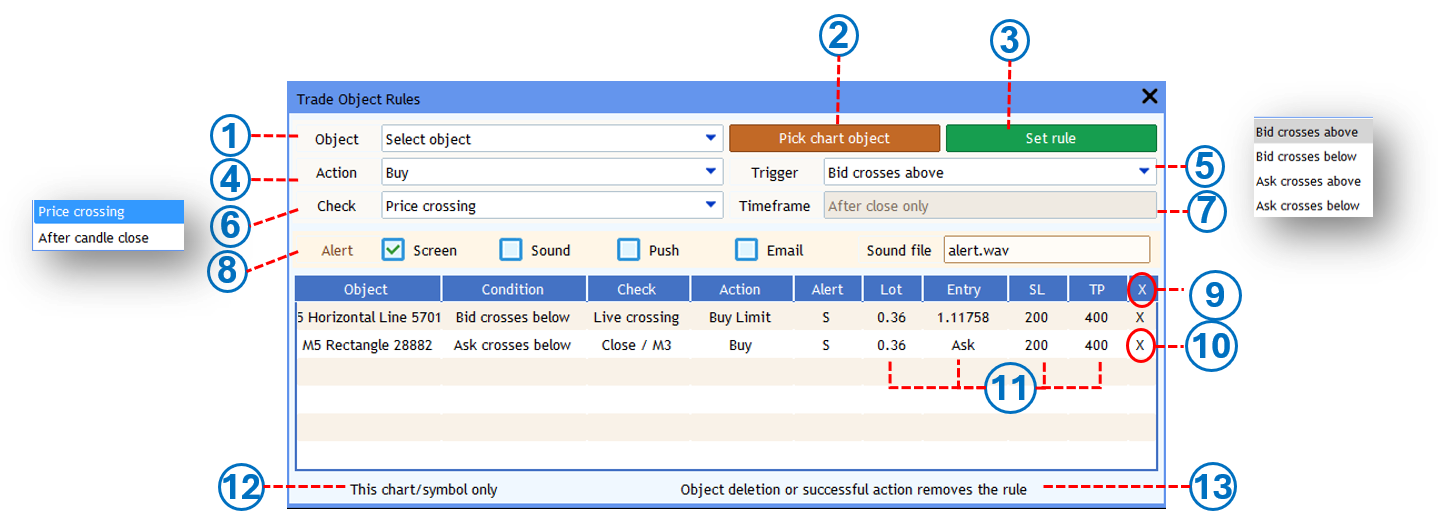 1 — Object
Choose an existing user-drawn horizontal line, trend line, rectangle, or triangle on the current chart. Dashboard objects and trade-history marks are excluded.
2 — Pick chart object
Click Pick chart object, then click the drawing directly on the chart. Click the button again to cancel selection.
3 — Set rule
After setting the options below, click Set rule. The rule appears in the table and the form resets. Lot, SL, TP, and pending-order Entry are copied from the current Trade tab when the rule is created.
4 — Action
Choose Alert, Buy, Sell, a Buy/Sell Limit or Stop order, or Close Buy, Close Sell, or Close All. Alert sends notifications only; trading actions use the dashboard's normal execution checks.
5 — Trigger
Select which price must cross the chosen object and in which direction:
Bid crosses above — Triggers when Bid moves from at or below the object to above it.
Bid crosses below — Triggers when Bid moves from at or above the object to below it.
Ask crosses above — Triggers when Ask moves from at or below the object to above it.
Ask crosses below — Triggers when Ask moves from at or above the object to below it.
💡 With a rectangle or triangle, an upward crossing uses its upper edge and a downward crossing uses its lower edge. The rule is active only within that drawing's time span.
6 — Check
Choose how the crossing is checked:
Price crossing — Checks consecutive live prices. The Timeframe box is inactive in this mode.
After candle close — Compares the last two completed candles on the selected timeframe, on the first tick of the next candle.
7 — Timeframe
Choose the candle period for After candle close. This field is inactive when Check is set to Price crossing.
8 — Alert
Enable any combination of Screen, Sound, Push, and Email. Enter a .wav file from MetaTrader's Sounds folder for Sound. An Alert-only action requires at least one delivery method.
9 — Active rules table
The table lists each rule's object, trigger condition, check mode, action, alert methods, and trade values. The X column contains the removal button for each row.
10 — Delete rule
Click X on a rule's row to remove that rule. The drawing on the chart remains.
11 — Editable trade values
Each applicable value in the Lot, Entry, SL, and TP boxes can be changed directly in its table cell:
Lot — Edit the trade volume.
Entry — Edit the entry price for pending orders. A market Buy or Sell displays Ask or Bid here, so that Entry cell is not editable.
SL — Edit the Stop Loss distance.
TP — Edit the Take Profit distance.
12 — This chart/symbol only
The rule belongs to the chart and symbol on which it was created. It does not run on other charts or symbols.
13 — Automatic removal
The rule is removed when its chart object is deleted or its alert/trading action completes successfully.
💡 If a trade action fails, the rule remains active and waits for a new crossing before another attempt.
💡 To change a saved rule's object, trigger, check mode, action, or alert methods, delete it and create a new rule.
🛠️ Extra Tools
📐 Measure Mode
Trade Dashboard provides several measurement units that can be used to define distance values. The measurement unit can be selected from:
Settings → Risk & Management → Calculation & Units → Auto Measure Mode
💡The purple button located between the SL and TP boxes displays the currently selected measurement unit.
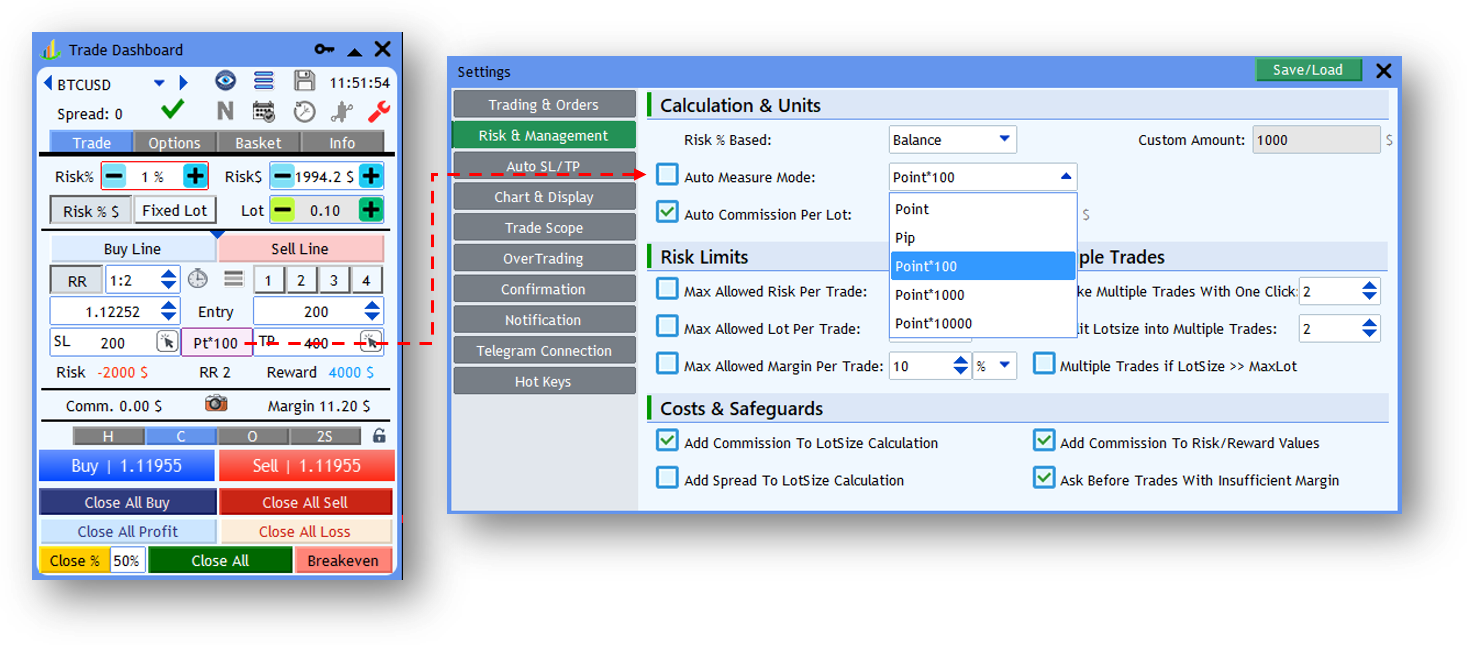
The selected unit is applied throughout Trade Dashboard for all distance-based settings, including Entry, Stop Loss, Take Profit, Breakeven, Partial Close, Trail Stop, and other features that require a distance value.
Available Measurement Units:
Point — Value of the first digit from the right
Pip — Value of the second digit from the right
Point × 100 — Value of the third digit from the right
Point × 1000 — Value of the fourth digit from the right
Point × 10000 — Value of the fifth digit from the right
Depending on the symbol being traded, one measurement unit may be more convenient than another.
For most Forex pairs, Point is recommended.
For many indices and cryptocurrency symbols, Point × 100 often provides more practical values.
💡 When Auto Measure Mode is enabled, Trade Dashboard automatically selects the measurement unit based on the symbol type:
Point for all symbols except cryptocurrencies and indices.
Point × 100 for cryptocurrencies and indices.
💡 The same value can represent very different distances depending on the selected measurement unit.
For example, if you enter SL = 200:
On EURUSD with Point mode, the Stop Loss distance is 20 pips.
On EURUSD with Pip mode, the Stop Loss distance is 200 pips.
On EURUSD with Point × 100 mode, the Stop Loss distance is 2000 pips.
On XAUUSD with Point mode, the Stop Loss distance is 2.00 $.
On XAUUSD with Point × 100 mode, the Stop Loss distance is 200.00 $.
As you can see, the same value (200) can result in very different distances depending on the selected measurement unit.
Example 1 — EURUSD
Assume the current price is EURUSD = 1.12345 and you set SL to 200.
Measurement Unit | Unit Value | Actual SL Distance |
|---|---|---|
Point | 0.00001 | 0.00200 = 20 Pips |
Pip | 0.00010 | 0.02000 = 200 Pips |
Point × 100 | 0.00100 | 0.20000 = 2000 Pips |
Point × 1000 | 0.01000 | 2.00000 |
Point × 10000 | 0.10000 | 20.00000 |
Example 2 — XAUUSD (Gold)
Assume the current price is XAUUSD = 3400.25 and you set SL to 200.
Measurement Unit | Unit Value | Actual SL Distance |
|---|---|---|
Point | 0.01 | 2.00 |
Pip | 0.10 | 20.00 |
Point × 100 | 1.00 | 200.00 |
Point × 1000 | 10.00 | 2000.00 |
Point × 10000 | 100.00 | 20000.00 |
🛡 Auto SL/TP
The Auto SL/TP window is used to configure and manage the ATR and Candle HH/LL modes available for Stop Loss and Take Profit calculations.
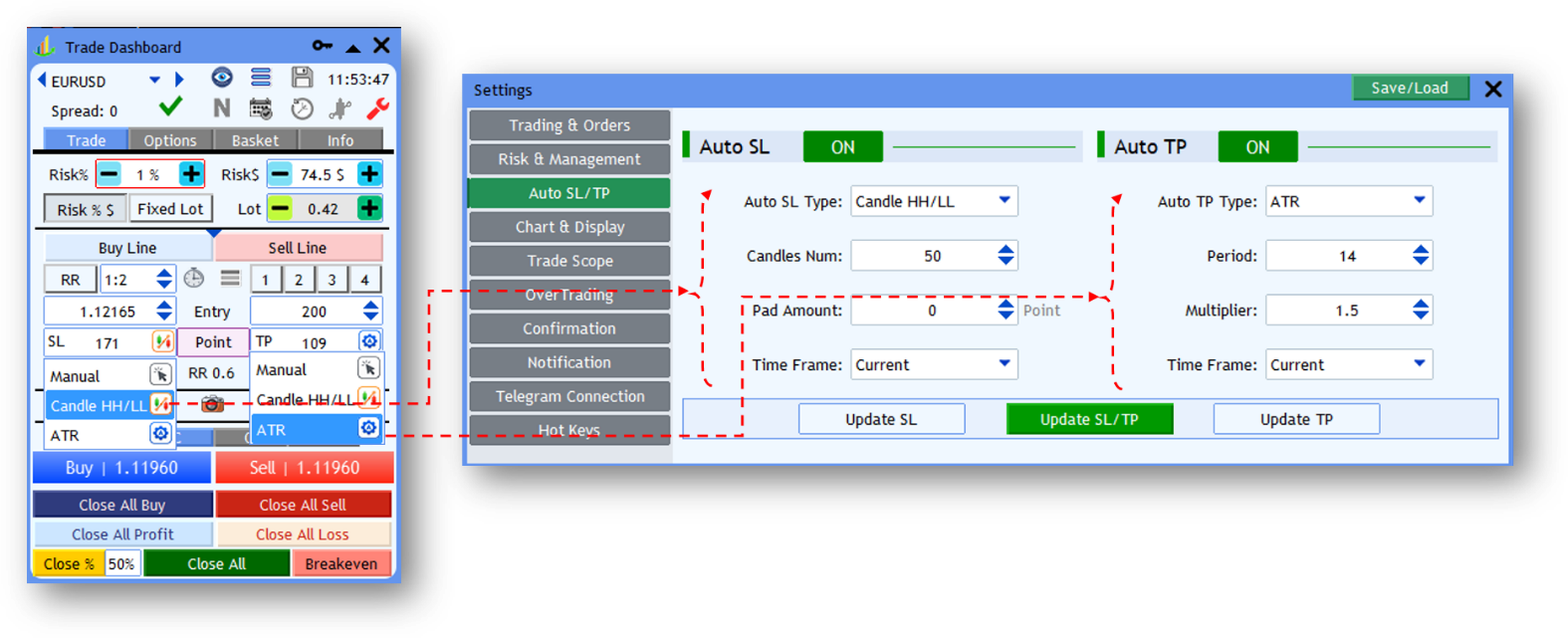
Auto SL/TP can be enabled in two ways:
By clicking the icon next to the SL or TP box in the Trade tab and selecting Candle HH/LL or ATR.
By enabling the Auto SL or Auto TP option directly from this window.
The settings in this window determine how Stop Loss and Take Profit values are calculated when using ATR or Candle HH/LL modes.
💡 For a detailed explanation of the available SL/TP modes and how they work, see: Trade Tab → Trade Parameters → SL/TP Boxes.
You can apply the current settings to existing trades and orders using the Update SL, Update TP, and Update SL/TP buttons.
💡 You can also assign hot keys to the Auto SL/TP, Update SL, and Update TP functions from Settings → Hot Keys.
Auto SL/TP updates the Stop Loss and Take Profit values of the Buy/Sell Line tool according to the current Auto SL/TP configuration. It does not modify existing trades or orders.
Update SL recalculates and updates the Stop Loss of all trades managed by Trade Dashboard based on the current Auto SL settings.
Update TP recalculates and updates the Take Profit of all trades managed by Trade Dashboard based on the current Auto TP settings.
🧱 Grid Orders
The Grid Orders feature allows you to automatically place multiple pending orders in a structured sequence based on price distance, lot scaling, and optional unified risk management.
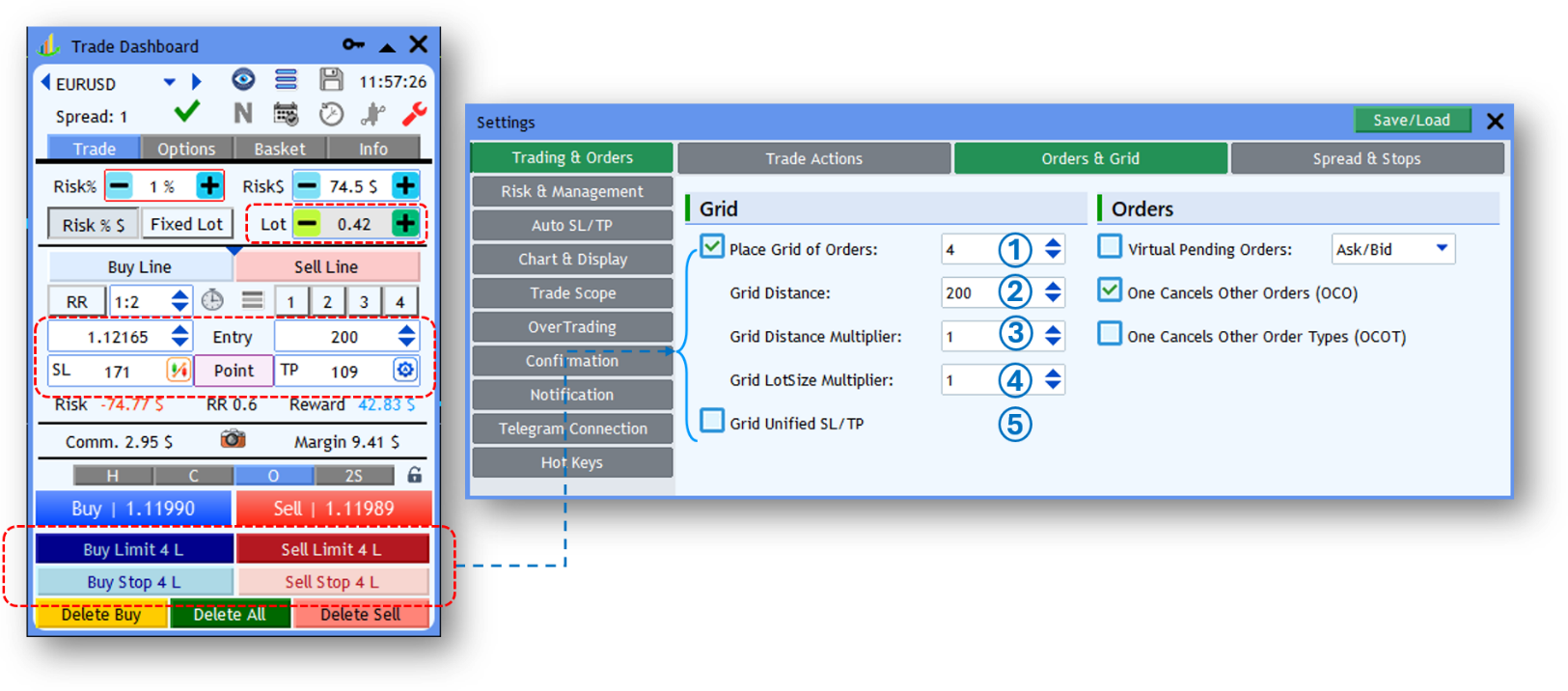
1 — Place Grid of Orders
When Place Grid of Orders (1) is enabled, Trade Dashboard activates grid mode, and the selected number defines how many order levels will be created when using grid buttons.
🔄 For example:
Buy Limit 4L means 4 Buy Limit orders will be placed instead of one.
The first order is placed based on the Entry value on Trade tab (e.g. 1.16003 or a fixed distance such as 100 points from the current market price).
The Stop loss and Take Profit and lot size for each level is taken from Trade tab
2 — Grid Distance
Defines the distance between orders.
3 — Grid Distance Multiplier
Controls how spacing increases between levels.
Default = 1 → all distances are equal
🔄 Example (Multiplier = 1.5):
Level 1 → Level 2 = 200 points
Level 2 → Level 3 = 300 points (200 × 1.5)
Level 3 → Level 4 = 450 points (300 × 1.5)
4 — Grid Lot Size Multiplier
Controls lot size scaling across grid levels.
Multiplier = 1 → all orders use the same lot size
🔄 Example (Multiplier = 1.5):
Level 1 = 1 lot
Level 2 = 1.5 lots
Level 3 = 2.25 lots
Level 4 = 3.38 lots
5 — Grid Unified SL/TP
Controls how Stop Loss and Take Profit are applied across grid orders:
Disabled → Each order uses its own SL/TP from Trade Tab settings
Enabled → All grid orders share a unified SL/TP structure
In unified mode:
For Buy orders: SL is based on the lowest level and TP on the highest level
For Sell orders: SL is based on the highest level and TP on the lowest level
🔄 Example:
SL = 200 points from the lowest Buy Limit level
TP = 400 points from the highest grid level (depending on configuration)
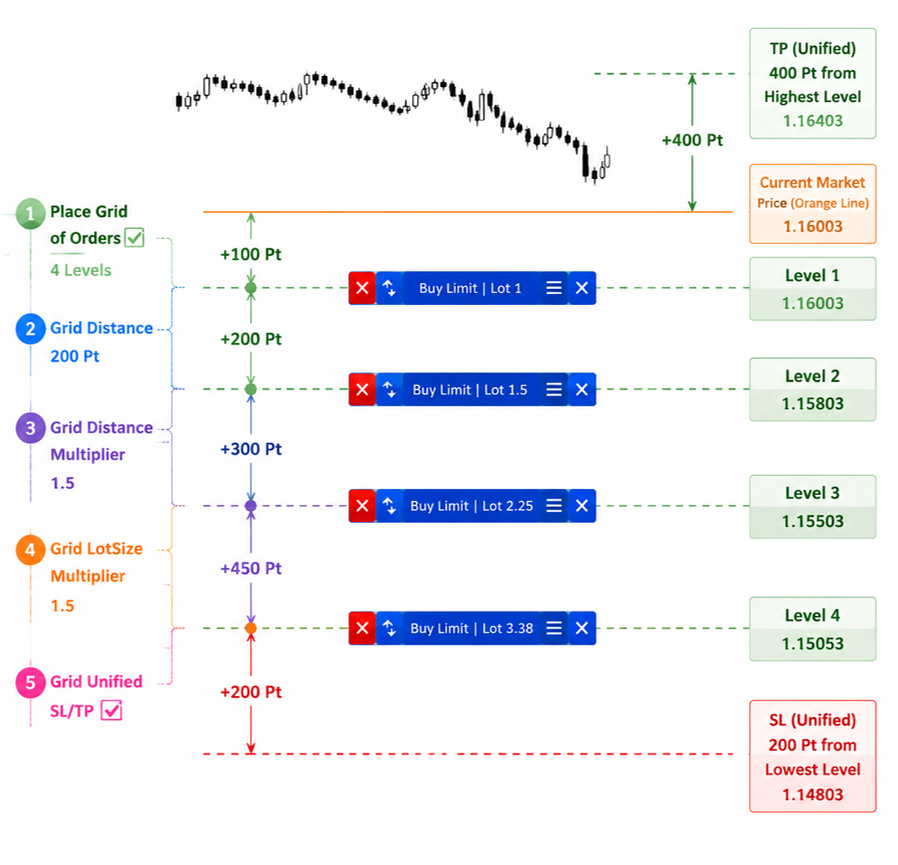
🤖 Manage Manual / EA Trades
Trade Dashboard can manage both manual trades and trades opened by other Expert Advisors (EAs).
Manual trades: Trades opened manually (including mobile/phone trades).
EA trades: Trades opened by other expert advisors.
💡 This feature allows Trade Dashboard to automatically apply risk management tools such as Stop Loss, Take Profit, Partial Close, Breakeven, Trail Stop, and other Basket rules to external trades.
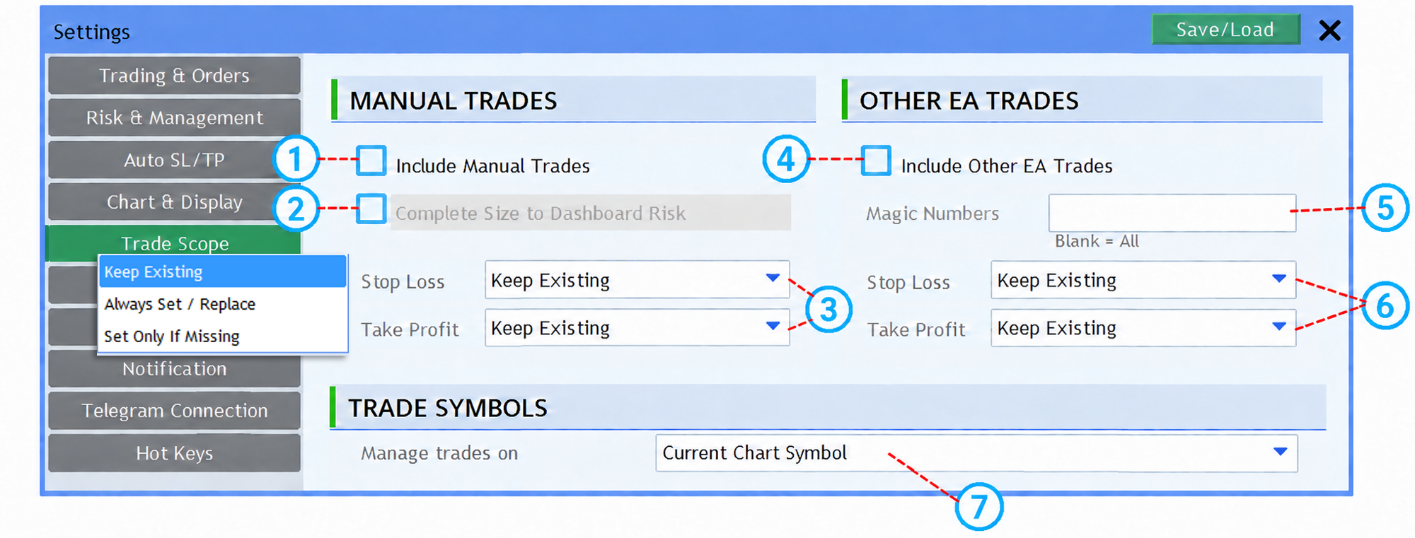
1 — Include Manual Trades
Enable this option to detect and manage manually opened positions, including trades placed from a mobile terminal (magic number 0). Control 7 determines which symbols are included.
Turning the option off removes manual positions from dashboard management; it does not close the broker trades.
2 — Complete Size to Dashboard Risk
When Include Manual Trades is enabled, this option can bring a newly detected manual position up to the lot size calculated by the dashboard. If the manual position is smaller than the target, Trade Dashboard opens a separate position for the difference on the same symbol and in the same direction. It does not change the original position or reduce one that is already larger than the target.
In risk-based sizing, the target uses the manual entry price, a valid Stop Loss, and the current dashboard risk settings. In Fixed Lot Size mode, the selected lot size is the target and an SL is not required for the size calculation. The additional volume follows the broker’s lot step and is sent only when margin and Overtrading checks allow it. A manual ticket is completed only once, including after a restart.
3 — Manual Trade SL and TP Policies
Choose the Stop Loss and Take Profit policies separately. Each dropdown offers the same three options:
Keep Existing → Keep the trade’s current SL or TP. If that level is missing, the dashboard does not add one through this policy.
Set Only If Missing → Add the dashboard’s SL or TP only when the trade has no level of that type. An existing level stays unchanged.
Always Set / Replace → Apply the dashboard’s SL or TP when the manual trade is added, replacing an existing level if one is present.
These policies are applied when the manual trade first enters dashboard management, before optional size completion is calculated.
4 — Include Other EA Trades
Enable this option to manage positions opened by other Expert Advisors. Eligible positions have a nonzero magic number different from the dashboard’s own magic number.
Control 5 filters magic numbers, and control 7 selects the symbols to include.
5 — Magic Numbers
Enter magic numbers separated by commas to limit which other EA trades are managed, for example 12345, 67890. Leave the field blank to include all eligible other EA magic numbers.
Changing the list updates the positions under dashboard management. Removing a magic number does not close its broker positions.
6 — Other EA Trade SL and TP Policies
Choose separate Stop Loss and Take Profit policies for trades opened by other EAs. Each dropdown offers:
Keep Existing → Keep the trade’s current SL or TP. A missing level stays missing.
Set Only If Missing → This option appears in the dropdown, but the current MT4 build does not apply it when an other EA trade is first added. The trade’s existing level is kept.
Always Set / Replace → Apply the dashboard’s SL or TP when the other EA trade is added, replacing an existing level if one is present.
7 — Trade Symbols
The Manage trades on dropdown sets the symbol scope for eligible manual and other EA positions:
Current Chart Symbol → Manage eligible positions only on the symbol of this chart.
All Symbols → Manage eligible positions on other symbols from this dashboard instance as well.
💡 When a trade is included, enabled Partial Close, Breakeven, Trail Stop, and Basket management can also apply to it. You can review included trades in Basket → Positions or Orders.
🛑 Overtrading Protection
The Overtrading Protection system helps prevent excessive trading and reduces the risk of emotional or revenge trading by enforcing customizable trading limits.
💡 Overtrading Protection only restricts Trade Dashboard trading actions. It does not close, modify, or manage existing trades and does not prevent trades from being opened manually or by other Expert Advisors.
💡 If you want Trade Dashboard to automatically close trades when certain conditions are met, use the Basket → Close All tab to configure your close conditions.
🎯 Trade Selection Filters
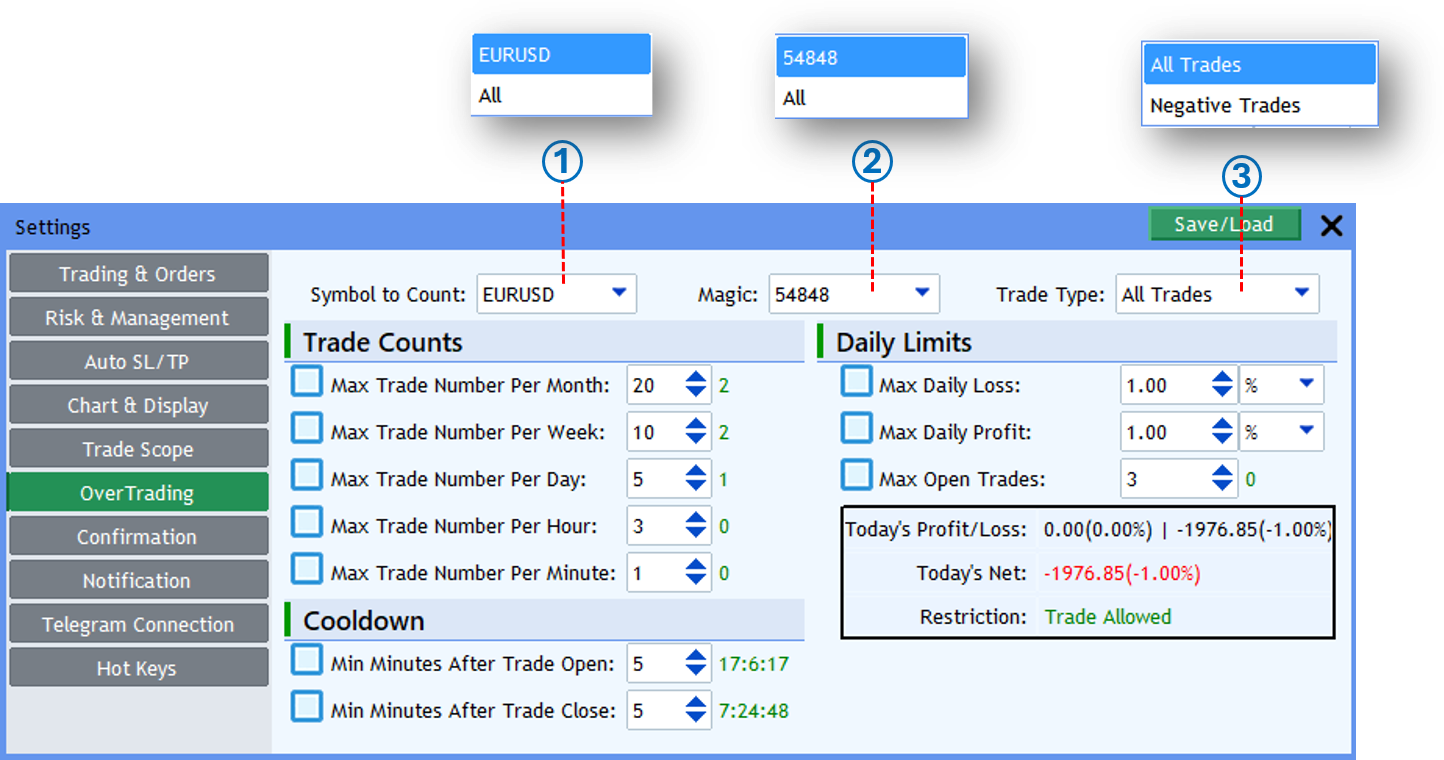
1 — Symbol to Count
Determines which symbols are included in the overtrading calculations.
Current Symbol → Only trades of the underlying chart symbol are counted.
All → Trades from all symbols are counted.
2 — Magic
Determines which magic numbers are included in the overtrading calculations.
Dashboard Magic Number → Only trades opened by the current Trade Dashboard instance are counted.
All → Trades with any magic number are counted.
3 — Trade Type
Determines which trades are included in the calculations.
All Trades → Both profitable and losing trades are counted.
Negative Trades → Only losing trades are counted.
💡 By combining these filters, you can apply overtrading restrictions to a specific symbol, a specific strategy (magic number), or only to losing trades.
🚫 Trading Restrictions
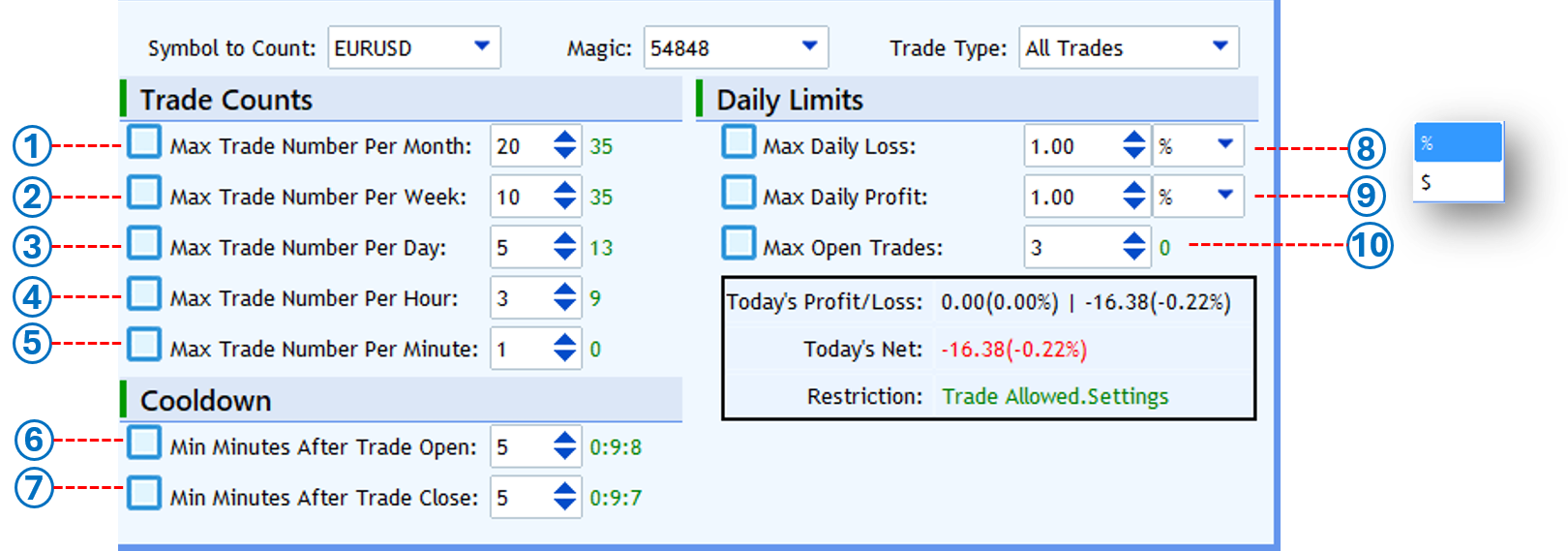
The following settings allow you to define trading limits and restrictions. When any enabled restriction is reached, Trade Dashboard automatically disables the trading buttons and prevents new trades from being opened until the restriction is no longer active.
💡 The green value displayed next to each setting shows the current count or status used for that restriction.
1 — Max Trade Number Per Month
Limits the number of trades that can be opened during the current month.
The trade count is calculated from the beginning of the current monthly candle.
🔄 Example:
Limit = 20
Current Count = 52 (green value)
Since the limit has been exceeded, new trades will not be allowed.
2 — Max Trade Number Per Week
Limits the number of trades that can be opened during the current week.
The trade count is calculated from the beginning of the current weekly candle.
The green value displays the current weekly trade count.
3 — Max Trade Number Per Day
Limits the number of trades that can be opened during the current day.
The trade count is calculated from the beginning of the current daily candle.
The green value displays the current daily trade count.
4 — Max Trade Number Per Hour
Limits the number of trades that can be opened during the current hour.
The green value displays the current hourly trade count.
5 — Max Trade Number Per Minute
Limits the number of trades that can be opened during the current minute.
The green value displays the current minute trade count.
6 — Min Minutes After Trade Open
Prevents opening a new trade until a specified amount of time has passed since the most recent trade was opened.
🔄 Example:
Setting = 5 minutes
Current Value = 0:0:2
Only 2 seconds have passed since the last trade was opened, therefore new trades are still restricted.
7 — Min Minutes After Trade Close
Prevents opening a new trade until a specified amount of time has passed since the most recent trade was closed.
The green value displays the elapsed time since the last trade was closed.
8 — Max Daily Loss
Limits trading based on the account's daily net result, calculated from the beginning of the current trading day:
Daily Net = Total Profits − Total Losses
The limit can be measured in:
Percentage (%) of account balance
Dollar amount ($)
Trade Dashboard restricts new trades when the daily net result becomes equal to or less than the specified loss limit. The loss limit should be entered as a positive value.
🔄 Example:
Profit = $500
Loss = -$1000
Daily Net = -$500
Max Daily Loss = $500
The restriction becomes active because the daily net result has reached the maximum allowed loss.
💡 This feature can help prevent excessive losses during a single day and may assist traders in staying within the daily loss limits imposed by proprietary trading firms
9 — Max Daily Profit
Stops trading once the account's daily net result, calculated from the beginning of the current trading day, reaches a specified profit target.
Daily Net = Total Profits − Total Losses
The daily calculation starts from the beginning of the current trading day.
The limit can be measured in:
Percentage (%) of account balance
Dollar amount ($)
Trade Dashboard restricts new trades when the daily net result becomes equal to or greater than the specified profit target.
🔄 Example:
Profit = $1,000
Loss = -$400
Daily Net = +$600
Max Daily Profit = +$500
The restriction becomes active because the daily net result has exceeded the profit target.
💡 This feature can help traders lock in gains and avoid overtrading after reaching their daily profit target.
10 — Max Open Trades
Limits the maximum number of simultaneously open trades.
🔄 Example:
Limit = 3
Current Open Trades = 2 (green value)
One additional trade can still be opened before the restriction becomes active.
📊 Status Panel
The status panel displays:
Today's Profit/Loss — Total profit and loss for the current day.
Today's Net — Net result after combining profits and losses.
Restriction — Current trading status:
Trade Allowed → New trades can be opened.
Trade Restricted → One or more active restrictions are preventing new trades.
🔔 Trade Notifications
The Notification tab allows you to configure which notifications should be triggered for different Trade Dashboard events.
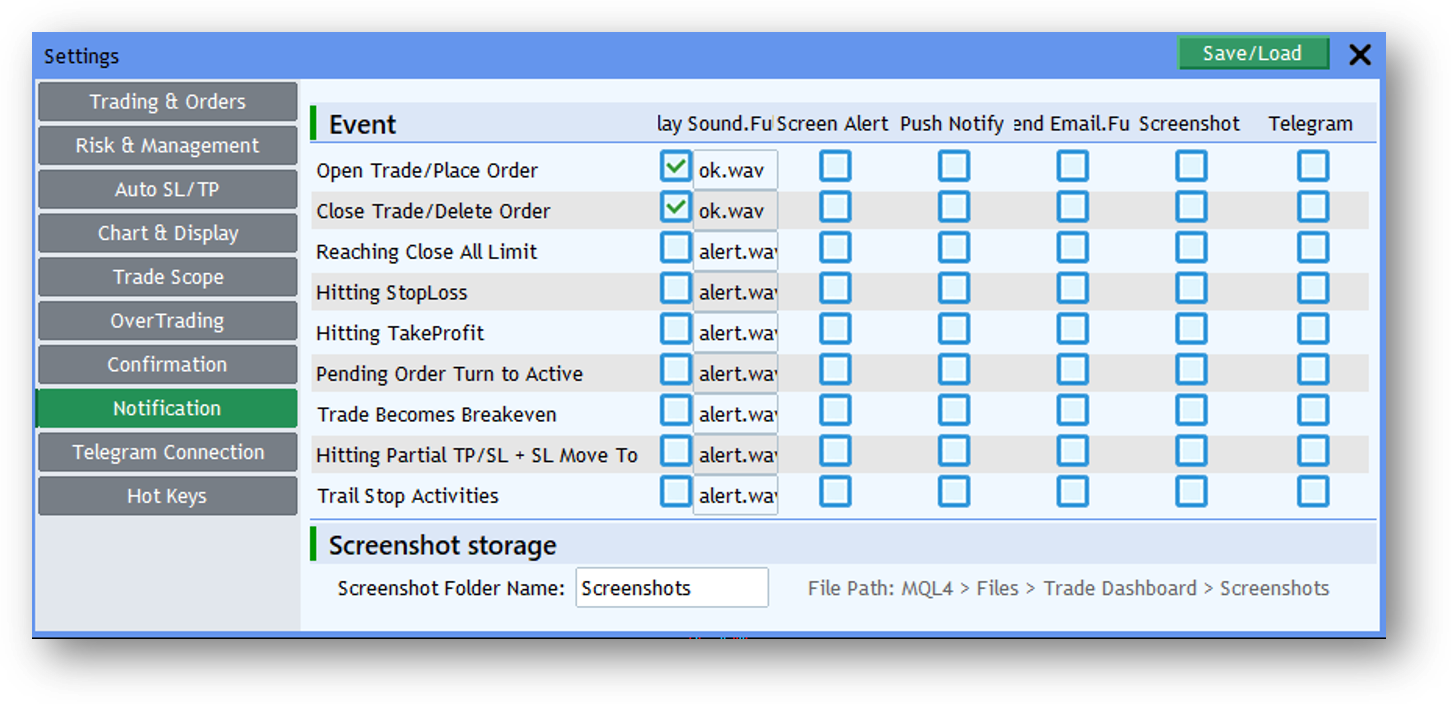
For each event, you can enable one or more notification methods:
Play Sound — Plays a sound file when the event occurs.
Screen Alert — Displays a popup message on the screen.
Push Notify — Sends a push notification to the MetaTrader mobile application.
Send Email — Sends an email through MetaTrader's email notification system.
Screenshot — Captures a screenshot of the chart when the event occurs.
Telegram — Sends an alert for the selected event to the configured Telegram chat or topic.
💡 You can enable several notification methods for the same event.
To use Telegram, enter the bot token and Chat ID on the Telegram Connection tab. The Telegram alerts switch and the event’s Telegram checkbox must both be on to send that event’s alerts.
Selecting an event’s Telegram checkbox checks the bot and chat connection without sending a message. If the check fails, the checkbox stays off. Use Send Test Message on the Telegram Connection tab to verify delivery.
📋 Supported Events
Notifications can be configured for the following events:
Open Trade / Place Order
Close Trade / Delete Order
Reaching Close All Limit
Hitting Stop Loss
Hitting Take Profit
Pending Order Turns Active
Trade Becomes Breakeven
Hitting Partial TP/SL + SL Move To
Trail Stop Activities
💡 The Reaching Close All Limit event is related to the conditions configured in Basket → Close All.
🎵 Sound Files
The sound file used for each event can be customized individually.
Sound files must be in .wav format.
The file must exist in the MetaTrader Sounds folder.
Location: File (top-left corner of MetaTrader) → Open Data Folder → Sounds
📸 Screenshot Storage
When the Screenshot option is enabled, Trade Dashboard automatically captures a chart screenshot whenever the selected event occurs.
The screenshot folder name can be customized using the Screenshot Folder Name field.
The full storage path is displayed at the bottom of the window. By default, screenshots are stored in:
File → Open Data Folder → MQL4 → Files → Trade Dashboard → Screenshots
📱 Push Notifications
To receive push notifications on your mobile device:
Install the MetaTrader mobile application.
Open Settings → Messages and copy your MetaQuotes ID.
In MetaTrader desktop, go to Tools → Options → Notifications.
Enable Push Notifications and enter your MetaQuotes ID.
Click Test to verify the configuration.
✉️ Email Notifications
To receive email notifications:
Open Tools → Options → Email.
Configure your email settings.
Enable the Email option.
Click Test to verify that emails can be sent successfully.
✈️ Telegram Connection
This page uses one Bot Token for two independent features: sending event alerts and receiving private bot commands. Alert Chat ID can be a private chat, group, or channel; Private Chat ID must be a positive numeric ID for the person allowed to command the dashboard. A Topic ID applies only to alerts sent into a forum topic.
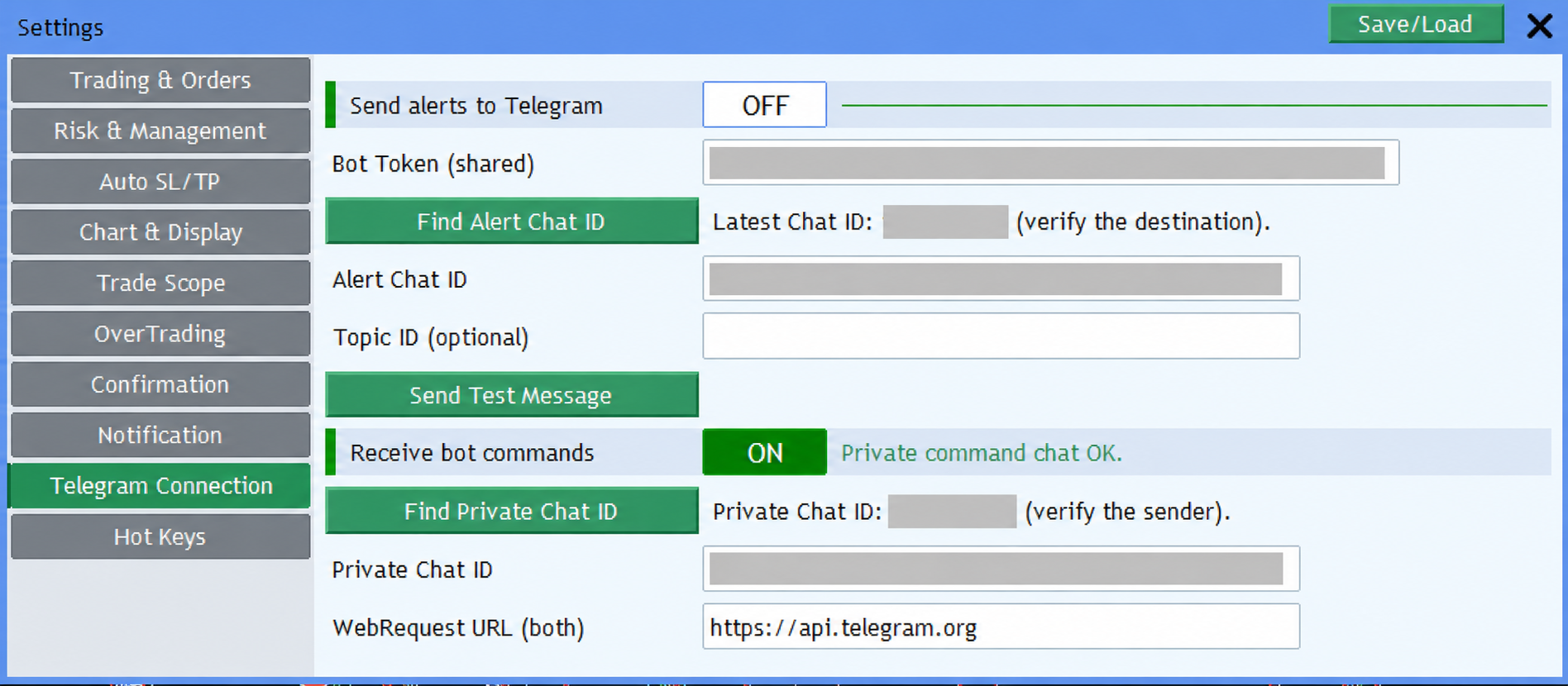
Telegram connection settings
1 — Connect the bot
Create a bot with @BotFather and enter its Bot Token. In MetaTrader, open Tools → Options → Expert Advisors, enable WebRequest for listed URLs, and add https://api.telegram.org. Keep the token private; dashboard settings store it as ordinary text.
2 — Set up alerts if needed
Send the bot a message, then use Find Alert Chat ID or enter the destination manually. Check the destination before sending. Set Topic ID only for a forum topic. Send Test Message posts one real test message. Turn on Send alerts to Telegram and select event checkboxes on Notification to receive event alerts.
3 — Enable private commands
Send the bot a new private message and click Find Private Chat ID, or enter that positive numeric ID yourself. Verify the sender shown in the result. Turn on Receive bot commands. Its connection check does not place a trade. The alerts switch may remain off while private commands are on.
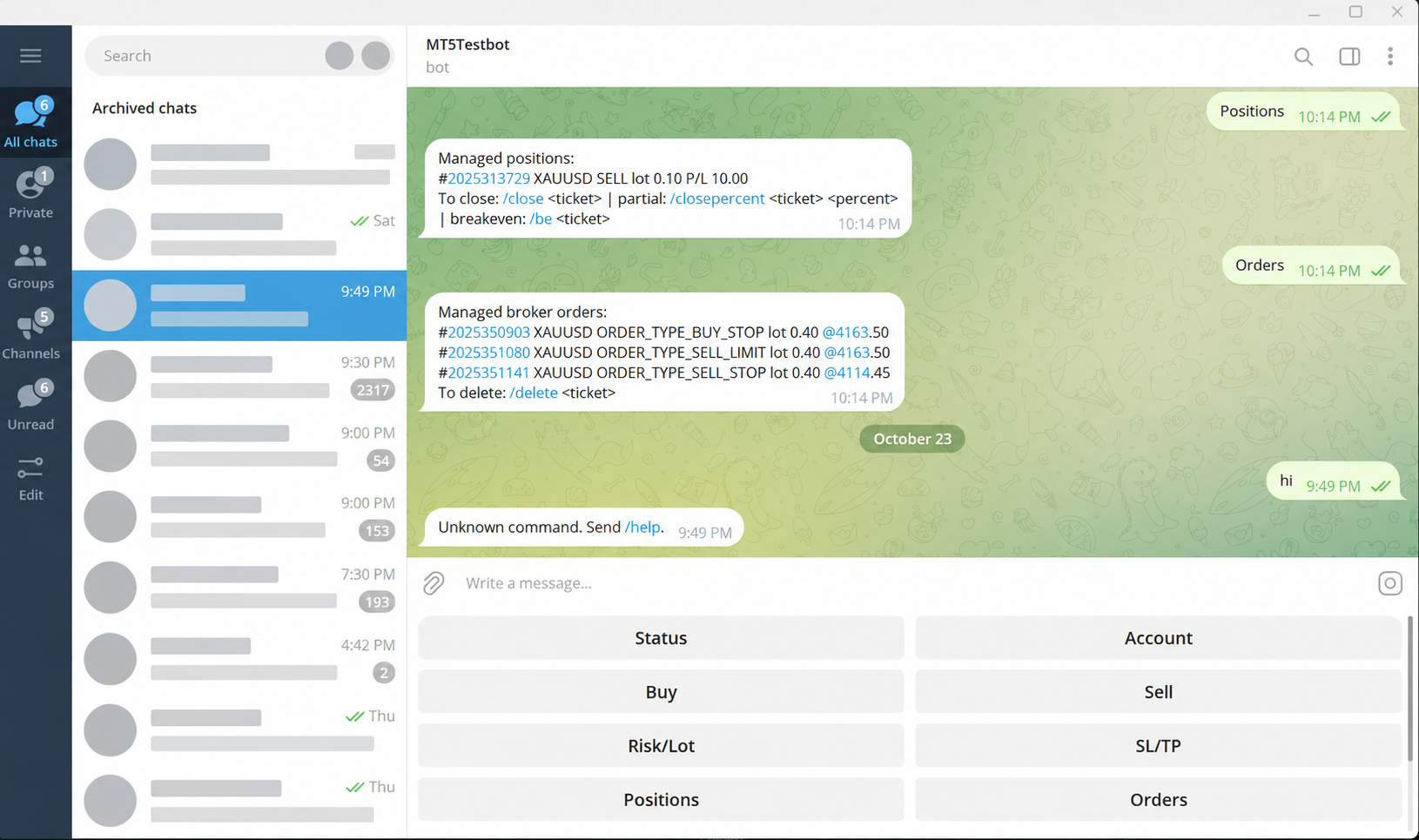
Bot menu and managed tickets
4 — Open the bot menu
In that private chat, send /start or /help. The bot shows buttons for Status, Account, Buy, Sell, Risk/Lot, SL/TP, Positions, Orders, Close/BE, Close All, Delete All, and Help. Status and Account are read-only. Buttons send the matching commands; no BotFather command menu is required.
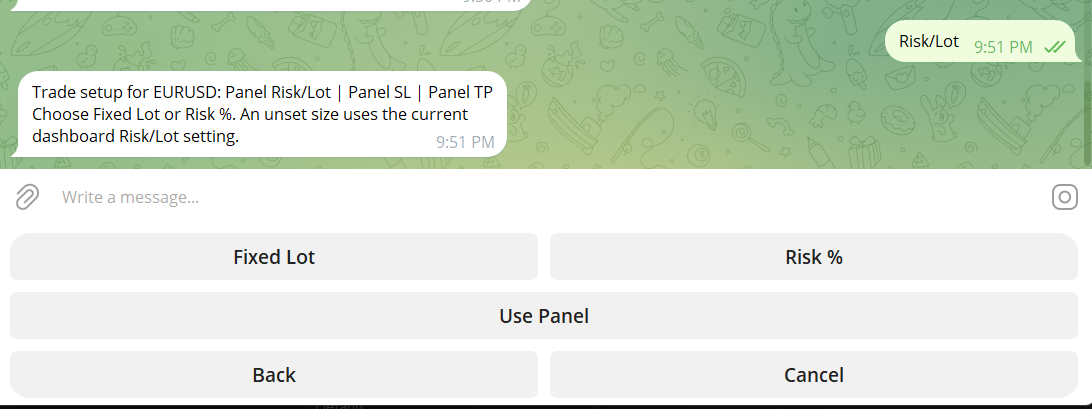
Risk and lot choices
5 — Set trade size and levels
Risk/Lot lets you choose Fixed Lot or Risk %. SL/TP lets you set stop loss by price or broker points, and take profit by price, broker points, or risk/reward ratio. You can also choose No SL or No TP. Use Panel clears a bot override; any unset choice uses the current dashboard setting when Buy or Sell starts a preview. Risk % needs an effective stop loss; Fixed Lot can be used without one.
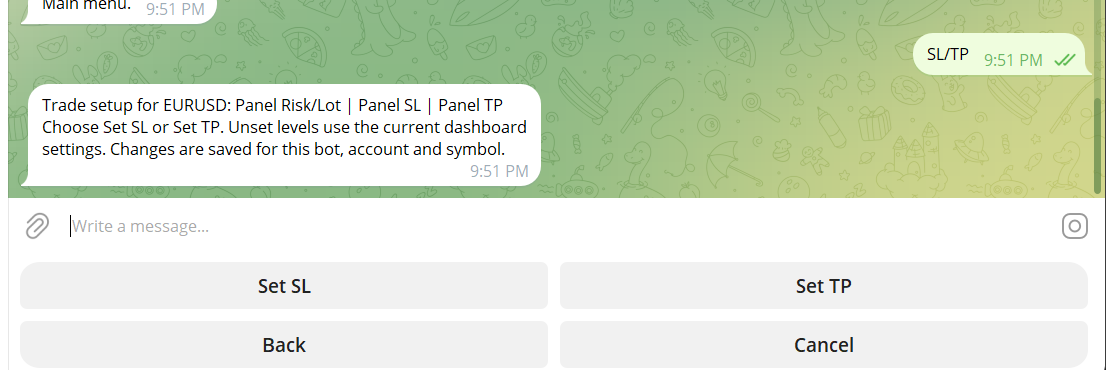
Stop loss and take profit menu
6 — Preview and confirm a market trade
Tap Buy or Sell for the current chart symbol. The bot shows the proposed lot, approximate entry, SL, TP, and approximate loss at SL. Confirm within 30 seconds to submit, or Cancel to discard. Quotes can move before confirmation; the dashboard rechecks broker and risk conditions. If price movement would exceed the selected risk budget, Retry prepares a fresh preview instead of placing the old proposal. Read the broker's result message to see whether the trade actually executed.
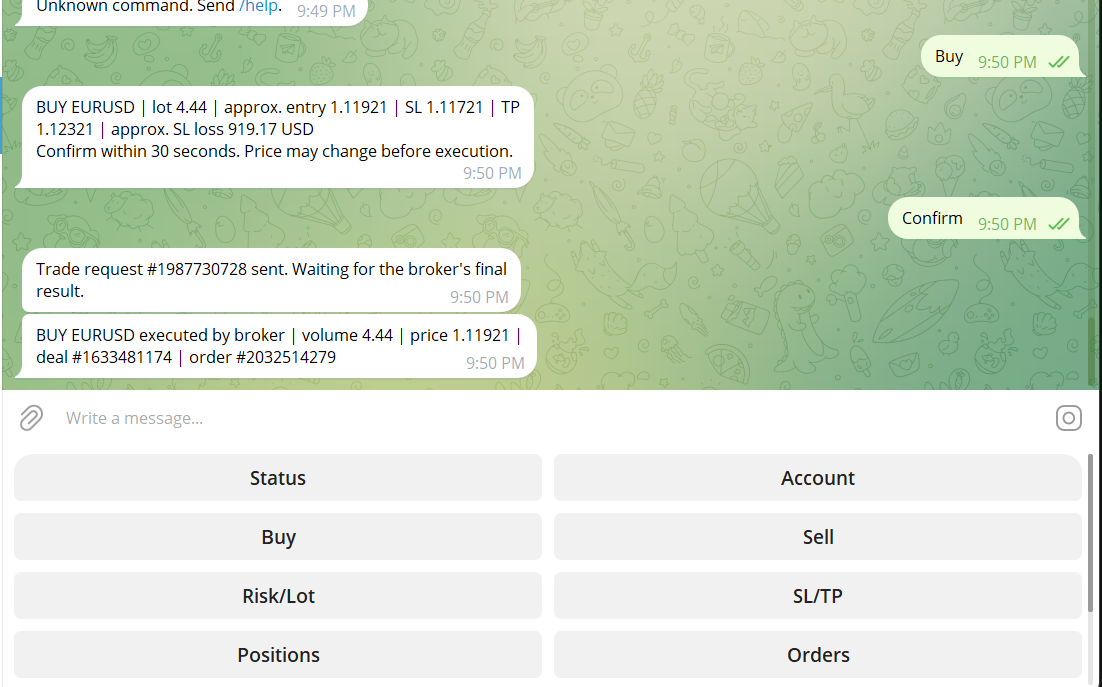
Trade preview and broker result
7 — Manage existing trades and orders
Positions and Orders list live tickets managed by this dashboard. Ticket actions include full or partial close, breakeven, and pending-order deletion. The menus also offer Close Buy, Close Sell, Close By, Close All, and Delete All. Each trading or exit action presents a new confirmation. Delete All applies to broker pending orders, not virtual pending orders or waiting two-stage records.
Private commands work only while the license is valid, automated trading is permitted, and this dashboard's manual trading lock is off. The receiver accepts messages only from the configured private sender. A bot webhook or another getUpdates consumer can prevent reception; use a separate bot for each running terminal. If a command does not appear, check WebRequest permission, the bot token, Private Chat ID, license, and AutoTrading state.
⌨️ Hotkeys
The Hot Keys settings have two views: Trading Hotkeys for trade actions and Panel Hotkeys for dashboard controls. Click either tab above the lists to switch views.
Trading Hotkeys
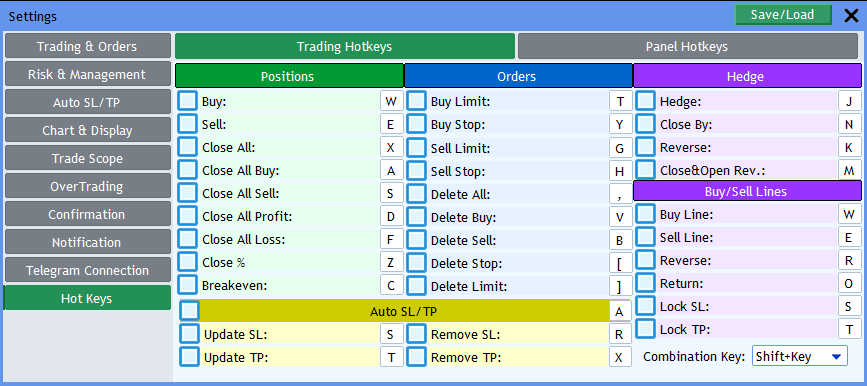
Panel Hotkeys
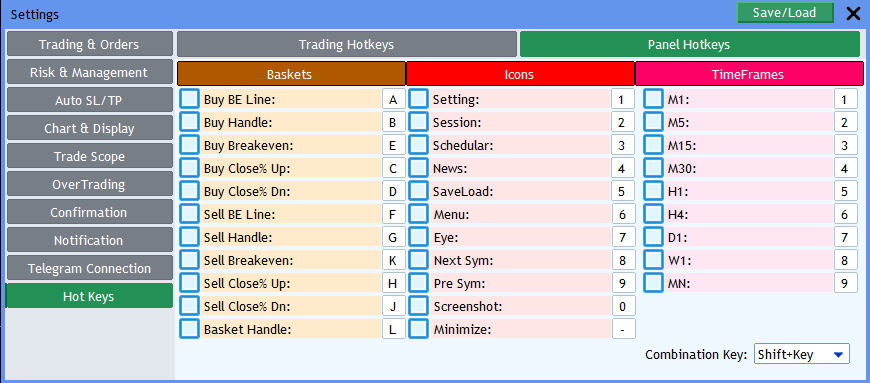
To assign a shortcut, enter one letter, number, or supported symbol in the box beside an action, then click its checkbox to enable it. The Combination Key selector is available at the bottom of both views.
✅ Normal Hot Keys
Clicking a hot key checkbox once enables the hot key in normal mode.
🔄 Example:
Buy = W
Pressing W executes the Buy action.
➕ Combination Hot Keys
Click the same checkbox a second time to change the check mark (✓) to a plus sign (+). A third click turns the shortcut off.
A plus sign means the shortcut works only with the modifier selected in the Combination Key dropdown. This selection applies to both Hotkeys views.
Available combination keys:
Shift + Key
CapsLock + Key
Tab + Key
🔄 Example:
Combination Key = Shift + Key
Buy = W with a + sign
The Buy action is executed only when Shift + W is pressed.
💡 Each function can be configured independently as either a normal hot key or a combination hot key.
💡 Use combination hot keys for critical trading actions such as Buy, Sell, Close All, or Delete All to reduce the chance of accidental execution.
⌨️ Supported Keys
In addition to letters and numbers, the following special characters can also be used as hot keys:
* / ' ;
= - \ [
] , . `
💡 Hot keys are case-insensitive. For example, w is automatically converted to W, and both are treated as the same hot key.
⚠️ Give each enabled action a unique key or key combination. If two actions share the same shortcut, both may respond.
🔧 Actions in the Two Views
Positions — Buy and Sell open trades; Close All, Close All Buy/Sell, Close All Profit/Loss, and Close % close the matching trades. Breakeven applies the current breakeven action.
Orders — place Buy/Sell Limit or Stop orders, or delete pending orders by type.
Hedge — Hedge contains Hedge, Close By, Reverse, and Close&Open Rev. shortcuts.
Buy/Sell Lines — Buy/Sell Lines contains Buy Line, Sell Line, Reverse, Return, Lock SL, and Lock TP.
Time Frames — Use M1, M5, M15, M30, H1, H4, D1, W1, or MN to switch the chart period.
Auto SL/TP — Updates the SL and TP values shown in the dashboard based on the current Auto SL/TP settings. It does not modify the Stop Loss or Take Profit of existing trades.
Update SL Updates the Stop Loss of all trades managed by Trade Dashboard according to the current Auto SL/TP settings.
Update TP Updates the Take Profit of all trades managed by Trade Dashboard according to the current Auto SL/TP settings.
Remove SL Removes the Stop Loss from all trades managed by Trade Dashboard.
Remove TP Removes the Take Profit from all trades managed by Trade Dashboard.
Baskets
Baskets provides shortcuts for the Buy/Sell BE Line, Handle, Breakeven, and Close % Up/Down actions, plus Basket Handle.
Icons
Icons opens or toggles the matching dashboard controls.
🔄 Example:
News opens the News window.
Settings opens the Settings window.
Scheduler opens the Scheduler window.
SaveLoad opens the Save / Load window.
Prev Sym switches to the previous symbol.
Next Sym switches to the next symbol.
Minimize toggles the dashboard between minimized and maximized states.
Menu and Eye toggle their corresponding dashboard controls; Screenshot captures a chart screenshot.
💡 The letters and numbers shown in the screenshots are assigned keys. A shortcut remains off until its checkbox is enabled.
✅ Confirmation Settings
Open Settings → Confirmation to choose which actions require a confirmation or review.
A checked box asks for confirmation before the matching action. The switches are arranged in Trade Actions, Orders, and Settings & Panel groups, and each can be enabled independently.
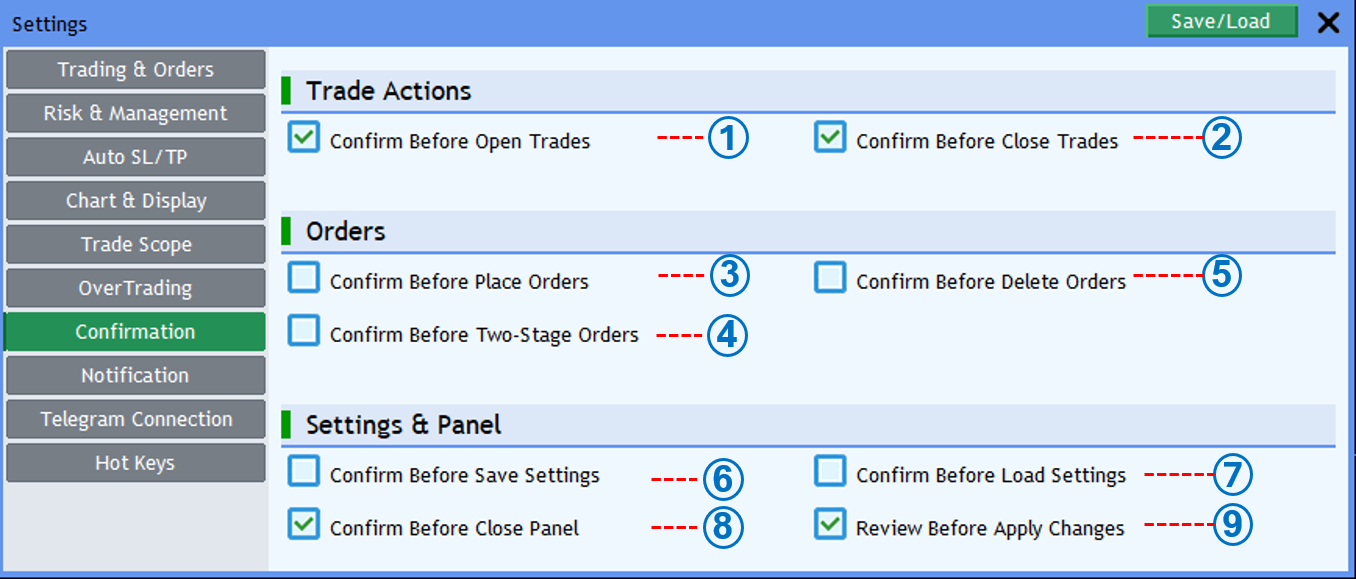
1 — Confirm Before Open Trades
Asks for approval before opening a market trade.
2 — Confirm Before Close Trades
Asks for approval before closing open trades.
3 — Confirm Before Place Orders
Asks for approval before placing pending or grid orders.
4 — Confirm Before Two-Stage Orders
Asks for approval before creating a two-stage order. This switch is separate from Confirm Before Place Orders.
5 — Confirm Before Delete Orders
Asks for approval before deleting pending orders.
6 — Confirm Before Save Settings
Asks for approval before saving dashboard settings.
7 — Confirm Before Load Settings
Asks for approval before loading saved settings.
8 — Confirm Before Close Panel
Asks for approval before closing Trade Dashboard and removing it from the chart.
9 — Review Before Apply Changes
Shows a review before applying Partial Close, Breakeven, Trail Stop, or Trail Limit changes in the Options panel or a trade ticket. Turning this off skips the review; the settings are still validated.
💡 An empty checkbox means that the extra prompt for that action is off. The two-stage order confirmation and Apply Changes review have their own switches.